
9 Best Tablets To Draw Digitally in 2026
This post contains affiliate links. As an Amazon Associate, we earn from qualifying purchases.
For artists ready to move their sketchbook to the screen, the XPPen Artist Pro 22 Gen 2 Drawing Tablet is our Best Overall pick. It wins on its 16K pressure sensitivity and Calman Verified color accuracy that rivals professional monitors. For those who want to draw anywhere without a computer, the XPPen Magic Drawing Pad Standalone Tablet offers that same 16K sensitivity in a portable package. Budget-minded beginners will find a capable entry point in the GAOMON PD1161 Drawing Tablet.
The real challenge in choosing a drawing tablet isn’t brand loyalty, it’s matching the right screen size, pressure sensitivity, and standalone capability to your actual workflow. A pro working in a studio needs different specs than a student sketching on a library desk. This guide cuts through the noise to help you find the tool that fits your art, not the other way around.
We built this guide by analyzing manufacturer specifications, studying expert round-ups from the art community, and identifying patterns in owner feedback across hundreds of user reports. The result is a clear, research-based look at nine tablets that cover the full spectrum of digital drawing needs, from budget-friendly entry points to professional studio displays.
Top 9 Tablets To Draw Digitally in the Market
Certain content that appears on this site comes from Amazon. This content is provided "as is" and is subject to change or removal at any time.
The Best Tablets To Draw Digitally, Reviewed
XPPen Artist Pro 22 Gen 2 Drawing Tablet

What We Like
- 16K pressure sensitivity for lifelike strokes
- Calman Verified Delta E<1 color accuracy
- Paper-feel AG Nano Etched Glass screen
- Includes ACK05 wireless shortcut remote
Trade-offs
- At 12.2 lb, best on a desk with stand
- Requires connection to a computer or device
The 21.5-inch display delivers a 33% increase in pixel density over previous models, so you get a crisp canvas that cuts down on zooming and scrolling. With 16K pressure sensitivity from the X3 Pro chip, every subtle change in your hand translates directly into the line, from the lightest sketch to a bold stroke. And since the screen is Calman Verified with Delta E less than 1, what you see on screen will match your prints, a must for anyone doing color-critical work.
The trade-off is size and weight: at 12.2 pounds, this is a stationary studio companion, not something you toss in a bag. Compared to the Wacom Cintiq 16, which is lighter at 4.5 pounds but has a smaller QHD screen and lower pressure sensitivity, the XP-Pen offers a bigger, more color-accurate display for a similar tethered workflow. It shines for artists who have a dedicated desk and want the best visual fidelity and pen response in a large format.
XPPen Magic Drawing Pad Standalone Tablet
What We Like
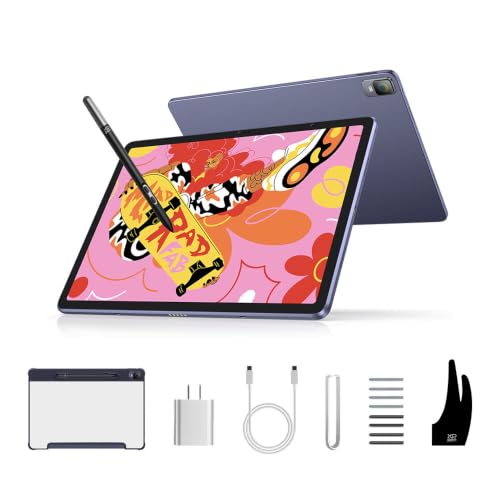
- Paper-like AG-etched screen with 97% sRGB
- No computer needed, Android 14 ecosystem
- 13-hour battery for all-day drawing
Trade-offs
- 12.2-inch screen limits large-scale canvas work
- Android-only app ecosystem, not full desktop software
- At 1.3 pounds, still heavier than some standalone slates
The 12.2-inch AG-etched screen mimics paper texture and covers 97% sRGB, so your colors stay vivid and your hand feels at home. It runs on Android 14, meaning you can pull up Clip Studio Paint or ibis Paint X from Google Play without tethering to a computer. The 8000 mAh battery keeps you drawing for thirteen hours straight.
Screen size is the main compromise: at 12.2 inches, you won’t spread out a full poster or comic page the way you could on a 22-inch monitor like the XPPen Artist Pro 22 Gen 2, which requires a computer. And because it runs Android, you’re working within mobile versions of drawing apps rather than the full desktop suites many professionals rely on. For someone who values hyper-detailed line work and the freedom to draw anywhere without plugging in, this tablet delivers a remarkably precise, self-contained experience.
Product photos
HUION Kamvas 13 Gen 3 Drawing Tablet

What We Like
- 16384 pressure levels for fine control
- Dual dial and 5 shortcut keys
- Factory color calibration report included
- Anti-glare Canvas Glass 2.0 lamination
Trade-offs
- Requires connection to a computer to work
- 13.3-inch screen smaller than some desktop models
- No built-in battery or standalone operation
A 13.3-inch fully laminated screen with 16384 levels of pressure sensitivity means every brushstroke, from the lightest pencil sketch to a heavy ink line, registers exactly as you intend. The dual dials and five programmable shortcut keys let you adjust brush size, zoom, or rotate the canvas without lifting your hand, which keeps your flow uninterrupted. Factory calibration to ΔE<1.5 and 99% sRGB coverage means the colors you see match what prints or exports, so there’s no guessing when mixing digital paints. This is a pen display built for artists who want precision and speed in a compact, portable form.
This tablet is not a standalone device, you need a computer, laptop, or compatible Android device connected via USB-C to use it. At 2.0 pounds and just 0.1 inches thick, it’s easy to slip into a bag alongside a laptop, but if you prefer working away from a desk without a host device, the XPPen Magic Drawing Pad offers that freedom with a similar pressure range. For anyone who already owns a capable computer and wants a dedicated, color-accurate drawing monitor with physical controls, the Kamvas 13 Gen 3 delivers a focused, efficient experience.
Product photos
Wacom MovinkPad Pro 14 Android Tablet
What We Like
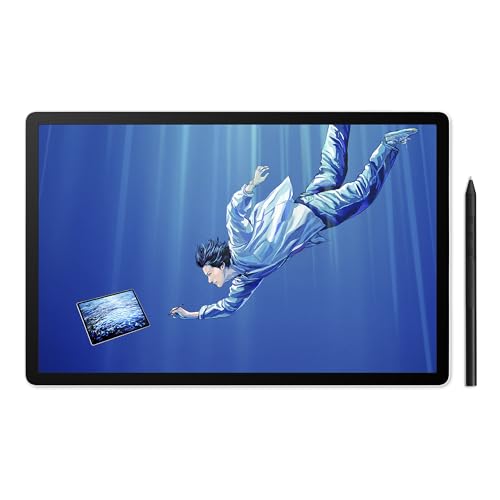
- OLED display with true blacks
- No computer needed, all-in-one
- Anti-glare matte screen for paper feel
- 8192 pressure levels, never charges
Trade-offs
- Does not support Intel Macs or Windows ARM
- Heavier than some standalone tablets at 1.6 lb
This is a standalone Android tablet, so you don’t need a laptop or desktop to start drawing, the Snapdragon 8s Gen 3 processor and 12GB of RAM handle memory-heavy layers without stuttering. The Pro Pen 3 delivers 8,192 pressure levels and never needs charging, with replacement nibs tucked in the pen itself. For an artist who wants a portable, self-contained studio with a screen that rivals professional monitors, this is a thoughtful fit.
Compatibility is the main catch: this tablet won’t connect to Intel-based Macs or Windows ARM systems if you ever want to use it as a secondary display, so check your computer before buying. Against the XPPen Magic Drawing Pad, the Wacom gives you a larger OLED panel and more RAM, but it’s a bit heavier at 1.6 pounds, which matters if you’re sketching on your lap or commuting. The matte etched glass does feel closer to paper than a glossy screen, and the 256GB storage plus microSD expansion means you can keep a solid library of projects without reaching for an external drive every week.
Simbans A10 Tablet To Draw Digitally
What We Like
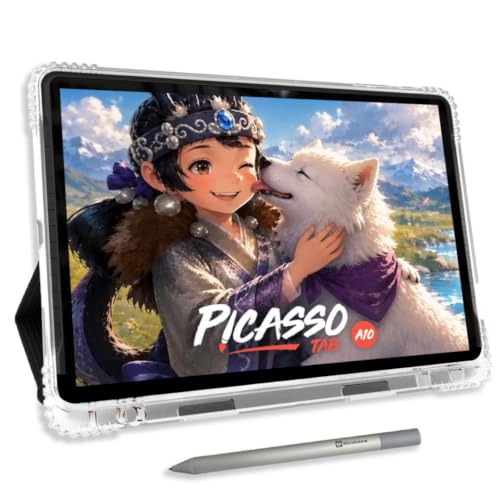
- Standalone tablet, no computer needed
- Laminated paper-like screen reduces glare
- Lifetime VIP tutorials for beginners
- 6 bonus accessories and app upgrades included
Trade-offs
- At 3.3 pounds, heavier than many standalone tablets
- Only 4096 pen pressure levels, lower than some competitors
A 10-inch laminated display with 4096 levels of pressure sensitivity means you get a natural drawing feel that reduces glare and parallax, making it easier to sketch without fighting reflections. This tablet runs entirely on its own, so you can draw anywhere without hooking it up to a computer. It comes preloaded with five creative apps and includes lifetime VIP access to step-by-step tutorials, which is a real help if you are just starting out. The octa-core processor and 6GB of RAM keep things moving smoothly, and the expandable storage gives you room to grow. For someone who wants a complete, ready-to-go drawing setup without spending a lot, this delivers the essentials.
At 3.3 pounds, this tablet is noticeably heavier than the XPPen Magic Drawing Pad, so you’ll feel the extra weight during long drawing sessions or when tossing it in a bag. The 4096 pen pressure levels are perfectly fine for sketching and learning, but the XPPen offers 16384 levels for finer control in subtle shading. The 10-inch screen gives you enough room for casual drawing and guided lessons, though detailed multi-layer illustrations might leave you wanting more canvas. This is a smart, affordable starting point for beginners who want a standalone tablet with built-in tutorials, not a pro-level tool for experienced digital artists.
Product photos
HUION Kamvas Slate 11 Standalone Drawing Tablet

What We Like
- No computer needed, works standalone
- Full-laminated anti-glare matte screen
- 90Hz refresh rate for smooth visuals
- 8000mAh battery for all-day use
Trade-offs
- Only 4096 pressure levels, lower than some rivals
- Android 14 limits pro desktop software
Weighing just 1.1 pounds, this standalone tablet is easy to toss into a bag and take anywhere. Its 8000mAh battery keeps it running through a full day of sketching without needing to hunt for an outlet. The 10.95-inch full-laminated anti-glare screen reduces reflections and provides a paper-like feel under the included H-Pencil, while the 90Hz refresh rate makes strokes appear smooth rather than jerky. It’s a focused tool for artists who want to draw on the couch, in a café, or during a commute without being tethered to a computer.
The trade-off for that featherlight portability is a spec sheet that doesn’t chase the highest numbers. With 4096 pressure levels, it’s perfectly capable for sketching and inking, but the XPPen Magic Drawing Pad offers 16384 levels for finer control if you’re a detail-obsessed illustrator. If you value a truly grab-and-go tool over raw power, this is a focused, lightweight companion for everyday creativity.
GAOMON PD1161 Drawing Tablet
What We Like
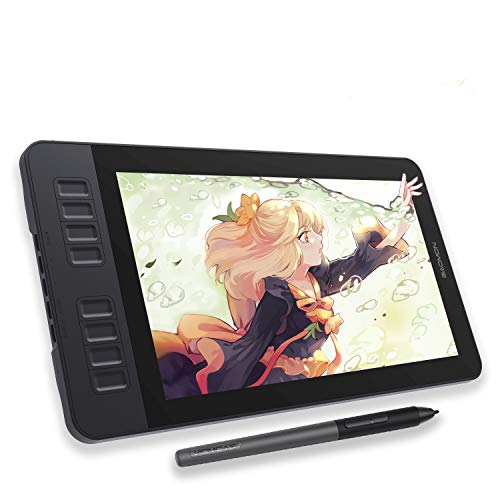
- Battery-free stylus with 8192 pressure levels
- Anti-glare matte film for paper-like feel
- 8 programmable shortcut keys
- 72% NTSC color gamut for vivid display
Trade-offs
- Requires a computer to function
- Weighs 1.9 pounds, so it's not ultra-portable
An 11.6-inch full HD IPS screen with 8192 levels of pressure sensitivity gives you a responsive, detailed drawing surface that feels natural under the pen. The pre-installed anti-glare matte film cuts down reflections, which helps keep you focused. This is a pen display built for artists who want a direct, screen-based drawing experience without stretching their budget, it delivers solid color performance and a battery-free stylus that never needs charging, so you can focus on your sketch without interruptions.
This drawing tablet needs to be connected to a Windows or Mac computer to work, so it won’t replace a standalone device. If you already have a laptop or desktop and want a dedicated screen for sketching, the 11.6-inch full-HD IPS display lets you draw directly on the surface. The pre-installed matte film cuts glare and feels like paper, and the battery-free stylus offers 8192 pressure levels and tilt, so you never have to stop and charge the pen.
Product photos
Frunsi RubensTab T11 Pro Standalone Tablet
What We Like
- No computer needed, fully standalone
- Pre-installed apps and tutorials for beginners
- Battery-free pen for natural strokes
- 5800mAh battery for 5-hour sessions
Trade-offs
- Battery and charger sold separately
- Smaller 10.1" screen limits workspace
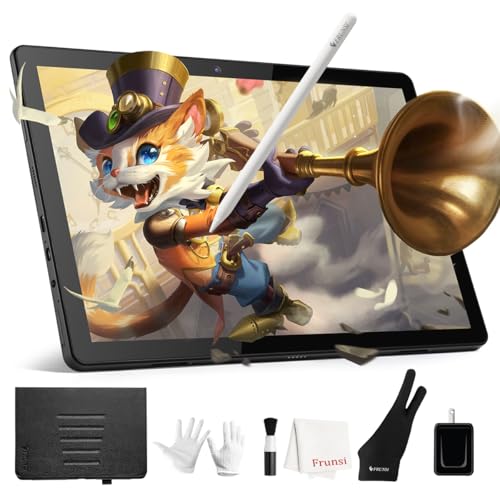
A 10.1-inch FHD screen and a battery-free pressure-sensitive pen make this a true grab-and-go tablet for someone just starting digital art. You power it on and draw immediately, no laptop, no cables, no setup fuss. The pre-installed drawing apps and tutorials remove the guesswork, so a beginner can focus on learning strokes instead of hunting for software. Its slim 0.4-inch profile slides into a bag easily, and the built-in 5800mAh battery gives you about five hours of continuous sketching, which covers most classroom sessions or coffee-shop afternoons.
The charger and battery are sold separately, so you will need to buy those before your first session. Compared to the larger XPPen Magic Drawing Pad, the RubensTab’s 10.1-inch screen feels more cramped for detailed work, though it keeps the whole package lighter and more portable. For a complete beginner who wants a simple, self-contained introduction to digital drawing without a big investment, this tablet removes the barriers and lets you just make marks.
PicassoTab X11 Standalone Drawing Tablet
What We Like
- Fully laminated 2K screen reduces parallax
- Standalone design needs no computer
- Includes lifetime Pro apps and tutorials
- Expandable storage up to 1TB
Trade-offs
- 4096 pressure levels are lower than some rivals
- 11-inch screen is smaller than many desktop tablets
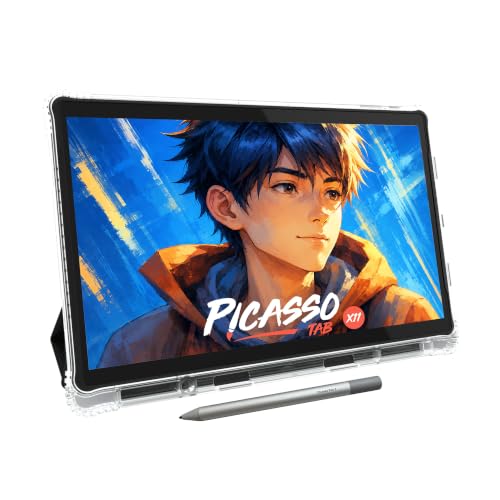
A fully laminated 11-inch 2K display that cuts down parallax and glare is the single most important feature for anyone who wants a natural, paper-like drawing feel without the floaty gap you get on non-laminated screens. This tablet pairs that with a 4096-level pressure-sensitive stylus, enough for precise sketching, shading, and illustration work, and it runs entirely on its own octa-core processor and 6GB of RAM so you never have to tether it to a computer. It suits beginners and students who want a dedicated drawing tool that comes ready to use out of the box, with preloaded creative apps and lifetime tutorial access built right in.
A 4096-level pressure system feels less refined than the 16384 levels on a rival like the standalone XPPen Magic Drawing Pad, so artists who rely on ultra-fine pressure control for delicate line work may notice the difference. The 11-inch screen also keeps this tablet portable and lightweight, but it means less canvas space than a larger desktop model like the Wacom Cintiq 16. For someone starting out or working on the go, the laminated display and standalone convenience make this a focused, affordable entry into digital drawing without needing extra gear.
How We Evaluated Tablets To Draw Digitally
This evaluation is based on detailed manufacturer specifications, professional artist round-ups, and consistent patterns found in owner feedback across multiple platforms. The focus is on what the specs and the community say about each model’s real-world performance.
We prioritized four criteria that matter most to digital artists. Pressure sensitivity was first, the difference between 4096 and 16384 levels directly affects how naturally strokes respond to your hand. Display quality came second, with emphasis on color accuracy (Delta E ratings), color gamut (sRGB and NTSC coverage), and screen lamination to reduce parallax. Standalone capability was critical for artists who need to draw without a computer. Build and portability mattered for those moving between studio and field.
The honest limit of a research-led evaluation is that we can’t tell you how a pen feels in your hand after eight hours of drawing. What we can tell you is which tablets consistently deliver the specs that experienced artists say matter most, and which models have clear trade-offs that might matter to you.
What To Look For In Tablets To Draw Digitally
Choosing the right drawing tablet means understanding how your art style and workspace align with the core specs. Focus on three factors first: pressure sensitivity, display quality, and whether you need a standalone device or a tethered pen display.
Prioritize pressure sensitivity above all else for natural stroke control, then check screen size and color accuracy for your art style. Decide if you need a standalone tablet or if you always work near a computer.
Pressure Sensitivity Levels
Pressure sensitivity determines how naturally the tablet responds to the weight of your stroke. Entry-level tablets offer 4096 levels, which works for casual sketching and note-taking. Mid-range models jump to 8192 levels, providing noticeably finer control for shading and line variation. The current top tier offers 16384 levels (often marketed as 16K), which captures the subtlest changes in pen pressure for lifelike, organic strokes. If you work in detailed illustration or digital painting, investing in higher pressure sensitivity makes a tangible difference in your workflow.
Display Quality and Color Accuracy
A good drawing tablet screen should feel like paper under your pen and show colors faithfully. Look for laminated displays, which reduce the gap between the glass and the LCD, minimizing parallax so your cursor sits exactly where the pen tip touches. Color accuracy matters for print and web artists: a Delta E value under 2 means colors are virtually indistinguishable from the original. Wider color gamuts like 97% sRGB or 72% NTSC ensure vibrant, true-to-life hues. Anti-glare matte finishes are a must for reducing reflections during long sessions.
Standalone vs. Tethered Operation
This is the biggest workflow decision you will make. Standalone tablets run their own operating system (usually Android) and need no computer, offering freedom to draw anywhere. The trade-off is that you are limited to Android-compatible drawing apps, not full desktop software like Photoshop or Clip Studio Paint. Tethered pen displays connect to a computer and act as a second monitor, giving you full desktop software power but tethering you to your desk. Choose standalone for mobility and simplicity; choose tethered for professional software and a larger, fixed workspace.
- Check the battery life on standalone tablets, 13 hours is excellent for all-day use, while 5 hours may require mid-session charging.
- Confirm that the tablet supports your computer’s operating system (Windows, macOS, Android) before buying.
- Look for a battery-free stylus; it eliminates the need to charge your pen and feels more natural.
- Consider the weight and footprint: a 12-pound display is a desk fixture, while a 1.3-pound slate slips into a bag.
- Verify that any included accessories (remotes, stands, stylus holders) match how you work, they can add real value.
A good rule of thumb: buy the highest pressure sensitivity and color accuracy you can afford, then choose standalone or tethered based on where you actually draw most often.
Tablets To Draw Digitally Compared
The table below compares all nine tablets side-by-side on the specs that matter most for digital drawing, including pressure sensitivity, screen size, and whether they work standalone or require a computer.
| Product | Screen Size | Pressure Levels | Standalone? |
|---|---|---|---|
| XPPen Artist Pro 22 Gen 2 Drawing Tablet | 21.5 inches | 16K | No |
| XPPen Magic Drawing Pad Standalone Tablet | 12.2 inches | 16384 | Yes |
| HUION Kamvas 13 Gen 3 Drawing Tablet | 13.3 inches | 16384 | No |
| Wacom MovinkPad Pro 14 Android Tablet | 14" OLED 3K | 8192 | Yes |
| Simbans A10 Tablet To Draw Digitally | 10" laminated paper-like screen | 4096 | Yes |
| HUION Kamvas Slate 11 Standalone Drawing Tablet | 10.95 inches | 4096 | Yes |
| GAOMON PD1161 Drawing Tablet | 11.6" FHD IPS | 8192 | No |
| Frunsi RubensTab T11 Pro Standalone Tablet | 10.1" FHD IPS | Pressure-sensitive | Yes |
| PicassoTab X11 Standalone Drawing Tablet | 11 inches | 4096 | Yes |
Frequently Asked Questions
What pressure sensitivity level do I need for professional digital art?
Professional digital artists should look for at least 8192 pressure levels, with 16384 (16K) being the current industry peak. Higher pressure sensitivity allows for more nuanced control over line weight, shading, and brush opacity, which is essential for detailed illustration and digital painting work.
Can I use a drawing tablet without a computer?
Yes, standalone drawing tablets run their own operating system and do not require a computer. Models like the XPPen Magic Drawing Pad and Simbans A10 operate on Android, giving you access to drawing apps directly on the device. Tethered pen displays, however, must be connected to a computer to function.
What is screen lamination and why does it matter for drawing?
Screen lamination bonds the glass and LCD layers together, eliminating the gap between them. This reduces parallax, the visual offset between where your pen touches the glass and where the cursor appears. A fully laminated screen makes your strokes feel more direct and natural, closely mimicking the experience of drawing on paper.
How important is color accuracy for a drawing tablet?
Color accuracy is critical if you create art for print or digital display where color matching matters. Look for a Delta E value under 2 for professional-grade accuracy, and check the color gamut coverage (sRGB or NTSC). For casual sketching and personal work, standard color accuracy is usually sufficient.
What is the difference between a drawing tablet and a pen display?
A drawing tablet (also called a pen tablet) has no screen, you draw on a flat surface while looking at your computer monitor. A pen display has a built-in screen that shows your artwork directly under your pen, allowing you to draw with your eyes on your hand. Pen displays are more intuitive for most artists but are generally more expensive.
The Bottom Line
For the professional artist building a studio workstation, the XPPen Artist Pro 22 Gen 2 Drawing Tablet delivers the best combination of 16K pressure sensitivity, Calman Verified color accuracy, and a large 22-inch display with a paper-like screen finish. It is a desk-bound tool designed for serious work. It earns its place as our Best Overall pick for those who need color-critical, high-sensitivity drawing.
If you need to draw on the go, the XPPen Magic Drawing Pad Standalone Tablet brings that same 16K pressure sensitivity into a portable, Android-based slate with all-day battery life. Budget-conscious artists should look at the GAOMON PD1161 for a capable tethered display or the Simbans A10 for a complete standalone beginner kit with built-in tutorials.
The single most important factor in choosing your tablet is matching its pressure sensitivity and display quality to the kind of art you make most often. A higher investment in those two specs will pay off in every stroke you draw.
