
8 Best Tablet Pc To Draw On in 2026
This post contains affiliate links. As an Amazon Associate, we earn from qualifying purchases.
For digital artists, the Wacom Cintiq 16 Drawing Tablet stands out as the best overall pick thanks to its large, color-accurate 2.5K QHD display and responsive Pro Pen 3. If you need a portable, computer-free setup, the Wacom MovinkPad 11 Android Tablet is our best standalone choice, while the XPPen Artist 12 3rd Generation wins for ultra-portability.
Choosing the right drawing tablet means balancing screen size, pressure sensitivity, and whether you need it to work on its own or with a computer. A tablet that feels natural under your hand can make the difference between a frustrating session and a productive one.
This guide is based on a careful analysis of each tablet’s specifications, manufacturer details, and patterns found in user feedback. We’ve focused on the features that matter most for drawing, painting, and sketching to help you find the right fit for your creative work.
Top 8 Tablet PCs To Draw On in the Market
Certain content that appears on this site comes from Amazon. This content is provided "as is" and is subject to change or removal at any time.
The Best Tablet PCs To Draw On, Reviewed
Wacom Cintiq 16 Drawing Tablet

What We Like
- 2.5K QHD screen with wide color gamut
- Pro Pen 3 with 8192 pressure levels
- Built-in fold-out legs for 20-degree angle
- USB-C connection with DisplayPort Alt Mode
Trade-offs
- Requires a computer to function
- 4.5 pounds limits one-handed portability
- Needs extra cables for computers without DP Alt Mode
Built-in fold-out legs provide a stable 20-degree working angle right out of the box. The USB-C connection (with DisplayPort Alt Mode or Thunderbolt 3 or 4) keeps the setup simple if your computer supports it.
The main limitation is that this is a display tablet, not a standalone device, it requires a connected Windows or Mac computer to function. At 4.5 pounds, it is heavier than portable options like the Wacom MovinkPad 11 (1.3 pounds), which also works without a computer. If you already have a compatible computer and want a fixed desk setup with a large, color-accurate screen, this tablet fits that need. If you need a lightweight, computer-free drawing solution, a standalone tablet from this guide may be a better match.
Product photos
Wacom MovinkPad 11 Android Tablet

What We Like
- No computer needed, all-in-one design
- 8,192 pressure levels with Pro Pen 3
- Paper-like matte etched glass surface
- Weighs just 1.3 lbs for easy portability
Trade-offs
- Android tablet limits professional desktop software
- Requires Android apps, not full desktop software.
The 8GB of RAM and 128GB of built-in storage mean this tablet can run drawing apps on its own, without tethering to a computer. That freedom is the whole point: tap the pen to the screen and Wacom Canvas opens instantly, just like flipping open a sketchbook. The Pro Pen 3 delivers 8,192 pressure levels through a slim, battery-free barrel, and the matte etched glass feels like paper under the nib. For artists who want to draw anywhere, on a train, in a café, or sitting on the couch, this lightweight 1.3-pound design makes it possible.
The trade-off is the Android operating system. You get CLIP STUDIO PAINT DEBUT for two years and trials of Ibis Paint and other apps, but you won’t run the full desktop versions of Photoshop or Corel Painter. Still, for sketching, note-taking, and digital painting on the go, this is a purpose-built tool that stays out of your way.
Product photos
XPPen Artist 12 3rd Drawing Tablet
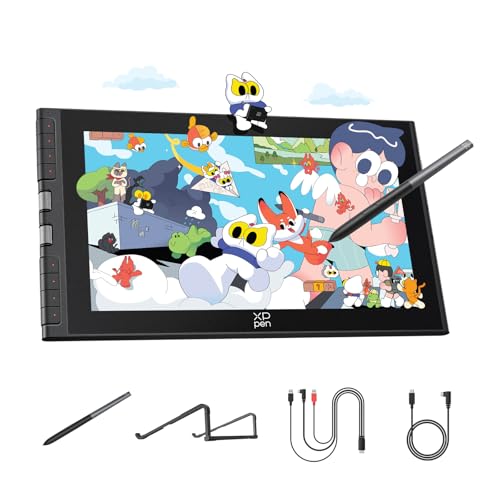
What We Like
- Ultra-light 1.58 lb with foldable stand
- AG etched glass reduces 85% glare
- Dual X-Dial wheels for quick adjustments
- 16K pressure with 2g initial activation
Trade-offs
- 11.9-inch screen smaller than some competitors
- Requires connection to computer or device
- 1920×1080 resolution, not QHD like some rivals
Weighing 1.58 pounds with an 11.9-inch screen, this tablet is light enough to toss in a bag with a sketchbook and not feel the extra load. The AG etched glass cuts 85% of glare and resists fingerprints, so you can work in a bright café or outdoors without squinting. Dual X-Dial wheels let you adjust brush size and zoom on the fly, saving time when you’re in the middle of a line. For digital artists who move between studio, classroom, and coffee shop, this is a lightweight companion that doesn’t compromise on core drawing feel.
Screen real estate is the main consideration here. If portability is your priority, the XPPen delivers; if you want a bigger or sharper display, another size might suit you better.
UGEE UE12 Drawing Tablet

What We Like
- 124% sRGB color gamut
- Full-laminated anti-glare screen
- Battery-free stylus with 16K pressure
- 8 customizable shortcut keys
Trade-offs
- 11.6-inch screen is small for detailed work
- Requires computer or Android device to function
- No built-in storage or standalone capability
The UE12’s 124% sRGB color gamut covers a wider range of colors than standard sRGB, so your digital artwork can display more saturated hues. The full-laminated, anti-glare screen provides a zero-parallax drawing experience, meaning the pen tip appears exactly where the cursor is. For artists who work in sRGB or Adobe RGB color spaces, this tablet can display those colors as intended, with no parallax offset.
The zero-parallax full-laminated screen means your cursor sits exactly where the pen tip touches, which eliminates the offset that plagues many budget tablets. At 11.6 inches diagonally, the display is compact enough to tuck into a laptop bag but still gives you room for detailed line work. Because it requires a computer or Android device to run, this is a desk-bound tool for artists who want precise, lag-free drawing without the bulk of a standalone tablet.
HUION Kamvas Pro 16 Drawing Tablet
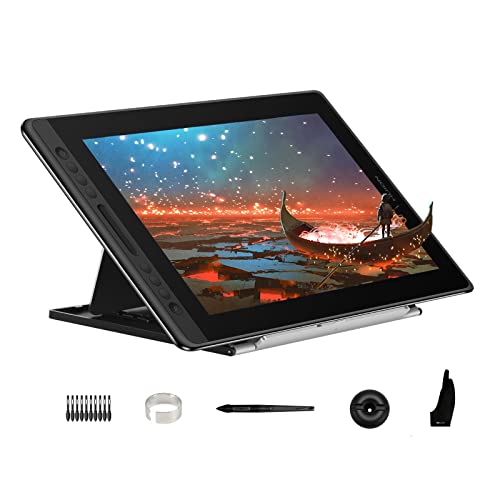
What We Like
- 120% sRGB color gamut volume
- Fully laminated anti-glare glass
- Adjustable stand (20-60°)
- Battery-free pen with tilt
Trade-offs
- Requires a computer to function
- Only 6 customizable express keys
This is a pen display, not a standalone tablet: you must connect it to a Windows, Mac, or Linux computer to draw. At 3.0 pounds, the included stand keeps it stable, but the whole setup is less portable than a standalone tablet that runs without a computer and weighs only 1.3 pounds. The six express keys and touch bar offer quick access to shortcuts, though some artists may prefer more physical controls. If you already have a capable laptop or desktop and want a large, vivid screen for detailed digital art, this is a practical option.
Product photos
HUION Kamvas 13 Gen 3 SE Drawing Tablet
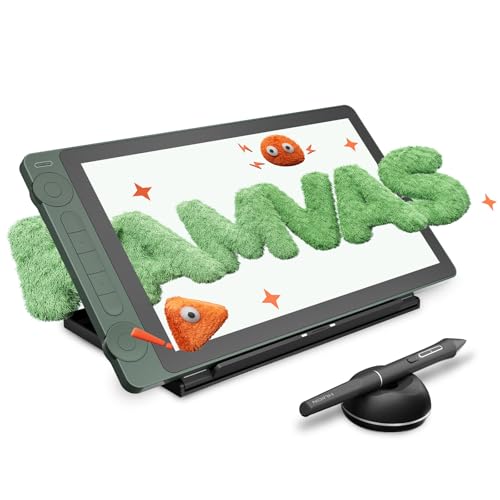
What We Like
- 16K pressure sensitivity for fine control
- Factory color calibration ΔE<1.5
- Dual dial and 5 silent keys
- Anti-sparkle nano-etched glass
Trade-offs
- Requires connection to a computer or Android device
- At 5.5 lb, it's heavier than some alternatives
- No standalone operation
The 16K pressure sensitivity on this Huion captures fine variations in stroke weight and opacity, with a 2g initial activation force that responds to the lightest touch. The factory calibration to ΔE<1.5 ensures the colors you see on screen are accurate for digital work, backed by a calibration report. The anti-sparkle nano-etched glass reduces image noise under white backgrounds, giving you a clearer view of your canvas without distracting sparkle.
The biggest limitation is that this drawing tablet must be connected to a computer, laptop, or Android device to work, it’s not a standalone unit that runs on its own. At 5.5 pounds, it’s heavy enough to stay planted on a desk, so you won’t accidentally knock it around while working. If you’re fine with a fixed setup and need the 16K pressure sensitivity for precise line control, these trade-offs won’t bother you.
Product photos
XPPen Magic Drawing Pad Standalone Tablet
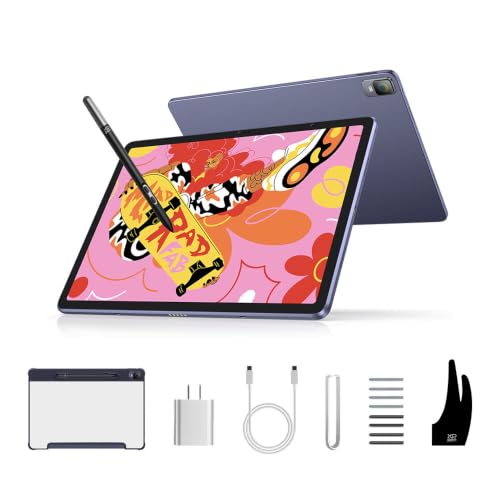
What We Like
- Industry-first 16K pressure sensitivity
- Paper-like AG-etched screen
- 13-hour battery for all-day drawing
- Weighs only 1.3 pounds
Trade-offs
- Android 14 limits professional desktop software
- 12.2-inch screen smaller than some studio tablets
- No included stand or cover for propping up
It runs Android 14, so you get access to Clip Studio Paint and ibis Paint X right out of the box, perfect for artists who want a self-contained creative tool that slips into a bag.
Android 14 won’t run full desktop apps like Adobe Photoshop or Corel Painter, so if your workflow depends on those, a tethered display tablet like the Wacom Cintiq 16 may suit you better. But for anyone who values portability and wants to draw anywhere without a computer, this pad’s combination of featherlight build, long battery life, and class-leading pen sensitivity is hard to beat.
Product photos
Simbans A10 Tablet Pc To Draw On
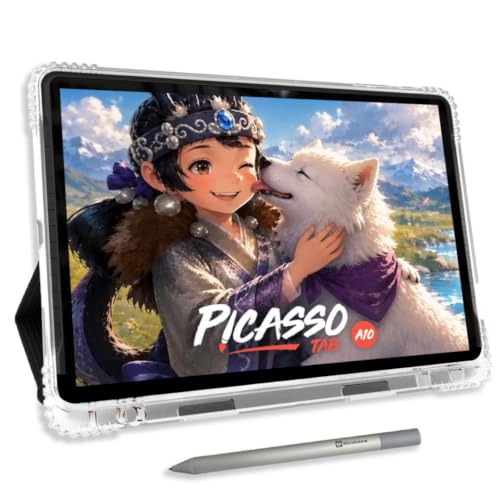
What We Like
- Standalone, no computer needed
- Lifetime VIP tutorials included
- Paper-like laminated screen reduces glare
- 6 bonus items worth value
Trade-offs
- 10" screen smaller than many competitors
- At 3.3 lb, heavier than some portable tablets
- Only 4096 pen pressure levels
A 10-inch paper-like laminated display with a 4096-level pressure pen gives beginners a natural drawing feel without the glare or parallax that can throw off your strokes. This standalone tablet runs drawing apps directly, so you don’t need a computer, and the lifetime VIP tutorials offer step-by-step lessons to guide your learning. The octa-core processor and 6GB of RAM handle sketching, painting, and light multitasking, while the expandable storage leaves room for projects as you grow.
The 10-inch screen feels compact compared to the 15.6-inch HUION Kamvas Pro 16, which gives you more canvas for sweeping strokes and detailed work. And at 3.3 pounds, the A10 is noticeably heavier than the 1.3-pound XPPen Magic Drawing Pad, so it’s less ideal for slipping into a bag and drawing on the go.
How We Evaluated Tablet PCs To Draw On
To find the best drawing tablets, we started by diving into the technical specifications and manufacturer documentation for each model. We then cross-referenced these specs with patterns found in owner feedback and expert round-ups to understand how each tablet performs in real-world use.
Our evaluation focused on four key criteria: display quality (resolution, color accuracy, and anti-glare properties), pen performance (pressure sensitivity levels and initial activation force), portability (weight and standalone capability), and overall value relative to features offered. For a drawing tablet, the screen and pen are everything. If the line doesn’t follow your hand naturally, the rest doesn’t matter.
It’s important to be honest about what this research can tell us. We haven’t tested these tablets ourselves, so our conclusions are based on what the specs and community feedback consistently reveal. This approach helps you narrow down your options, but the final feel of a pen on a screen is something only you can judge.
What To Look For In Tablet PCs To Draw On
Choosing a drawing tablet can feel overwhelming with so many specs to consider. Focus on the core components that directly affect your drawing experience: the display, the pen, and how you plan to use it.
A great drawing tablet combines a clear, responsive screen with a pen that feels natural. Look for high pressure sensitivity, a laminated display to reduce parallax, and a size that fits your workspace and drawing style.
Display Quality: Resolution, Color, and Glare
The screen is your canvas, so clarity and color accuracy are paramount. A QHD or higher resolution (like the 2.5K display on the Wacom Cintiq 16) provides sharper lines and more detail than standard 1080p. Color gamut, measured in sRGB percentage, determines how vibrant and true-to-life your colors will appear; look for 100% sRGB or higher for professional work.
A fully laminated screen reduces the gap between the glass and the display, minimizing parallax so your cursor appears directly under the pen tip. Anti-glare or etched glass coatings, like the AG etched glass on the XPPen Artist 12, cut down on reflections and create a more paper-like drawing surface.
Pen Performance: Pressure Sensitivity and Feel
Pressure sensitivity is measured in levels, with higher numbers like 16K (16,384 levels) offering finer control over line weight and opacity. The initial activation force (IAF) is just as important, a lower IAF, such as 2 grams, means the pen will register the lightest touch, which is crucial for delicate sketching and shading.
A battery-free pen is generally preferred because it never needs charging and feels lighter and more balanced than a battery-powered one. Tilt support allows you to shade naturally by angling the pen, mimicking the feel of a real pencil or brush.
Standalone vs. Computer-Required
This is the most fundamental choice. A standalone tablet, like the Wacom MovinkPad 11 or the XPPen Magic Drawing Pad, runs its own operating system (usually Android) and doesn’t need a computer. This offers portability and convenience, but you’re limited to mobile apps rather than full desktop software like Adobe Photoshop or Clip Studio Paint.
A computer-required tablet, like the Wacom Cintiq 16, acts as a high-quality monitor and input device. It offers full access to professional software and typically has a larger, higher-resolution display, but it ties you to a desk and a separate computer.
- Decide if you need to work away from a desk or if you’ll always be at a dedicated workstation.
- Check the connection requirements: some tablets use USB-C with DisplayPort Alt Mode, while others need HDMI and USB cables.
- Consider the weight and size of the tablet if you plan to move it between locations.
For most professionals, a computer-required display tablet offers the best performance and software compatibility, while standalone tablets are ideal for sketching on the go.
Tablet PCs To Draw On Compared
The table below compares the key specs of our top picks, so you can see at a glance how they stack up in terms of display, pen, and portability.
| Product | Screen Size | Pressure Levels | Weight |
|---|---|---|---|
| Wacom Cintiq 16 Drawing Tablet | 16 inches | 8192 | 4.5 pounds |
| Wacom MovinkPad 11 Android Tablet | 11.45" | 8,192 | 1.3 pounds |
| XPPen Artist 12 3rd Drawing Tablet | 11.9 inches | 16,384 | 1.58 lb |
| UGEE UE12 Drawing Tablet | 11.6 inches | 16K levels | N/A |
| HUION Kamvas Pro 16 Drawing Tablet | 15.6 inches | N/A | 3.0 pounds |
| HUION Kamvas 13 Gen 3 SE Drawing Tablet | 13.3 inches | 16K levels | 5.5 pounds |
| XPPen Magic Drawing Pad Standalone Tablet | 12.2 inches | 16384 | 1.3 pounds |
| Simbans A10 Tablet Pc To Draw On | 10" | 4096-level | 3.3 pounds |
Frequently Asked Questions
What is the best drawing tablet for a beginner?
The Simbans A10 Tablet Pc To Draw On is a great starting point for new digital artists. It works on its own, so you don’t need a computer, and it comes with lifetime VIP tutorials to help you learn. While its 4096 pressure levels are lower than professional tablets, it’s a low-pressure way to start drawing digitally.
Do I need a computer to use a drawing tablet?
It depends on the model. Some tablets, like the Wacom MovinkPad 11 and the XPPen Magic Drawing Pad, are standalone devices that run their own operating system, so no computer is needed. Others, like the Wacom Cintiq 16 and the HUION Kamvas Pro 16, are pen displays that must be connected to a Windows or Mac computer to function.
What is the difference between a drawing tablet and an iPad for art?
An iPad is a general-purpose device that can run drawing apps like Procreate, but it’s not a dedicated drawing tablet. Drawing tablets like those from Wacom and XPPen are built specifically for art, often featuring higher pressure sensitivity, a paper-like screen texture, and a pen that doesn’t need charging. They also connect to professional desktop software that iPads cannot run.
How important is pressure sensitivity for drawing?
Pressure sensitivity is very important for natural-looking line work and shading. Higher levels, like 8192 or 16K, give you finer control over the thickness and opacity of your strokes. The initial activation force is equally critical, a pen that registers the lightest touch will feel much more responsive and natural than one that requires a firm press.
What screen size should I get for digital art?
Screen size is a personal choice that depends on your workspace and drawing style. An 11 to 13-inch tablet is very portable and works well for sketching and on-the-go use. A 16-inch or larger display, like the Wacom Cintiq 16, provides a more immersive canvas for detailed illustrations and is generally preferred for studio work, though it takes up more desk space.
The Bottom Line
For artists who already own a computer and want a professional-grade studio setup, the Wacom Cintiq 16 Drawing Tablet is our top recommendation. Its large, color-accurate display and excellent pen make it a reliable tool for serious digital art.
If you need to draw on the go without a computer, the Wacom MovinkPad 11 Android Tablet offers a fantastic all-in-one experience with a paper-like feel. For those on a tighter budget or just starting out, the Simbans A10 provides everything you need to begin your digital art journey without a computer.
The single most important factor is honesty about your workflow: choose a standalone tablet if you value portability and simplicity, and a computer-required display if you need the full power of desktop creative software.
