8 Best Tablet Pc For Artists in 2026
This post contains affiliate links. As an Amazon Associate, we earn from qualifying purchases.
For digital artists, the XP-Pen Artist Ultra 14 Drawing Monitor stands out as the best overall choice, thanks to its stunning 2.8K OLED display and impressive color accuracy. It delivers a responsive, studio-grade drawing experience that serious illustrators and designers will appreciate. For those who prefer drawing without a computer, the Wacom MovinkPad 11 Android Drawing Tablet offers excellent standalone portability.
The challenge with finding the right tablet PC for art is balancing screen quality, pressure sensitivity, and whether you need a computer to power it. A standalone tablet lets you sketch anywhere, while a pen display connects to your existing PC for full desktop software power. Many artists also struggle with color accuracy, especially when their work is destined for print.
This guide is built on a careful analysis of manufacturer specifications, expert round-ups, and patterns in owner feedback. We break down the key features, from display resolution to stylus technology, so you can confidently choose the drawing tablet that fits your workflow and budget.
Top 8 Tablet PCs For Artists in the Market
Certain content that appears on this site comes from Amazon. This content is provided "as is" and is subject to change or removal at any time.
The Best Tablet PCs For Artists, Reviewed
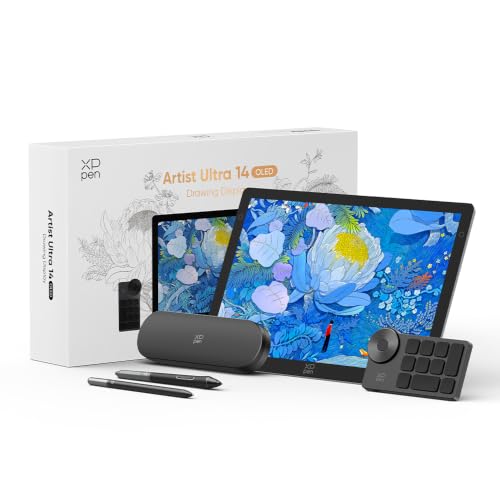
XP-Pen Artist Ultra 14 Drawing Monitor
What We Like
- 2.8K OLED with 90Hz refresh rate
- Calman-verified 99% Adobe RGB color
- Multi-touch gestures for canvas control
- Includes two 16K styli and shortcut remote
Trade-offs
- Needs a computer to function (not standalone)
- Touch only works on Windows 10+ or Ubuntu 20.04+
- At 5.7 lb, less portable than lighter models
A 2.8K OLED touchscreen with 99% Adobe RGB and Delta E<1 means the Artist Ultra 14 delivers color accuracy that print photographers and video editors can trust straight out of the box. The 90Hz refresh rate reduces visible lag, while full-laminated anti-glare glass cuts reflections so you stay focused on the canvas. For artists who work in color-critical workflows, whether retouching photos or painting for print, this screen offers a strong combination of clarity and precision.
The trade-off is that this is a display, not a standalone tablet: you must connect it to a computer, which limits use away from a desk. The touch function also requires Windows 10 or later (or Ubuntu 20.04+), so older systems miss that convenience. Still, for a studio setup where color fidelity and responsive drawing matter most, the Artist Ultra 14 delivers professional-grade specs in a 5.7-pound package.
Product photos
XP-Pen Artist Pro 22 Gen 2 Drawing Tablet

What We Like
- Calman Verified Delta E<1 color accuracy
- 99% Adobe RGB and 94% Display P3
- 16K pressure sensitivity with X3 Pro chip
- 40 customizable keys on ACK05 remote
Trade-offs
- At 12.2 lb, heavy for frequent repositioning
- Requires computer connection; not standalone
A 21.5-inch 2.5K display with Calman Verified Delta E under 1 and 99% Adobe RGB coverage means the colors you mix on screen will match what you print or publish, stroke for stroke. For illustrators, photo editors, and designers who demand consistent hues across devices, this screen removes the guesswork. The 16K pressure levels, paired with felt nibs that mimic paper, let you vary line weight with a light touch, while the included ACK05 remote puts 40 shortcuts under your non-drawing hand. It is a professional-grade station for those who work in color-critical workflows and want a large canvas without breaking the budget.
Size and weight are the main considerations here: at 12.2 pounds and a 21.5-inch footprint, this is a desk-anchored tool, not something you toss in a bag. But for artists who need a big, color-true workspace and a stand that adjusts from 15 to 88 degrees with one hand, the Artist Pro 22 Gen 2 delivers where it counts.
Wacom MovinkPad 11 Android Drawing Tablet

What We Like
- No computer needed for drawing
- Paper-like matte anti-glare screen
- Ultra-light 1.3 lbs for portability
- Battery-free Pro Pen 3 with 8,192 levels
Trade-offs
- Android apps limit desktop-grade software compatibility
- Smaller 11.45" screen for detailed work
An 11.45-inch Android tablet that runs on its own, no computer required, means you can sketch anywhere a sketchbook fits, and at 1.3 pounds, it practically disappears in a bag. The matte etched glass feels like real paper under the Pro Pen 3, which delivers 8,192 pressure levels without needing a battery or charging. Tap and hold the pen on screen to launch Wacom Canvas and start sketching or note-taking the moment an idea hits, just like opening a sketchbook.
The biggest advantage of the MovinkPad 11 is that it works completely on its own, no computer required, so you can sketch or take notes anywhere a sketchbook would go. That standalone freedom comes with limits: Android apps aren’t the full desktop versions many professionals rely on, and 128GB of built-in storage is all you get. Compared to the XP-Pen Artist Ultra 14, which needs a computer and has a larger display, the MovinkPad is a focused tool for mobile sketching, not a workstation replacement.
Product photos
UGEE UE16 Drawing Tablet with Screen

What We Like
- 143% sRGB ultra-high color gamut
- Four color space modes for versatility
- 16K pressure sensitivity for fine detail
- 8 shortcut keys and scroll wheel
Trade-offs
- 3-in-1 cable packed separately, easy to misplace
- No built-in battery; requires constant wired connection
With four color spaces to switch between, sRGB, Adobe RGB, DCI-P3, and even a black-and-white mode, you can match your display to the project at hand, whether it’s print design or comic inking. The 16K pressure sensitivity captures every subtle change in stroke weight, so pencil-like sketches and delicate washes translate naturally. This tablet suits artists who prioritize color fidelity and want a screen that keeps up with their palette.
The separate 3-in-1 cable adds a small setup hassle, and since the tablet relies on a wired connection, you’re tethered to your computer. For artists who value rich, accurate color in a more compact, budget-friendly package, the UE16 delivers where it counts most.
Wacom Intuos Pro Medium Graphics Tablet

What We Like
- 8192 pressure levels and tilt support
- 10 customizable ExpressKeys and 2 dials
- Wireless via Bluetooth with simple switch
- Slim 4mm magnesium build for portability
Trade-offs
- No built-in screen requires separate monitor
- 16:9 active area not ideal for tall sketches
The Pro Pen 3 offers 8192 pressure levels and tilt support for precise strokes, along with lag-free tracking. The 10 ExpressKeys and two mechanical dials let you map shortcuts and zoom without lifting your hand. Bluetooth wireless keeps your desk free of cables, and the 4mm thin magnesium build makes it easy to carry.
Drawing on a surface rather than a screen means your eyes stay on your monitor, which can take adjustment if you’re used to a display tablet. At 4mm at its thinnest and 0.9 pounds, the Intuos Pro Medium slips easily into a bag. For artists who prioritize customizable controls and pen feel, this tablet delivers a dedicated tool.
Product photos
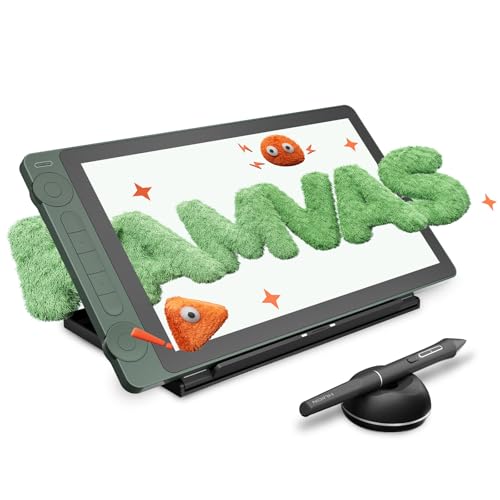
Huion Kamvas 13 Gen 3 SE Drawing Tablet
What We Like
- 16K pressure sensitivity with PenTech 4.0
- Factory calibrated to ΔE<1.5
- Anti-sparkle Canvas Glass 2.0
- Dual dial and 5 silent shortcut keys
Trade-offs
- Requires a computer or Android device to function
- At 5.5 pounds, less portable than smaller tablets
- Single USB-C cable needs USB 3.1 Gen1 support
A 13.3-inch screen with 16K pressure sensitivity means every brushstroke, from the lightest pencil flick to a heavy ink press, registers with natural variation. Combined with 99% sRGB and 90% Adobe RGB coverage, this display gives you professional-grade color accuracy at a size that fits comfortably on a desk without dominating it. The dual dial controllers let you adjust brush size or zoom without reaching for a keyboard, keeping your flow uninterrupted.
This monitor isn’t a standalone device; you need a computer or Android tablet with USB 3.1 Gen1 and DP 1.2 to drive it. That limits where and how you can work compared to something like the Wacom MovinkPad 11, which runs entirely on its own. At 5.5 pounds, it’s heavier than many portable tablets, so it’s better suited to a dedicated workspace than frequent travel.
Product photos
HUION Kamvas Pro 16 Drawing Tablet with Screen
What We Like
- 120% sRGB color gamut
- Battery-free pen with tilt
- Adjustable stand 20-60°
- Touch bar and 6 shortcut keys
Trade-offs
- Requires a computer to function
- Only 6 express keys for shortcuts
A 15.6-inch fully laminated screen with anti-glare glass gives you a clear, crisp canvas. The 120% sRGB (92% AdobeRGB) color gamut volume covers a wide range of colors, which helps when you need accurate hues. The battery-free pen supports 60° tilt and offers virtually lag-free tracking, so your strokes follow your hand closely. This display works with Windows, Mac, or Linux, making it a versatile option for a desk setup.
This pen display is not a standalone tablet; you must connect it to a computer or laptop to use it. At 3.0 pounds with the adjustable stand, it’s stable on a desk but not designed for portable use. The six express keys and touch bar let you assign shortcuts, but if you rely on many keyboard shortcuts, you may still want a separate keyboard nearby. For a desk-based workflow where color gamut and a comfortable stand angle matter, this pen display offers useful features.
Product photos
PicassoTab X14 Standalone Drawing Tablet
What We Like
- Laminated paper-like display reduces glare
- Octa-core CPU with 6GB RAM for smooth multitasking
- 14-inch laminated display reduces glare and parallax
Trade-offs
- At 5.1 pounds, heavier than portable alternatives
- 4096 pen pressure is lower than newer 16K pens
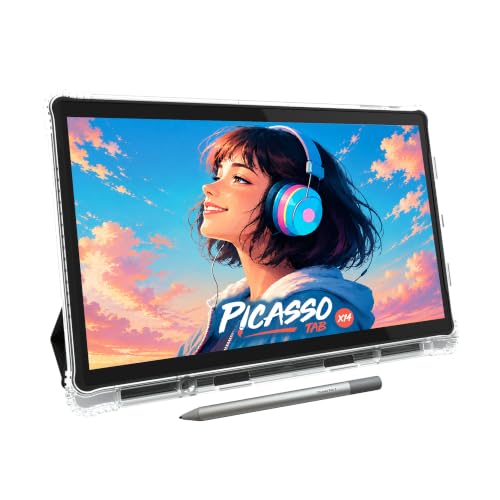
The 14-inch laminated display on this tablet means you get a spacious drawing surface with reduced glare and parallax, so your pen tip stays close to the screen for a more natural feel. It runs on an octa-core processor with 6GB of RAM, which keeps drawing apps, animation software, and streaming running smoothly without lag. Since it needs no computer, you can work anywhere, on the couch, at a desk, or in a coffee shop, without being tethered to a laptop.
At 5.1 pounds, the X14 is heavy enough that you’ll want to set it on a desk or lap rather than hold it for long drawing sessions. That weight is a trade-off for its large screen, which gives you a spacious canvas without needing a computer. The 4096-level pen responds well to different pressures, so your sketches and illustrations feel natural, though artists used to the finer nuance of 16K pens on newer XP-Pen models might find very light strokes a bit less detailed.
How We Evaluated Tablet PCs For Artists
This evaluation is based on technical specifications from manufacturers, insights from professional artist communities, and common patterns found in user feedback across the market. The focus is on verifiable data and the features that consistently matter most to digital creators.
We prioritized four criteria that define a great drawing experience. Display quality was paramount, including resolution, color gamut coverage (like Adobe RGB and sRGB), and panel type (OLED vs. LCD). Pen performance came next, focusing on pressure sensitivity levels, tilt support, and whether the pen is battery-free. Connectivity and workflow mattered, including whether the tablet is standalone or requires a computer, and the presence of shortcut keys or remotes. Finally, we considered build and ergonomics, such as weight, screen size, and included stands.
A research-led approach has limits: we cannot speak to long-term durability or driver stability from personal use. However, by cross-referencing technical specs with the collective experience of thousands of owners, we identified the models that consistently perform well. This method helps you avoid common pitfalls like poor driver support or disappointing color accuracy.
What To Look For In Tablet PCs For Artists
Choosing a drawing tablet comes down to matching the hardware to your art style and workspace. The right screen, pen, and connectivity will make your digital work feel more natural and less frustrating.
Focus on a high-resolution display with wide color gamut (99% Adobe RGB or better). Also look for a pen with at least 8,192 pressure levels and tilt support. And pick a setup, standalone or computer-connected, that fits your workflow.
Display Quality and Color Accuracy
The screen is your canvas. Look for a high resolution (2K or better is ideal for detail work) and a panel that covers a wide color gamut. For print work, aim for 99% Adobe RGB or 143% sRGB coverage. OLED displays, like the one on the XP-Pen Artist Ultra 14, offer deep blacks and vibrant colors, while IPS panels are more common and still very good. Factory calibration (Delta E<2 or better) ensures what you see matches the final output.
Pen Technology and Pressure Sensitivity
A good pen feels like a real drawing tool. Higher pressure sensitivity (measured in levels like 8,192 or 16K) allows for finer control over line weight and opacity. Battery-free pens are preferred because they never need charging and stay lightweight. Tilt support is essential for shading and natural brush strokes. Look for a pen that is comfortable to hold and responsive, with minimal lag.
Standalone vs. Computer-Connected
This is the most important workflow decision. A standalone tablet (like the Wacom MovinkPad 11 or PicassoTab X14) runs its own operating system and does not need a computer, making it perfect for sketching on the go. A pen display (like the XP-Pen Artist Ultra 14) connects to a PC or Mac and offers full desktop software power, which is critical for professional illustrators using apps like Photoshop or Clip Studio Paint.
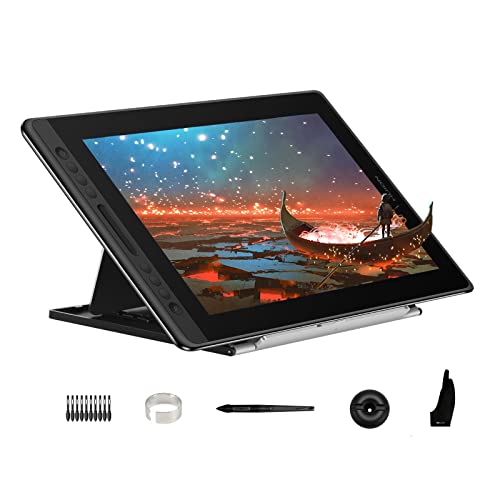
- Check the tablet’s compatibility with your operating system (Windows, macOS, Android, or Chrome OS).
- Consider the number and placement of shortcut keys or a remote for efficient workflow.
- Look at the weight and footprint of the tablet to ensure it fits your desk or bag.
- Verify the cable requirements (single USB-C vs. 3-in-1) for a clean setup.
A larger screen (15-22 inches) is better for detailed studio work, while a smaller, lighter tablet (11-13 inches) is ideal for portability and travel.
Tablet PCs For Artists Compared
The table below compares the key specs of our top picks, from display technology to pen pressure levels, helping you see the differences at a glance.
| Product | Screen Size | Pressure Levels | Weight |
|---|---|---|---|
| XP-Pen Artist Ultra 14 Drawing Monitor | 14 inches | 16K | 5.7 pounds |
| XP-Pen Artist Pro 22 Gen 2 Drawing Tablet | 21.5 inches | 16K | 12.2 pounds |
| Wacom MovinkPad 11 Android Drawing Tablet | 11.45 inches | 8,192 levels | 1.3 lbs |
| UGEE UE16 Drawing Tablet with Screen | 15.4 inches | 16K | N/A |
| Wacom Intuos Pro Medium Graphics Tablet | N/A | 8192 | 0.9 pounds |
| Huion Kamvas 13 Gen 3 SE Drawing Tablet | 13.3 inches | 16K | 5.5 pounds |
| HUION Kamvas Pro 16 Drawing Tablet with Screen | 15.6 inches | N/A | 3.0 pounds |
| PicassoTab X14 Standalone Drawing Tablet | 14 inches | 4096 levels | 5.1 pounds |
Frequently Asked Questions
What is the best drawing tablet for beginners?
A good starting point is a budget-friendly pen display like the Huion Kamvas 13 Gen 3 SE Drawing Tablet. It offers a color-accurate screen and high 16K pressure sensitivity at a more accessible price point. Beginners should focus on a tablet that works with their existing computer and has a comfortable pen.
Can I use a drawing tablet without a computer?
Yes, but you need a standalone tablet. Models like the Wacom MovinkPad 11 Android Drawing Tablet and the PicassoTab X14 Standalone Drawing Tablet run their own operating system and do not require a computer. They are great for sketching and note-taking, but may not support full desktop-grade art software.
What does color gamut mean for a drawing tablet?
Color gamut refers to the range of colors a display can show. A wider gamut, like 99% Adobe RGB or 143% sRGB, means the screen can display more vibrant and accurate colors. This is crucial for artists whose work will be printed or viewed on other high-gamut screens.
How important is pressure sensitivity for digital art?
Pressure sensitivity is very important for natural-looking strokes. Higher levels, such as 8,192 or 16K, allow for more nuanced control over line thickness and opacity. While 4,096 levels can work, artists doing detailed illustration will benefit from the finer control of higher sensitivity pens.
What is the difference between a pen display and a pen tablet?
A pen display has a built-in screen, so you draw directly on the image. A pen tablet (like the Wacom Intuos Pro Medium) has no screen; you draw on a flat surface while looking at a separate monitor. Most artists find pen displays more intuitive, but pen tablets can be more affordable and are preferred by some for ergonomic reasons.
The Bottom Line
The XP-Pen Artist Ultra 14 Drawing Monitor is our top recommendation for artists who want a premium, color-accurate drawing experience in a studio setting. Its OLED display and high refresh rate make digital art feel fluid and vibrant. If you need a standalone device for drawing anywhere, the Wacom MovinkPad 11 Android Drawing Tablet is the lightest, most portable option.
For artists on a budget, the Huion Kamvas 13 Gen 3 SE Drawing Tablet delivers strong color accuracy and pen performance without a premium price. Those who prioritize the largest color gamut for print work should look at the UGEE UE16 Drawing Tablet with Screen. No matter which you choose, the single most important factor is matching the tablet’s connectivity, standalone or computer-connected, to how and where you create.
