10 Best Pens For Sketching On Ipad in 2026
This post contains affiliate links. As an Amazon Associate, we earn from qualifying purchases.
The Apple Pencil Pro is the best overall pen for sketching on an iPad. It delivers pixel-perfect precision, tilt and pressure sensitivity, and unique squeeze and barrel roll gestures that let you switch tools without breaking your flow. For artists who want an ultra-lightweight option, the Metapen Pencil Air8 weighs only 10g. The Logitech Crayon Digital Pencil offers excellent tilt shading for expressive sketches.
Sketching on an iPad is a completely different experience from paper. The feel of the stylus against the glass, the latency of the line, and the range of pressure and tilt sensitivity all directly affect how naturally your hand moves. Finding the right pen means balancing precision, comfort, and compatibility with your specific iPad model.
We built this guide by analyzing manufacturer specifications, expert round-ups, and patterns in owner feedback to highlight the key features that matter most for digital sketching. Whether you are a professional illustrator or a casual doodler, these ten picks cover the range of performance and value available today.
Top 10 Pens For Sketching On iPad in the Market
Certain content that appears on this site comes from Amazon. This content is provided "as is" and is subject to change or removal at any time.
The Best Pens For Sketching On iPad, Reviewed
Apple Pencil Pro

What We Like
- Pixel-perfect precision with tilt and pressure sensitivity
- Squeeze and barrel roll gestures for tool switching
- Haptic feedback confirms actions without looking
- Find My support to locate the stylus
Trade-offs
- Only works with recent iPad models (M2 chip or later)
- Only works with iPad Pro M4/M5, iPad Air M2/M3/M4, iPad mini A17 Pro
The Apple Pencil Pro’s pixel-perfect precision, tilt and pressure sensitivity, and low latency mean every stroke lands exactly where you intend, with the line weight and angle you want. That combination makes it the most natural-feeling stylus for serious sketching on an iPad, especially if you work in apps like Procreate or Adobe Fresco. The squeeze gesture and barrel roll let you switch brushes or rotate a virtual tool without lifting your hand, and the haptic buzz confirms each action, so you can keep your eyes on the canvas.
The trade-off is compatibility: this stylus works with iPad Pro (M5 and M4), iPad Air (M2, M3, and M4), and iPad mini (A17 Pro). If you own an older iPad, you are locked out of the gesture and hover features entirely. Compared to the Logitech Crayon Digital Pencil, which works with any 2018-or-later iPad, the Apple Pencil Pro offers far more creative control but demands a newer tablet to unlock it. For anyone already on a compatible iPad, this is the stylus that turns the screen into a true sketchbook.
Metapen Pencil Air8

What We Like
- Ultra-lightweight 10g design
- Polymer tips passed 20 km durability test
Trade-offs
- No pressure or tilt sensitivity
- No magnetic attachment or wireless charging
- USB-C charging only, no Bluetooth pairing
For anyone who sketches for hours on an iPad and wants a pen that feels like holding almost nothing, this is a focused, practical choice.
No pressure or tilt sensitivity means you won’t get variable line widths or shading from angle alone. The Air8 also lacks magnetic attachment and wireless charging; you plug in via USB-C. For line artists, note-takers, or anyone prioritizing comfort and battery stamina, these omissions are easy to live with.
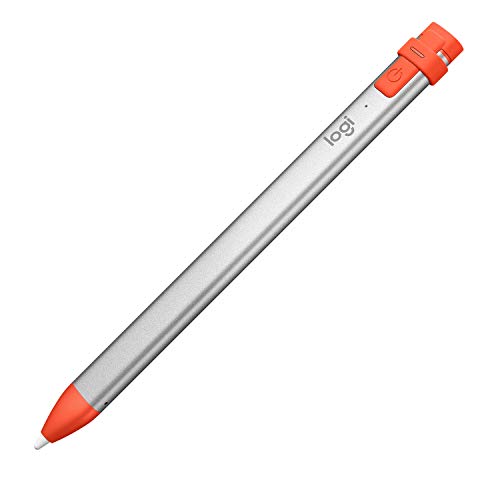
Logitech Crayon Digital Pencil
What We Like
- Tilt automatically adjusts line thickness
- Instant connection, no pairing needed
- Anti-roll design stays put
- Durable for bag or pocket carry
Trade-offs
- Only compatible with iOS 12.2 or newer
- No pressure sensitivity for professional artists.
The smart tip that adjusts line weight automatically when you tilt is the single most decisive feature here. For sketchers who rely on angle to create thin-to-thick strokes for shading and cross-hatching, this direct tilt response feels natural and immediate. It connects the moment you turn it on, no Bluetooth menus or pairing delays, so you can jump straight into a drawing session. The anti-roll design and durable build mean it survives being tossed in a bag alongside sketchbooks and chargers, making it a solid companion for on-the-go iPad artists who value quick, tilt-driven line variation.
The Logitech Crayon uses Apple Pencil technology, so it works with any iPad from 2018 onward running iOS 12.2 or newer, which means you can write and draw naturally without worrying about compatibility. Its smart tip adjusts line weight automatically when you tilt the pencil, giving you thicker or thinner strokes on the fly. The Crayon connects instantly when you turn it on, no pairing or delays, so you can jump right into work. Reviewers note it stays put when you set it down, and it’s tough enough to survive a bag or pocket. A full charge lasts a full school day, making it practical for classroom or all-day use.
Logitech Crayon USB-C

What We Like
- Uses Apple Pencil technology for precision
- Instant connection with no pairing required
- Flat anti-roll design stays put
- USB-C charging with 7-hour battery life
Trade-offs
- Only compatible with USB-C iPads, not Lightning models
The Logitech Crayon USB-C uses Apple Pencil technology to deliver pixel-perfect precision with no lag, so every line follows your hand exactly as you draw. It connects instantly by sliding the switch, no Bluetooth pairing or tapping settings. The flat shape keeps it from rolling off your desk, and the smart tip adjusts line thickness automatically when you tilt the stylus. For anyone sketching on a USB-C iPad who wants reliable, responsive performance without fussing over connections, this is a straightforward tool that gets out of your way and lets you focus on the page.
The Logitech Crayon connects to any iPad from 2018 onward instantly, just slide the switch and start writing, with no pairing or delays. That means you can jump into notes or sketches right when inspiration hits, without fumbling with Bluetooth settings. Its flat shape keeps it from rolling off a desk or table, so it stays put when you set it down. And with up to 7 hours of writing time from a single USB-C charge, you can get through a full day of classes or meetings before needing to plug in.
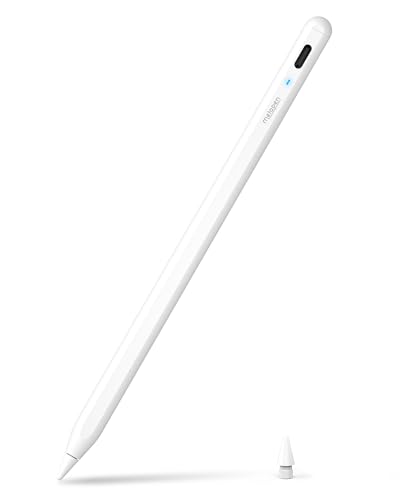
Metapen A8 iPad Pencil
What We Like
- 4 min charge for 2 hour use
- Aluminum metal barrel resists drops
- Palm rejection for sketching comfort
Trade-offs
- No pressure sensitivity for shading
- No magnetic charging or wireless charging
- No magnetic attachment on many iPad models
A 4-minute charge gives you 2 hours of use, so if you are running low on battery, you can get back to writing quickly. The aluminum barrel survives 1.2-meter drops more than 50 times, making it a durable choice for everyday carry. For anyone who draws daily and does not want to wait around for a recharge, the Metapen A8 delivers practical value without the premium price of the Apple Pencil Pro.
The Metapen A8 doesn’t support pressure sensitivity, so if your sketching relies on varying line weight from light to heavy strokes, you’ll need to look elsewhere. It does offer a metal barrel, palm rejection that lets you rest your hand on the screen, and tips that pass a 20-kilometer durability test, the internal structure stays intact after 3,000 impacts. For someone who values fast charging and a tough build over pressure control, this could be a practical fit.
Penlike Pencil for iPad

What We Like
- Tilt sensitivity for varied line widths
- Three replacement nibs included
- Magnetic attachment for storage on iPad
Trade-offs
- No magnetic charging, only attachment
- Sleeps after 5 minutes of inactivity
- Works only with 2018 and later iPads
The magnetic attachment does not include wireless charging, so you will need to plug in via USB-C. That is a minor step compared to models that charge on the iPad itself, but the fast charge time means a short break is enough to top it off. If you prefer the convenience of wireless charging, the Apple Pencil Pro can do that. For artists who want a reliable, fast-charging backup or a main stylus with a practical magnetic hold, this is a reasonable fit.
Product photos
JvKzaen Stylus Pen

What We Like
- Full charge in 14 minutes
- 10 hours of continuous use
- One-piece dust plug won't get lost
- 3 LED indicators for battery status
Trade-offs
- Not compatible with older iPad models (pre-2018)
- No pressure sensitivity for shading
- Requires button press to activate
A 14-minute full charge gives you up to 10 hours of working time, so you can top up during a quick break and keep sketching for the rest of the day. That combination of speed and endurance makes this stylus a practical companion for artists who work in bursts, students in back-to-back classes, commuters who draw on the train, or anyone who forgets to charge overnight. The one-piece dust plug and three LED indicators show remaining battery life and charging progress, so you always know how much power is left.
Because it relies on tilt sensitivity for stroke variation rather than pressure sensitivity, this pen won’t let you control line weight by pressing harder, a stylus like the Apple Pencil Pro does provide that nuance. But for quick sketching, note-taking, and casual drawing, the JvKzaen delivers reliable palm rejection and a smooth 0.9mm POM tip that won’t scratch your screen. It’s a smart choice for artists who value convenience and speed over the full pro feature set.
Product photos
DEGGE Stylus Pen

What We Like
- 15-minute fast charge for 9-hour use
- Palm rejection for focused sketching
- Magnetic attachment for storage
- 4 replaceable long-lasting nibs
Trade-offs
- No pressure sensitivity for varied line weight
- Not compatible with older iPads (pre-2018)
A 15-minute charge that delivers 9 hours of drawing time means you can sketch through a full day of classes or a long studio session without hunting for an outlet. The DEGGE Stylus Pen requires no Bluetooth connection, just double-tap the top to turn it on, which cuts down on setup steps when you’re ready to draw. For sketchers who work in long stretches, this battery endurance is the standout reason to pick it over alternatives that need more frequent top-ups, especially if you forget to charge overnight.
The DEGGE Stylus Pen charges fully in just 15 minutes, giving you 9 hours of continuous use, so you can work through a full day without worrying about battery life. It works with iPads from 2018 through 2026 without needing Bluetooth, and the magnetic attachment lets you stick it to the side of your iPad when not in use. Four replacement nibs come in the box, so you won’t have to hunt for spares when the tip eventually wears down.
Product photos
Milikilo Stylus Pen

What We Like
- One-piece dust plug prevents loss
- Pencil holder with strong adhesive
- Palm rejection for natural hand placement
- Tilt sensitivity for varied stroke width
Trade-offs
- No pressure sensitivity for nuanced shading
- Not compatible with iPad mini 7th or older models
- Requires manual on/off button press
The Milikilo Stylus Pen comes with a dedicated pencil holder that sticks securely to your iPad case, so you can grab or store the pen in a snap without fumbling through your bag. That thoughtful accessory, paired with a one-piece dust plug that won’t get lost during charging, makes this a practical choice for users who value convenience and organization. The 0.9mm POM tip and tilt sensitivity allow for varied line thickness, and palm rejection lets you rest your hand naturally while drawing.
This pen lacks pressure sensitivity, so you won’t get the same dynamic shading you would from a stylus that includes that feature. If your work relies heavily on pressure-controlled line weight, you may want to consider a model with pressure sensitivity. For users who prioritize tilt-based stroke variation, a secure holder, and a battery that lasts up to 10 hours on a 40-minute charge, the Milikilo offers a practical set of features.
Product photos
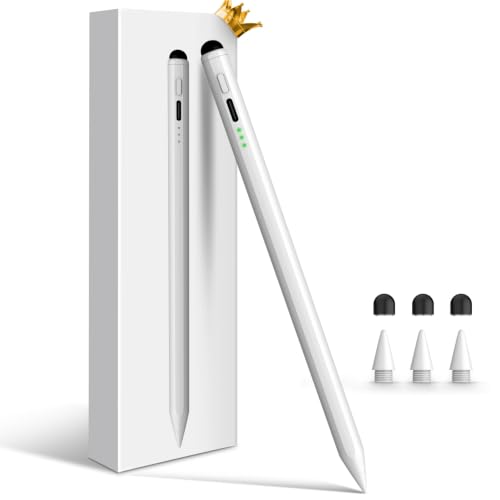
STYLUSHOME Dual-Tip Pencil
What We Like
- Dual tips: fine and rubber
- 10-13 min charge for 9 hours
- Triple-LED power indicator
- Palm rejection and tilt sensing
Trade-offs
- Rubber tip only works on touchscreens, not iPad
- Fine tip requires battery; rubber tip is backup only
- No pressure sensitivity for shading
A 1.5mm fine tip plus a separate rubber tip in one body means you can switch from precise iPad sketching to swiping a phone or tablet without carrying a second pen. The fine tip works with palm rejection and tilt sensing, as stated in the product specs. That dual-tip design makes this a smart pick if you work across devices and want one tool that covers both active iPad use and general touchscreen navigation.
The rubber tip is strictly a passive backup for non-iPad screens, it won’t register on your iPad at all. For sketchers who prioritize tilt and convenience, the STYLUSHOME Dual-Tip Pencil offers a flexible, fast-charging alternative that keeps you working without hunting for a second stylus.
Product photos
How We Evaluated Pens For Sketching On iPad
Our research started with the core specs that define a digital stylus: pressure sensitivity, tilt recognition, latency, and compatibility with iPad models. We compared manufacturer data on battery life, charging speed, and connection methods to separate the reliable options from the rest.
For sketching, the three most important criteria were precision, comfort, and compatibility. Precision covers how accurately the pen tracks a line and responds to tilt and pressure. Comfort includes weight, grip, and whether the pen feels balanced during long drawing sessions. Compatibility is critical, many styluses only work with specific iPad generations, so we made sure to note which models each pen supports.
This evaluation is based on specifications and expert analysis. We prioritized pens with consistent positive feedback from users and clear technical advantages over vague claims.
What To Look For In Pens For Sketching On iPad
Choosing the right stylus for iPad sketching comes down to matching the pen’s features to your drawing style and device. Here are the key factors to consider.
Look for a stylus with pressure sensitivity if you want variable line weight, tilt support for shading, and palm rejection for natural hand placement. Check compatibility with your iPad model before buying.
Pressure and Tilt Sensitivity
Pressure sensitivity lets you vary line thickness by pressing harder or softer, which is essential for expressive sketching and shading. Tilt sensitivity mimics the way a pencil edge creates wider strokes when angled. The Apple Pencil Pro offers both with exceptional precision, while many third-party options like the Logitech Crayon Digital Pencil provide tilt but not pressure. If you draw with fine detail, prioritize pressure sensitivity. If you sketch loosely and shade broadly, tilt may be enough.
Compatibility and Connection
Not every stylus works with every iPad. The Apple Pencil Pro only works with iPads that have an M2 chip or later. Many third-party pens are compatible with 2018 and later models but not older ones. Some pens pair instantly via Bluetooth, while others connect with a simple button press. Check your iPad model and iOS version before buying to avoid disappointment.
Weight, Grip, and Battery Life
A heavy stylus can cause hand fatigue during long sketching sessions. The Metapen Pencil Air8 weighs just 10g, making it one of the lightest options available. Battery life varies widely: some pens offer 9-10 hours of use from a 15-minute charge, while others need longer charging. Look for fast charging if you tend to forget to plug in. Also consider whether the pen has a comfortable grip and an anti-roll design to keep it from sliding off your desk.
- Check your iPad model and iOS version against the pen’s compatibility list.
- Decide whether pressure sensitivity is essential for your drawing style.
- Consider the weight of the pen and whether you sketch for long periods.
- Look for fast charging if you want minimal downtime.
- Choose a pen with palm rejection to avoid accidental marks while drawing.
A good rule of thumb: if you are a professional illustrator, invest in the Apple Pencil Pro for its full feature set. If you sketch casually, a tilt-sensitive pen with fast charging offers great value.
Pens For Sketching On iPad Compared
The table below compares the key specs of our top ten picks to help you find the right stylus for your iPad sketching needs.
| Product | Compatibility | Charging | Battery Life |
|---|---|---|---|
| Apple Pencil Pro | iPad Pro M4/M5, iPad Air M2/M3/M4, iPad mini A17 Pro | Magnetic wireless pairing and charging | N/A |
| Metapen Pencil Air8 | iPad 2018-2026 | 45 minutes | 20 hours |
| Logitech Crayon Digital Pencil | 2018 releases and later | N/A | Full school day |
| Logitech Crayon USB-C | All iPads 2018 and later | USB-C, 7 hrs per charge | 7 hrs per charge |
| Metapen A8 iPad Pencil | iPad 2018-2026 | 30 min full | 10 hours |
| Penlike Pencil for iPad | iPads 2018-2026 | 15 min full charge | 9 hours per charge |
| JvKzaen Stylus Pen | iPad 2018-2025 | 14 minutes | 10 hours |
| DEGGE Stylus Pen | iPad 2018-2026 | 15 minutes | 9 hours |
| Milikilo Stylus Pen | 2018-2025 iPads | 40 minutes | 10 hours |
| STYLUSHOME Dual-Tip Pencil | iPad 2018-2026 | 10-13 min | 9 hours |
Frequently Asked Questions
Which iPad stylus has the best pressure sensitivity?
The Apple Pencil Pro offers the most precise pressure and tilt sensitivity available for iPad sketching. It supports squeeze and barrel roll gestures and provides haptic feedback for tool switching. No third-party stylus matches its level of pressure control.
Do I need a screen protector for iPad sketching?
A matte screen protector can make the glass feel more like paper and reduce glare, which many sketchers prefer. However, it may slightly reduce image clarity and wear down stylus nibs faster. Some artists prefer drawing directly on the glass for maximum precision.
Can I use any stylus with my iPad?
No. Many styluses are only compatible with specific iPad models and iOS versions. For example, the Apple Pencil Pro only works with iPads that have an M2 chip or later. Always check compatibility before purchasing.
How long does an iPad stylus battery last?
Battery life varies by model. The DEGGE Stylus Pen offers 9 hours of use from a 15-minute charge, while the JvKzaen Stylus Pen provides 10 hours from a 14-minute charge. Some pens like the Metapen A8 can give 2 hours of use from just a 4-minute charge.
What is the difference between tilt and pressure sensitivity?
Tilt sensitivity changes line width based on the angle of the pen, like using the side of a pencil for shading. Pressure sensitivity changes line width based on how hard you press, allowing for fine control over stroke weight. Professional artists typically need both, while casual sketchers may find tilt sufficient.
The Bottom Line
For most sketchers and digital artists, the Apple Pencil Pro is the best overall choice. Its pressure and tilt sensitivity, combined with gesture controls and haptic feedback, make it the most natural and responsive stylus for iPad sketching. It is ideal for anyone using a recent iPad Pro or iPad Air who wants the fullest set of creative controls.
If you are on a budget or do not need pressure sensitivity, the Logitech Crayon Digital Pencil offers excellent tilt shading with instant connection. The Metapen Pencil Air8 is the lightest option for long drawing sessions. For fast charging, the Metapen A8 gives you two hours of use from just four minutes of charging.
The single most important factor in choosing an iPad stylus is compatibility, make sure the pen works with your specific iPad model before anything else. From there, let your drawing style guide whether you need pressure sensitivity, tilt, or simply a lightweight pen that lasts all day.
