9 Best Graphic Tablets For Digital Art in 2026
This post contains affiliate links. As an Amazon Associate, we earn from qualifying purchases.
For digital artists seeking a new drawing tablet, the Huion Kamvas 13 Gen 3 stands out as the best overall choice thanks to its fully laminated anti-glare screen and exceptional 16384 pressure levels. For professionals who need a wide color gamut, the Wacom Cintiq 16 is our pick for best professional display, while the XP-Pen Artist 13.3 Pro V2 offers industry-leading 16K pressure sensitivity for detailed line work.
Choosing the right graphic tablet means balancing screen size, pressure sensitivity, and whether you need a standalone device or one that connects to a computer. A pen display lets you draw directly on the screen, while a pen tablet requires you to look at your monitor, each suiting different workflows and budgets.
This guide is based on a thorough analysis of manufacturer specifications, expert round-ups, and patterns in owner feedback. We have organized nine top contenders by their specific strengths to help you find the perfect match for your digital art setup.
Top 9 Graphic Tablets For Digital Art in the Market
Certain content that appears on this site comes from Amazon. This content is provided "as is" and is subject to change or removal at any time.
The Best Graphic Tablets For Digital Art, Reviewed
Huion Kamvas 13 Gen 3

What We Like
- Full lamination and anti-glare glass
- 16384 pressure levels with 2g IAF
- Factory color calibration report included
- Dual dial and 5 programmable keys
Trade-offs
- Requires a computer or laptop to function
- No standalone capability for on-the-go use
A 13.3-inch fully laminated screen with anti-glare glass and factory-calibrated color accuracy of Delta E under 1.5 means what you see on this display is exactly what prints or shares. The 16384 levels of pressure sensitivity and a 2-gram initial activation force let even the lightest pencil stroke register without hesitation. That makes it a natural fit for illustrators and designers who want precision without fighting the tool. Five programmable shortcut keys and dual dial buttons keep your hand on the canvas, not the keyboard, and the included adjustable stand lets you tilt it to a comfortable angle.
This is a pen display, not a standalone tablet, so you must connect it to a Windows, Mac, or Android device via USB-C to use it. That means it won’t replace a portable sketchpad for working away from a desk, unlike the XP-Pen Magic Pro 13, which runs on its own without a computer. The Huion Kamvas 13 Gen 3 has a 13.3-inch screen and weighs 2 pounds, making it easy to move between workstations. For artists who already have a laptop or desktop and want a calibrated display, this is a practical option in its size class.
Wacom Cintiq 16

What We Like
- Wide 99% DCI-P3 color coverage
- Pro Pen 3 with 8192 pressure levels
- Built-in fold-out legs for 20° angle
- USB-C connection with DisplayPort Alt Mode
Trade-offs
- 4.5 pounds limits true portability without a stand
- No adjustable stand included for ergonomic setups
A 16-inch IPS display with 2560 x 1600 resolution and 99% DCI-P3 color coverage means you see your artwork in the rich, cinematic color range that modern digital media expects. The Pro Pen 3 responds to 8192 pressure levels and tilt, giving you fine control over every line and brushstroke. This is a display built for serious illustrators, comic artists, and animators who need accurate color and precise pen response right out of the box. The built-in fold-out legs set a steady 20-degree working angle, so you can start creating without hunting for accessories.
At 4.5 pounds, this tablet is heavier than a portable pen display like the Huion Kamvas 13 Gen 3, so it works best on a desk rather than in a lap or bag. For professionals who prioritize color fidelity and a responsive pen over lightweight travel, the Wacom Cintiq 16 delivers a focused, reliable creative canvas that justifies its place at the top of the professional tier.
Product photos
Wacom Intuos Pro Medium

What We Like
- Pro Pen 3 with 8192 pressure levels
- 10 customizable ExpressKeys and 2 dials
- Bluetooth wireless connectivity
- Magnesium build, 4mm thin
Trade-offs
- No built-in screen for direct drawing
- At 0.9 lb, lightweight but still tethers to a computer
The Pro Pen 3 delivers 8192 levels of pressure sensitivity, which means you get the precision needed for detailed line art and shading. Because this is a pen tablet without a display, you draw on the surface while looking at your monitor. But the active area matches the 16:9 aspect ratio of modern screens, so cursor movement feels natural across multiple displays. Ten customizable ExpressKeys and two mechanical dials sit at the top of the tablet, letting you map shortcuts for zoom, brush size, or layer navigation without reaching for the keyboard. Bluetooth support means you can connect to multiple computers and switch with a simple toggle, keeping your desk free of cables.
You never see your marks appear directly under the pen tip, which takes some adjustment if you are used to a display tablet like the Huion Kamvas 13 Gen 3. The Wacom Intuos Pro Medium is built for artists who already work well with a separate monitor and want a durable, portable input device. The magnesium body is only 4mm thick at its thinnest, so it slides easily into a bag, but you still need a computer to run it, unlike a standalone tablet. For professionals who value precision, shortcut control, and a compact footprint over an all-in-one screen, this is the tool that gets out of your way.
Product photos
XP-Pen Artist 13.3 Pro V2
What We Like
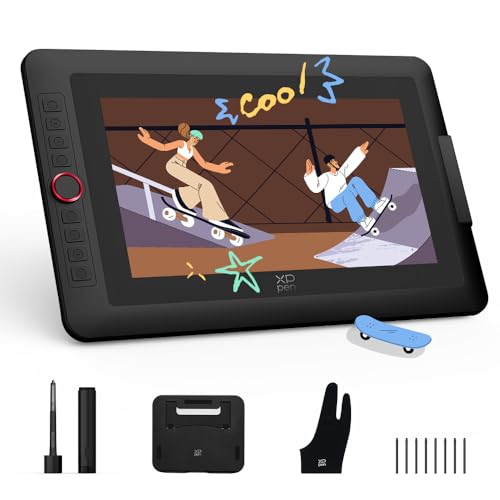
- Fully laminated screen eliminates parallax
- Built-in red dial roller and 8 express keys
- 16K pressure sensitivity (2x standard 8192)
Trade-offs
- At 6.8 lb, heavier than many portable models
- Requires USB3.1 DP1.2 for single-cable connection
- Full-featured USB-C cable included but 3-in-1 sold separately
The 16,384 levels of pressure sensitivity are twice the standard 8,192 found on many tablets, so every tiny shift in your hand, from a whisper-light sketch to a bold press, translates into your line. The ultra-low initial activation force helps even faint strokes register, which matters for manga inking or delicate pencil work. The fully laminated display removes the air gap between glass and LCD, so your cursor sits right under the nib with no distracting offset. A 95% P3 color gamut keeps what you see on screen matching what prints, and the metal back panel helps the tablet stay cool during long sessions.
Owners should check their device for USB3.1 DP1.2 support before relying on the single-cable USB-C connection. The included full-featured Type-C cable delivers a clean, clutter-free setup when used with a compatible Mac, Windows PC, Chromebook, or Android device. For older hardware lacking that specific port, a traditional 3-in-1 HDMI cable is required and sold separately. This dual-connection approach ensures the tablet works with a wide range of computers, though the simpler single-cable option is only available under the right conditions.
XP-Pen Magic Pro 13
What We Like
Trade-offs
- At 655g, heavier than a pen tablet alone
- Requires Android app ecosystem, not Windows or macOS native.
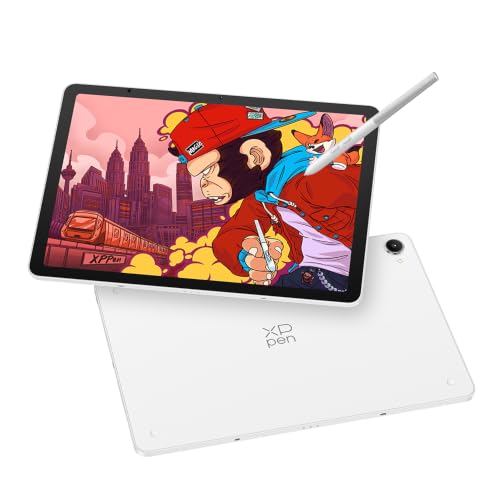
A 12.95-inch 3K display running at 120Hz with 650 nits peak brightness means you can sketch outdoors without fighting glare or losing detail. The XP-Pen Magic Pro 13 is built for creators who want to draw away from a desk. Its standalone Android 16 system, 8GB RAM, and 256GB storage let you open layered files, run Clip Studio Paint or ibisPaint X, and keep everything on the tablet without offloading to a laptop.
Weighing 655g, this tablet is heavier than a pen-only model like the Wacom Intuos Pro Medium, so it is less portable. The Android 16 environment means you work within its curated app selection rather than full desktop software.
Huion Inspiroy 2 Medium

What We Like
- Scroll wheel and 8 programmable keys
- Works with Android phones and tablets
- Slim pen with soft silicone grip and side buttons
Trade-offs
- No built-in screen; requires external display
- No Bluetooth; wired connection only
You need a computer, laptop, or Android device to see your work, since there is no built-in screen, so hand-eye coordination takes a little practice. Compared to the Wacom Intuos Pro Medium, which offers Bluetooth, the Huion relies on a wired USB connection, so you stay tethered to your desk. Still, for the price of a pen tablet with this level of pen precision and shortcut control, the Inspiroy 2 Medium delivers a focused, comfortable drawing experience that suits anyone moving from paper to digital.
Product photos
GAOMON PD1161 Pen Display
What We Like
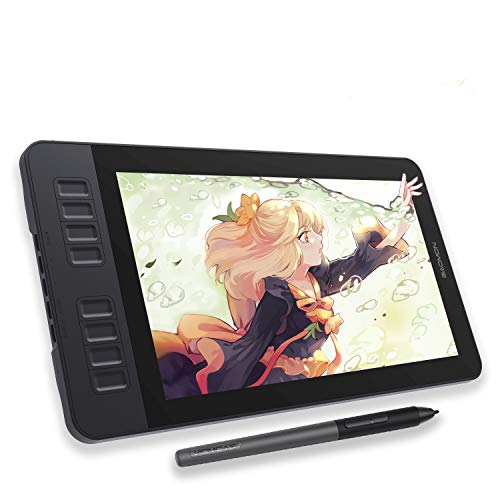
- Battery-free stylus with 8192 pressure levels
- Anti-glare matte screen for paper-like feel
- 8 programmable shortcut keys plus 2 pen buttons
- Full HD IPS display with 100% sRGB
Trade-offs
- Requires a separate computer to function
- 11.6-inch screen is smaller than 13-inch competitors
The 11.6-inch full HD screen with an anti-glare matte film reduces reflections and gives a paper-like feel while you work. The battery-free stylus offers 8192 levels of pressure sensitivity and tilt support, so you can vary line thickness naturally without needing to charge the pen. Eight programmable shortcut keys on the side and two pen buttons let you assign frequent commands, which can help speed up repetitive tasks in your software.
The trade-off is size: at 11.6 inches, the drawing area is noticeably smaller than the 13.3-inch Huion Kamvas 13 Gen 3, which gives you more room for sweeping strokes and detailed work. You also need a laptop or computer to run it, so it won’t work as a standalone sketchpad.
GAOMON WH851 Bluetooth Pen Tablet
What We Like
- 18-hour battery for all-day wireless use
- 16,384 pressure levels for fine line control
- Intuitive dial plus 8 customizable shortcut keys
- Battery-free pen with tilt detection
Trade-offs
- No built-in screen requires looking up at monitor
- Pen sinks 0.45 mm, softer than screen tablets
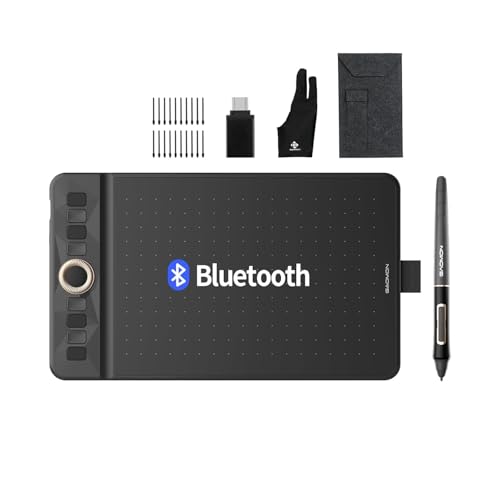
An 18-hour battery life means you can leave the cable behind and draw through an entire weekend without hunting for a charger. That wireless freedom, paired with 16,384 levels of pressure sensitivity and tilt detection, gives you the nuance to sketch fine lines or shade broad strokes just by leaning the pen. The dial in the middle lets you zoom or scroll without reaching for a keyboard, and eight customizable buttons keep your most-used shortcuts at your fingertips. For artists who want a clutter-free desk and the flexibility to move from laptop to tablet, this is a thoughtful, portable setup that doesn’t skimp on control.
The WH851 weighs just 0.9 pounds, so it slips into a bag alongside a laptop without adding bulk, making it far more travel-friendly than any screened tablet. The trade-off is a pen that sinks 0.45 mm into the surface, which feels softer than drawing on a display. If you prefer the immediate feedback of a screen, you might miss that direct feel here. It is a pen tablet for the artist who values long, unplugged sessions and a lightweight kit over the feel of drawing on a display.
Product photos
PicassoTab X11 Standalone Tablet
What We Like
- Fully standalone, no computer needed
- Laminated 2K screen reduces glare
- Lifetime VIP tutorials included for beginners
- Expandable storage up to 1TB
Trade-offs
- 4096 pressure levels below some competitors' 16K
- Heavier than the XP-Pen Magic Pro 13 at 1.1 pounds
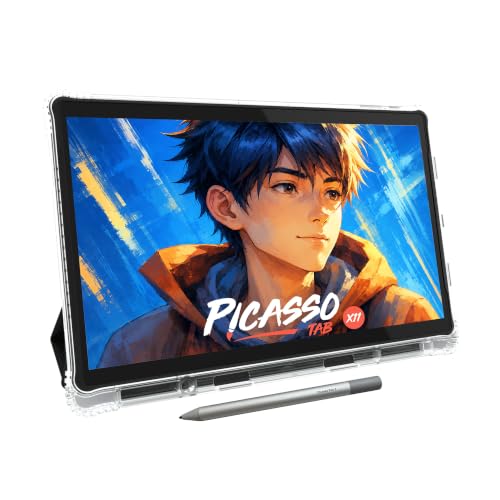
A fully standalone tablet with a laminated 11-inch 2K screen means you can draw anywhere without lugging a laptop or desktop around. That alone makes it a natural fit for someone just starting out who wants a simple, all-in-one setup. The included lifetime VIP tutorials and preloaded creative apps give you guided practice right out of the box, so you are not left wondering what to do next. With 6GB of RAM and 128GB of storage that expands up to 1TB, it handles sketching, painting, and even light animation without bogging down.
The 4096 pressure levels are a step behind the 16K sensitivity found on the XP-Pen Artist 13.3 Pro V2, which may matter if you plan to do very fine shading later. But for a beginner focused on learning fundamentals and building confidence, the PicassoTab X11 offers a complete, portable package that requires no extra gear. It is a thoughtful entry point into digital art that prioritizes ease and accessibility over raw specs.
Product photos
How We Evaluated Graphic Tablets For Digital Art
Our evaluation focused on the technical specs and real-world performance indicators that matter most to digital artists. We pored over manufacturer data sheets, studied expert recommendations from art and tech publications, and analyzed common themes in user reviews to understand what makes a tablet great for drawing, painting, and illustrating.
The four criteria that carried the most weight were pressure sensitivity levels and initial activation force, color accuracy and screen lamination, build quality and ergonomics, and the balance between portability and drawing area. A high pressure level with a low initial activation force allows for delicate, natural brush strokes, while a fully laminated screen eliminates the distracting gap between the pen tip and the cursor.
It is important to be honest about the limits of a research-led evaluation. This approach helps you narrow down your options, but the final decision should also consider your personal feel for the pen and screen.
What To Look For In Graphic Tablets For Digital Art
Focus on the core specs that directly affect your drawing experience, not just the price tag. A few key numbers will tell you more than a dozen marketing claims.
The best graphic tablet for you balances pressure sensitivity, screen size, color accuracy, and connectivity. Prioritize a laminated display for parallax-free drawing and a low initial activation force for responsive strokes.
Pressure Sensitivity and Initial Activation Force
Pressure sensitivity, measured in levels (8192, 16384, or 16384), determines how finely the tablet registers changes in pen pressure. A higher number allows for more nuanced brush strokes, from the faintest sketch to a bold line. The initial activation force (IAF), measured in grams, is equally important, a lower IAF means the pen registers the lightest touch, which is critical for delicate shading and hairline details.
Screen Type and Lamination
A pen display’s screen can be fully laminated or have an air gap. Fully laminated screens bond the glass to the LCD panel, eliminating parallax, the visual offset between the pen tip and the cursor. This makes drawing feel more natural and precise. Anti-glare glass or matte finishes reduce reflections and provide a paper-like texture that many artists prefer for long drawing sessions.
Color Accuracy and Gamut
For illustrators and designers who need their on-screen colors to match prints or client specs, color accuracy is non-negotiable. Look for specs like sRGB and DCI-P3 coverage percentages. A display with 99% DCI-P3 or 100% sRGB coverage will show rich, accurate colors. Some tablets even come with a factory color calibration report to ensure consistency out of the box.
Connectivity and Standalone Capability
Most graphic tablets require a connection to a computer or laptop via USB-C or a 3-in-1 cable. Some models offer wireless Bluetooth for pen tablets. Standalone tablets have a built-in operating system (like Android) and do not need a computer, making them ideal for on-the-go sketching. Check that your computer has the required ports, such as DisplayPort Alt Mode or Thunderbolt, for single-cable setups.
- Check the pressure levels (8192 is the standard, 16384 or 16384 offers more control).
- Confirm the screen is fully laminated if you want parallax-free drawing.
- Look for color gamut specs (sRGB, DCI-P3) if color accuracy matters for your work.
- Verify your computer’s ports support the tablet’s connection requirements.
A higher pressure level and a lower initial activation force will give you the most natural drawing feel.
Graphic Tablets For Digital Art Compared
The table below compares the key specifications of each top-rated graphic tablet to help you see the differences at a glance.
| Product | Screen Size | Pressure Levels | Weight |
|---|---|---|---|
| Huion Kamvas 13 Gen 3 | 13.3 inches | 16384 | 2.0 pounds |
| Wacom Cintiq 16 | 16 inches | 8192 | 4.5 pounds |
| Wacom Intuos Pro Medium | N/A | 8192 | 0.9 pounds |
| XP-Pen Artist 13.3 Pro V2 | 13.3-inch FHD | 16,384 | 6.8 pounds |
| XP-Pen Magic Pro 13 | 12.95" | 16,384 | 1.1 pounds |
| Huion Inspiroy 2 Medium | N/A | N/A | 0.9 pounds |
| GAOMON PD1161 Pen Display | 11.6 inches | 8192 | 1.9 pounds |
| GAOMON WH851 Bluetooth Pen Tablet | N/A | 16,384 | 0.9 pounds |
| PicassoTab X11 Standalone Tablet | 11" 2K | 4096 | N/A |
Frequently Asked Questions
What is the difference between a pen display and a pen tablet?
A pen display has a built-in screen that you draw on directly, offering a more intuitive experience similar to drawing on paper. A pen tablet has no screen, so you draw on a flat surface while looking at your computer monitor, which requires some hand-eye coordination but is often more affordable and portable.
How many pressure levels do I need for digital art?
8192 pressure levels is the current standard and is sufficient for most professional work. Higher levels like 16384 or 16384 offer even finer gradations in line weight, which can be beneficial for detailed illustration and shading, but the difference is subtle for many artists.
Can I use a graphic tablet without a computer?
Some graphic tablets are standalone devices with their own operating system, allowing you to draw without a computer. Most pen displays and pen tablets, however, require a connection to a computer or laptop to function, as they act as an input device and monitor.
What does a laminated screen mean for drawing?
A fully laminated screen bonds the glass to the LCD panel, eliminating the air gap between them. This removes parallax, meaning the cursor appears directly under the pen tip, making the drawing experience feel more precise and natural, as if you are drawing on paper.
How do I connect a graphic tablet to my computer?
Most modern graphic tablets connect via a single USB-C cable that supports DisplayPort Alt Mode or Thunderbolt. Some older models use a 3-in-1 cable with separate HDMI, USB, and power connections. Check your tablet and computer specs to ensure compatibility.
The Bottom Line
For the vast majority of digital artists, the Huion Kamvas 13 Gen 3 is the best overall choice, delivering excellent color accuracy, a fully laminated display, and an ultra-responsive pen at a competitive value. It is the perfect partner for desktop illustration and design work.
If you need a professional-grade display with a wider color gamut for print work, the Wacom Cintiq 16 is the better investment. For artists who prefer a screenless pen tablet with maximum customization, the Wacom Intuos Pro Medium offers a premium, wireless experience. Beginners looking for a standalone device will appreciate the PicassoTab X11.
The single most important factor in your decision is whether you want to draw directly on a screen or on a separate surface. Choose your form factor first, then narrow down by pressure sensitivity and color accuracy.
