10 Best Graphic Art Tablets in 2026
This post contains affiliate links. As an Amazon Associate, we earn from qualifying purchases.
The XPPen Artist Pro 14 Gen2 Drawing Tablet is our Best Overall pick for digital artists. It combines a full laminated anti-glare screen, 16384 pressure levels for fine control, and a built-in foldable stand and wireless remote in one complete package. For professionals who need factory-calibrated color, the HUION Kamvas 13 Gen 3 delivers, while the Wacom Cintiq 16 offers the color coverage serious illustrators demand.
Choosing a graphic art tablet means deciding between a display you draw on directly or a screenless pad, whether you need a computer to run it, and how much pressure sensitivity your style requires. A tablet that feels natural in your hand and matches your workflow makes the difference between fighting the tool and losing yourself in the art.
We compared specifications, manufacturer documentation, expert round-ups, and patterns in owner feedback to narrow the field to ten models. This guide covers everything from premium professional displays to affordable standalone tablets for beginners, so you can find the right fit for your skill level and budget.
Top 10 Graphic Art Tablets in the Market
Certain content that appears on this site comes from Amazon. This content is provided "as is" and is subject to change or removal at any time.
The Best Graphic Art Tablets, Reviewed
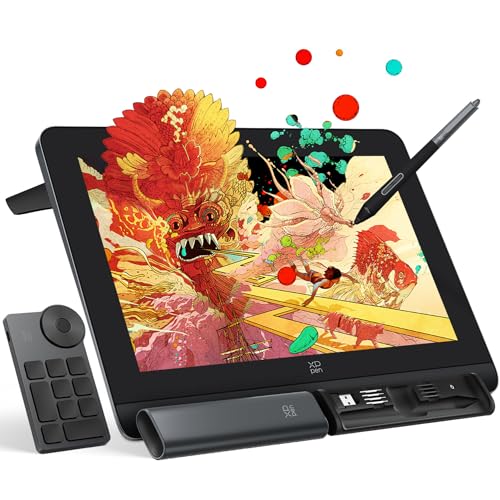
XPPen Artist Pro 14 Gen2 Drawing Tablet
What We Like
- Full laminated anti-glare screen
- 16384 pressure levels for fine control
- Built-in foldable stand and wireless remote
- Wide software compatibility (Photoshop, Blender, etc.)
Trade-offs
- Requires a computer to function (not standalone)
- 3-in-1 cable included but adds cable clutter
With 16K pressure sensitivity, this 14-inch display gives you fine control for delicate linework and subtle shading. The full laminated anti-glare screen eliminates parallax, so your cursor lands exactly where the nib touches, and the 123% sRGB color area ratio delivers vivid, accurate colors. The included foldable stand and wireless shortcut remote let you adjust your posture and access functions quickly. It works with popular software like Photoshop, Illustrator, Blender, and more.
The trade-off is that this is a tethered tool: you need a computer or laptop to run it, unlike standalone tablets such as the PicassoTab X11 that work on their own. The 3-in-1 cable keeps power, video, and data in one line, but it still adds desk clutter compared to a wireless pen tablet like the Wacom Intuos Pro Medium. If you already have a capable computer and want a screen that keeps up with your most detailed strokes, this pen display offers high pressure sensitivity and color accuracy for serious digital artists.
HUION Kamvas 13 Gen 3 Drawing Tablet

What We Like
- Factory color calibration report included
- Dual dial and 5 shortcut keys
- Anti-glare Canvas Glass 2.0
Trade-offs
- Requires connection to a computer or laptop
- Only 13.3-inch screen limits large gestures
With an average Delta E under 1.5 straight from the factory, the screen delivers color accuracy that keeps hues consistent across your work. The 99% sRGB coverage and Rec.709 standard gamut cover the most common color spaces for digital art and video, so gradients stay smooth and skin tones look natural. The fully laminated screen with anti-glare glass reduces glare and improves accuracy, giving you a clear view as you draw.
This is a tethered display: it must plug into a computer or laptop to function, so it won’t work as a standalone sketchpad away from your desk. At 2.0 pounds it is lighter than the Wacom Cintiq 16, but you still need a stable surface or the included adjustable stand to keep it from sliding. If you want a portable all-in-one solution, a standalone drawing tablet might suit you better, but for color-critical work at a desk, the Kamvas 13 Gen 3 delivers genuine accuracy straight from the factory.
Wacom Cintiq 16 Drawing Tablet

What We Like
- 99% DCI-P3 and 100% sRGB color coverage
- Pro Pen 3 with 8192 pressure levels
- Built-in fold-out legs for 20-degree angle
- USB-C connection with DisplayPort Alt Mode
Trade-offs
- 4.5 pounds is heavy for frequent travel
- No adjustable stand included (sold separately)
The Pro Pen 3 responds to the lightest touch with 8192 pressure levels, giving you fine control for shading, line weight, and detail work. This tablet is built for serious illustrators, comic artists, and animators who need a reliable, color-accurate canvas that feels natural under the hand.
At 4.5 pounds, it’s noticeably heavier than the HUION Kamvas 13 Gen 3 at 2.0 pounds, making it less ideal for slipping into a bag every day. And while the built-in fold-out legs give you a 20-degree working angle, you’ll need to buy an adjustable stand if you want more ergonomic flexibility. For a professional who works at a dedicated desk, these limits are easy to work around.
Product photos
Wacom Intuos Pro Medium Drawing Tablet

What We Like
- 8192 pressure levels for fine control
- 10 ExpressKeys and 2 mechanical dials
- Bluetooth wireless freedom
Trade-offs
- No built-in screen for direct drawing
- Requires computer; not standalone
The Pro Pen 3 offers 8192 pressure levels and an adjustable balance and button layout, so you can fine-tune the feel to match your hand. With 10 ExpressKeys and two mechanical dials placed at the top of the tablet, you can assign shortcuts and controls for faster access during work. This setup is designed for artists who want to keep their hands on the tablet and minimize interruptions.
This is a pen tablet without a screen, so you draw while looking at your monitor rather than directly on the canvas. That takes some getting used to, especially if you’ve been using a display tablet like the XP-Pen Artist Pro 14 Gen2. The magnesium build is durable, and Bluetooth connectivity reduces cable clutter. For someone who values precision and control over a built-in display, this is a focused, professional tool.
Product photos
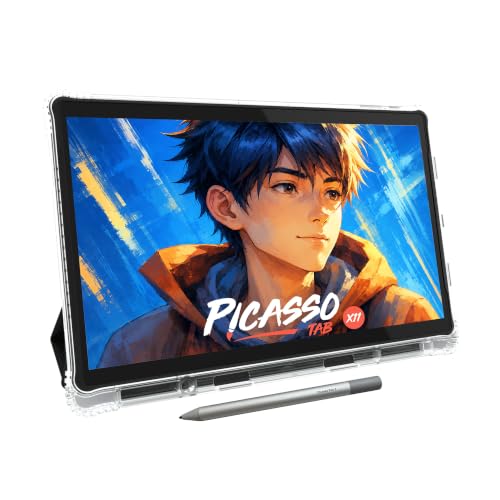
PicassoTab X11 Standalone Drawing Tablet
What We Like
- No computer needed
- Preloaded with 5 creative apps
- Laminated paper-like 2K display
- Lifetime VIP tutorial upgrade included
Trade-offs
- 4096 pressure levels vs 16384 on some competitors
- 11" screen is smaller than many tethered tablets
- Bonus items add setup steps for beginners
A fully standalone tablet that needs no computer means you can sketch, paint, or animate anywhere, on a couch, in a café, or during a commute, without hauling a laptop. The 11″ laminated 2K screen cuts glare and parallax, so your pen tip meets the line exactly where you expect it. The 4096-level stylus handles shading and fine strokes with enough precision for most illustration work. Preloaded with five creative apps and a lifetime upgrade to Artixo’s step-by-step tutorials, this tablet is built especially for someone who wants to learn or practice without wrestling with software setup or driver installs.
And at 11 inches, the display is noticeably smaller than the 13.3-inch screen on that Kamvas, which can feel cramped if you prefer sweeping arm movements. Still, for a student or beginner who values portability and a ready-to-go creative environment over absolute pen nuance, the PicassoTab X11 delivers a focused, distraction-free drawing experience that a computer-dependent tablet simply cannot match.
HUION KAMVAS Slate 11 Standalone Drawing Tablet

What We Like
- Standalone Android 14, no computer needed
- 90Hz refresh rate for smooth visuals
- Full-laminated anti-glare screen reduces parallax
- 8000mAh battery for all-day drawing
Trade-offs
- 10.95-inch screen is smaller than many desktop tablets
- 4096 pressure levels, less than some competitors' 16384
A 90Hz refresh rate keeps your strokes smooth and lag-free, so you can draw without interruption. The 8000mAh battery is rated to last through a full day of use, meaning you can sketch in a café or on a train without hunting for an outlet. This standalone Android 14 tablet needs no computer, and the full-laminated anti-glare screen reduces parallax and glare for a paper-like feel. A pre-installed drawing app gets you started right away.
Screen size is the main consideration: at 10.95 inches, the Slate 11 is more portable than a desktop display like the Wacom Cintiq 16, but you lose the spacious canvas some illustrators prefer for detailed work. Its 4096 levels of pressure sensitivity are capable, but if you need the finer nuance of 16384 levels found on the XP-Pen Artist Pro 14 Gen2, you might feel the difference.
Product photos
XPPen Deco 01 V3 Drawing Tablet

What We Like
- 16K pressure levels for smooth shading
- Battery-free stylus with 60° tilt
- 8 customizable express keys
- Lightweight and 8 mm thin
Trade-offs
- No built-in screen for direct drawing
- Battery and charger not included
- Requires external device to function
Because it lacks a built-in screen, you will need to connect the Deco 01 V3 to a computer, Android device, or Chromebook to see your work. The tablet does not come with a battery or charger, so you must supply your own USB power. Compared to display tablets like the XP-Pen Artist Pro 14 Gen2, this model offers a large active area and a pressure-sensitive stylus at a lower cost. For someone just starting digital art, it provides essential features without a big upfront investment.
UGEE UE16 Drawing Tablet

What We Like
- 143% sRGB color gamut for vivid hues
- Four color space modes for versatile work
- 16K pressure sensitivity for fine control
- 8 shortcut keys and scroll wheel
Trade-offs
- 15.4-inch screen is larger and less portable
- 3-in-1 cable packed separately, easy to misplace
The UE16 offers a 143% sRGB color gamut and four color space modes (sRGB, Adobe RGB, DCI-P3, and black-and-white), so you can switch between different visual setups for drawing or design work. The 16K pressure sensitivity and full-laminated screen help translate each stroke onto the display, which is useful for detailed linework.
The 15.4-inch screen is larger than some alternatives, which means it needs more desk space and is less convenient to carry around. The 3-in-1 cable is packed separately, so you have to check the parcel carefully to avoid misplacing it. If you work with color-critical projects and have a stable workspace, this tablet covers those needs.
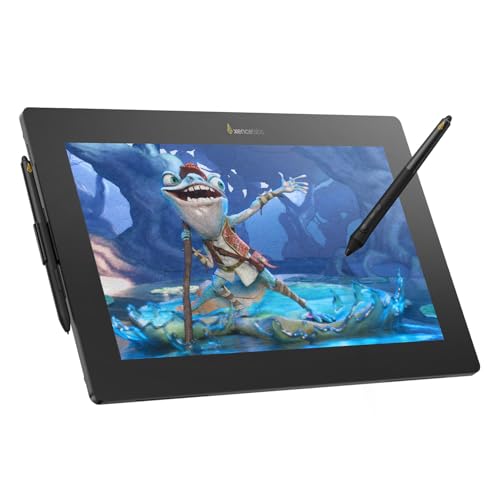
XENCELABS Pen Display 16 Lite
What We Like
- 4K OLED display with 1.07 billion colors
- Fanless, cool and silent operation
- Super AG Etching reduces glare without sparkle
- Thin 12mm design with single USB-C cable
Trade-offs
- Button-free surface means no shortcut keys
- Virtual Tablet Mode requires another display
A 16-inch 4K OLED screen with 1.07 billion colors sets this tablet apart from anything else in this guide. The fanless metal body stays cool and silent, so long studio sessions won’t be interrupted by noise or heat. It’s a display that rewards anyone who cares about color accuracy and a clean, distraction-free workspace.
The 16-inch 4K OLED display covers 1.07 billion colors right out of the box, so what you see is what you get without needing to calibrate the screen yourself. The trade-off is the button-free surface: there are no programmable shortcut keys on the tablet itself, so you’ll rely on the two pen buttons and keyboard shortcuts to speed up your workflow. If you prefer having physical ExpressKeys or dials, the Wacom Cintiq 16 offers them, though its screen is QHD and not OLED.
Product photos
Simbans A10 Graphic Art Tablet
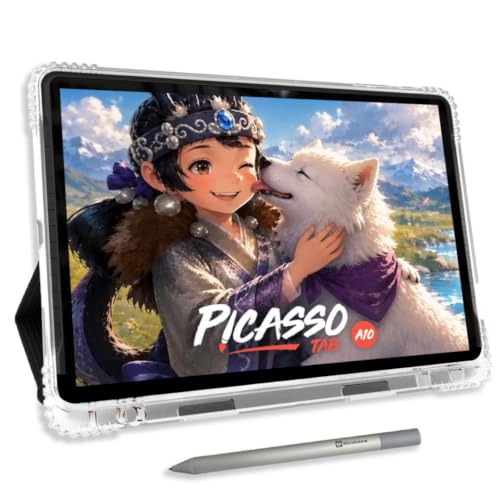
What We Like
- Standalone tablet, no computer needed
- Preloaded with 5 creative apps
- Lifetime VIP tutorials for beginners
- Expandable storage up to 1TB
Trade-offs
- 4096 pen pressure is entry-level, not pro-grade
- At 3.3 pounds, heavier than many portable tablets
- 10-inch screen limits workspace for detailed illustrations
A standalone tablet that runs everything directly on its own screen means you can draw anywhere without lugging a laptop, that’s the core appeal here. The octa-core processor and 6GB of RAM keep drawing apps and guided lessons running smoothly, while the 4096-level pressure pen gives you control over stroke thickness. The laminated paper-like display cuts glare and parallax for a more natural drawing feel. Preloaded creative apps and lifetime VIP tutorials turn this into a complete starter kit for someone who wants to learn without hunting for software or instruction.
The 4096 levels of pressure sensitivity are entry-level compared to the 16384 levels found on the XP-Pen Artist Pro 14 Gen2, so experienced artists may notice less nuance in very light or very heavy strokes. At 3.3 pounds, it’s also noticeably heavier than the 2-pound HUION Kamvas 13 Gen 3, which matters if you plan to hold it for long sketching sessions.
Product photos
How We Evaluated Graphic Art Tablets
Our evaluation is research-based, drawing from manufacturer specifications, expert round-ups from art and tech publications, and patterns in owner feedback across multiple retail platforms. We focused on the features that matter most when a tablet becomes an extension of your hand.
The four criteria that carried the most weight were pressure sensitivity, display quality, software compatibility, and whether the tablet is standalone or tethered. Higher pressure levels (8192 and above) allow for more expressive line variation, while color gamut coverage like sRGB and DCI-P3 determines how accurately your work translates to print or screen.
A review cannot replace personal experience, and subjective factors like pen feel or screen texture vary by personal preference. We recommend reading multiple owner perspectives and, if possible, trying a display model before committing to a purchase.
What To Look For In Graphic Art Tablets
The right graphic art tablet balances pressure sensitivity, screen quality, and workflow freedom. Here is what to consider before you buy.
Look for at least 8192 levels of pressure sensitivity for natural line variation. For color work, target 100% sRGB or better. Decide whether you need a standalone tablet or one that connects to a computer, and check that your preferred software is supported.
Pressure Sensitivity and Pen Performance
Pressure sensitivity determines how your strokes respond to the force of your hand. Entry-level tablets often offer 4096 levels, while professional models reach 8192 or even 16384 for subtle shading and fine detail. A battery-free pen with tilt support (60 degrees or more) feels closer to a real pencil or brush.
Display Quality and Color Accuracy
For drawing on a screen, look for a full-laminated display that reduces parallax between the pen tip and cursor. Anti-glare coatings cut reflections in bright rooms. Color accuracy matters for print and video work: 100% sRGB is a solid baseline, while 99% DCI-P3 or higher is ideal for professional color grading.
Standalone vs. Tethered Workflow
Some tablets require a computer or laptop to function, which gives you more processing power and software options. Standalone tablets run on Android or other operating systems and include built-in apps, making them portable and ready to use anywhere. Consider where and how you will draw most often.
- Check that your operating system and drawing software are compatible with the tablet.
- Confirm the cable type (USB-C is preferred for simplicity).
- Look at the active area size; larger is better for sweeping arm movements.
- Review the number and placement of shortcut keys or dials.
- Consider weight and dimensions if you plan to travel with the tablet.
A good rule of thumb: buy the highest pressure sensitivity and best color accuracy your budget allows, because these are the features that affect every stroke you make.
Graphic Art Tablets Compared
The table below compares the ten graphic art tablets across key specifications so you can see at a glance how they differ in pressure sensitivity, display type, and standalone capability.
| Product | Screen Size | Pressure Levels | Pen Type | Connection |
|---|---|---|---|---|
| XPPen Artist Pro 14 Gen2 Drawing Tablet | 14 inches | 16384 | X3 Pro battery-free stylus | Requires computer (not standalone) |
| HUION Kamvas 13 Gen 3 Drawing Tablet | 13.3 inches | 16384 | PenTech 4.0 | USB-C single cable |
| Wacom Cintiq 16 Drawing Tablet | 16 inches | 8192 | Pro Pen 3 | USB-C cable |
| Wacom Intuos Pro Medium Drawing Tablet | N/A | 8192 | Pro Pen 3 | USB / Bluetooth |
| PicassoTab X11 Standalone Drawing Tablet | 11 inches | 4096 | 4096 Pressure Pen | No Computer Needed |
| HUION KAMVAS Slate 11 Standalone Drawing Tablet | 10.95 inches | N/A | H-Pencil | No Computer Needed |
| XPPen Deco 01 V3 Drawing Tablet | N/A | 16384 | Battery-free stylus | USB-C (with adapters) |
| UGEE UE16 Drawing Tablet | 15.4 inches | 16K | U-Pencil | N/A |
| XENCELABS Pen Display 16 Lite | 16 inches | N/A | 2 Battery-Free Pens | N/A |
| Simbans A10 Graphic Art Tablet | 10 inches | 4096 | 4096-level pressure-sensitive stylus | No Computer Needed |
Frequently Asked Questions
What is the difference between a screenless tablet and a display tablet?
A screenless tablet has no built-in display; you draw on the tablet surface while looking at your computer monitor. A display tablet has an integrated screen that shows your artwork directly under the pen tip, making the experience more like drawing on paper.
How much pressure sensitivity do I need for digital art?
For casual sketching and note-taking, 4096 levels are sufficient. For professional illustration and fine detail work, look for 8192 or higher. Higher pressure levels give you more control over line weight and opacity.
Can I use a graphic art tablet without a computer?
Some tablets are standalone and run their own operating system with preloaded drawing apps. Others require a connection to a computer or laptop to function. Check the product description to see which type fits your needs.
What is sRGB color gamut and why does it matter?
SRGB is a standard color space used by most monitors and the web. A tablet that covers 100% sRGB displays colors accurately as they will appear on typical screens. Higher coverage like 143% sRGB allows for more vivid hues.
Do all graphic art tablets work with Photoshop and other major software?
Most modern tablets support major drawing software, but compatibility varies by operating system and driver support. Check the manufacturer’s compatibility list for your specific software, especially if you use a less common program.
The Bottom Line
The XPPen Artist Pro 14 Gen2 Drawing Tablet is our Best Overall pick for digital artists who want a high-pressure-sensitivity display with vivid color and a comfortable ergonomic setup. Its laminated anti-glare screen, built-in stand, and wireless remote make it a complete package for serious illustration work.
If you need factory-calibrated color accuracy for print or video projects, the HUION Kamvas 13 Gen 3 is the best choice. For beginners who want a standalone tablet with no computer required, the Simbans A10 or PicassoTab X11 offer ready-to-use drawing setups with built-in tutorials.
The single most important factor in choosing a graphic art tablet is matching the pressure sensitivity and display quality to your skill level and workflow. Buy the best screen and pen response your budget allows, and you will have a tool that grows with you.
