10 Best Draw On Screen Tablet in 2026
This post contains affiliate links. As an Amazon Associate, we earn from qualifying purchases.
For digital artists who want to draw directly on a display, the XP-Pen Magic Pro 13 Standalone Drawing Tablet is our best overall pick. It combines a standalone Android tablet with a high-resolution 3K 120Hz pen display for desktop use. For those who need maximum portability, the Wacom MovinkPad 11 is our best portable standalone choice, while the Wacom One 14 is ideal for beginners plugging into a computer.
The real challenge is deciding between a standalone tablet that works without a computer and a pen display that relies on one. Screen size, pressure sensitivity, color accuracy, and portability all affect your daily workflow. A wrong choice here can mean cramped wrists or disappointing color.
This guide is based on a careful review of specifications, manufacturer documentation, and patterns in owner feedback across ten top models. We break down the key features to help you match the right tablet to your creative needs.
Top 10 Draw On Screen Tablets in the Market
Certain content that appears on this site comes from Amazon. This content is provided "as is" and is subject to change or removal at any time.
The Best Draw On Screen Tablets, Reviewed
XP-Pen Magic Pro 13 Standalone Drawing Tablet
What We Like
- Standalone and display mode in one
- 3K 120Hz paper-like nano-etched glass
- 16K pressure stylus with tilt support
- 8GB RAM and expandable storage
Trade-offs
- At 1.1 lbs, still needs a lap or desk
- No included protective case for travel
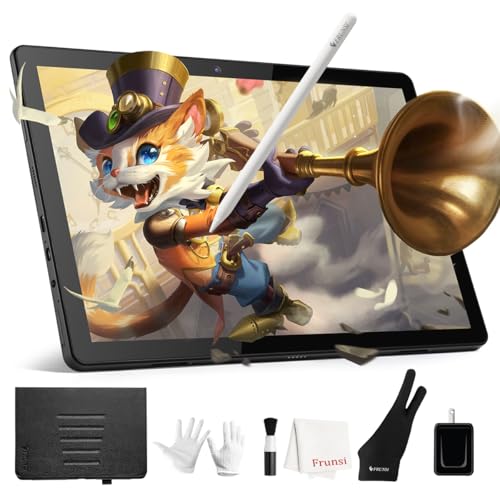
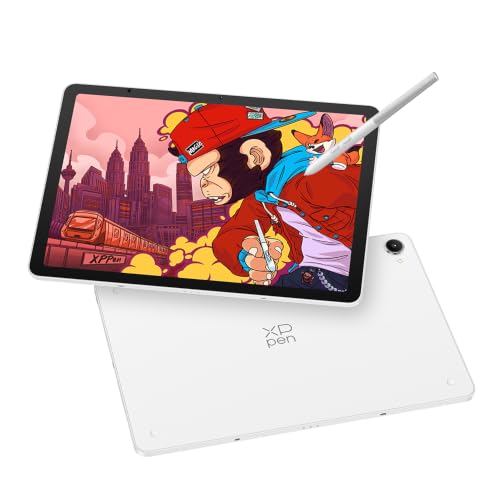
A 3K display with a paper-like nano-etched glass surface cuts glare in bright light and keeps lines crisp, which matters when you’re sketching fine details or flipping between layers outdoors. The stylus responds to just 2 grams of pressure, so even the lightest hatch marks register without effort. It works as a standalone Android 16 tablet with 8GB RAM and 256GB storage, plus microSD expansion up to 2TB. That means you can keep full layered projects on the device instead of offloading to a laptop. For artists who want one tool for field sketches and studio refinement, this covers both roles without needing a second device.
At 1.1 pounds and 6.65mm thin, it’s light enough to carry but still needs a flat surface or a lap for steady drawing. It’s not a clipboard you can hold in one hand. The Android 16 ecosystem comes with pre-installed apps like Clip Studio Paint and ibisPaint X, but if your workflow relies on a specific Windows or macOS program, you’ll need to switch to Drawing Display Mode via USB-C. Compared to the Wacom MovinkPad 11, the Magic Pro 13 offers more internal storage and a higher-resolution screen. That makes it the better pick for artists who work on complex files away from a desk.
Wacom MovinkPad 11 Android Drawing Tablet

What We Like
- No computer needed
- Paper-like matte etched glass screen
- Instant sketch launch with pen tap
- Slim Pro Pen 3 with 3 buttons
Trade-offs
- 128GB storage is less than some standalone rivals
- Android apps limited compared to desktop software
This 11.45-inch Android 14 tablet works entirely on its own, so you can sketch anywhere without needing a computer. Wacom’s Pro Pen 3 delivers 8,192 pressure levels, and the matte etched glass surface reduces glare and fingerprints, making it feel like paper under the nib. Tap and hold the pen on the screen to launch Wacom Canvas instantly, just like opening a sketchbook.
The trade-off for that independence is a smaller screen and less storage than the XP-Pen Magic Pro 13, which offers 256GB and a 12.95-inch display. If you prefer working on a larger canvas or need more onboard space, the MovinkPad’s 128GB may fill up faster. But for quick sketches and note-taking, this Wacom delivers a paper-like drawing experience in a truly standalone package.
Product photos
Wacom One 14 Drawing Tablet

What We Like
- Battery-free pen with responsive pressure sensitivity
- 98% sRGB color accuracy for vivid art
- Works with Windows, Mac, and Chromebook
Trade-offs
- USB-C only; HDMI setups need extra adapter kit
- Requires a computer; not a standalone device
A 14-inch laminated IPS display with 98% sRGB color accuracy gives you a crisp, color-true canvas that won’t glare or smudge, so you can focus on your sketch instead of fighting reflections. The battery-free pen captures light lines and bold strokes with Wacom’s proven pressure sensitivity, and the paper-like texture feels familiar under your hand. This is the tablet for someone who wants a reliable, no-hassle drawing experience right out of the box, backed by software trials and training to get started fast.
For beginners learning digital art at home or in a studio, this pen display delivers the core tools without the complexity. The 14-inch IPS Full HD laminated screen provides a generous drawing area with 98% sRGB color accuracy, so colors appear consistent and true across projects. A paper-like texture on the surface resists glare and smudges, which keeps you focused longer without fighting reflections or fingerprints. The battery-free pen captures everything from light lines to bold strokes using Wacom’s responsive pressure sensitivity, and it never needs charging, so it’s always ready when inspiration strikes. Owners report the setup works reliably with Windows, Mac, or Chromebook via a single USB-C connection, avoiding the driver headaches common with cheaper alternatives.
Product photos
Huion Kamvas Pro 16 Drawing Tablet
What We Like
- Fully laminated anti-glare glass screen
- 120% sRGB color gamut for vivid color
- Adjustable stand (20-60 degrees) included
- Customizable touch bar and 6 express keys
Trade-offs
- Requires connection to a computer to work
- At 3.0 pounds, heavier than portable standalone tablets
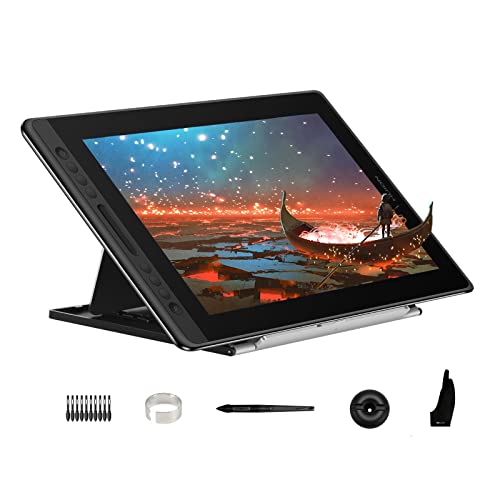
The main trade-off is that this is a pen display, not a standalone tablet, it must be connected to a computer via the 3-in-1 USB-C cable. At 3.0 pounds, it’s heavier than portable standalone tablets like the Wacom MovinkPad 11 (1.3 pounds), so it’s better for a desk setup than for sketching on the go. If you need a large, color-rich screen and don’t mind the wired connection, this fits that need.
Product photos
Huion Kamvas 13 Gen 3 Drawing Tablet
What We Like
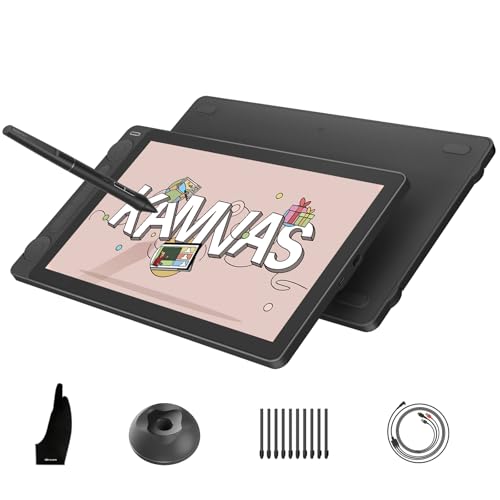
- Dual dial controllers and five silent keys
- Anti-glare Canvas Glass 2.0 with nano-etching
- 16384 pressure sensitivity levels
Trade-offs
- Requires a separate computer or laptop to function
- 13.3-inch screen is smaller than some alternatives
This is a tethered tool; it must connect to a computer or laptop to work, so it won’t replace a standalone tablet like the XP-Pen Magic Pro 13. And at 4.2 pounds, it’s noticeably heavier than the Wacom One 14, which could be a factor if you move your setup around frequently. But if your priority is the finest pressure response and color fidelity in a compact screen, this Huion delivers where it counts.
XP-Pen Artist Pro 16 Gen 2 Drawing Tablet

What We Like
- 2.5K QHD full-laminated anti-glare screen
- 16K pressure sensitivity for ultra-fine control
- 159% sRGB color area ratio with ΔE <2.2
- Built-in foldable stand and wireless shortcut remote
Trade-offs
- Requires connection to a computer to function
- At 8.6 pounds, it is heavy for frequent travel
- 3-in-1 cable included but adds setup clutter
A 16-inch QHD screen with full lamination and anti-glare glass helps you avoid parallax errors, so your cursor stays right where the pen tip hits. The 16K pressure levels in the stylus let you vary line weight with tiny changes in hand pressure, which matters when you’re building up delicate washes or tightening a sketch. With 99% sRGB coverage and a delta-E under 2.2, the colors you pick on screen match what prints or exports, so you don’t have to keep checking on another monitor.
The trade-off is that this is not a standalone tablet; you need a computer or laptop connected via the included 3-in-1 cable, which adds a little cable management to your desk. It also weighs 8.6 pounds, so it is better suited to a dedicated workspace than tossing in a bag between coffee shops. Compared to the lighter, standalone XP-Pen Magic Pro 13, the Artist Pro 16 Gen 2 trades portability for a larger display and higher resolution, making it the better choice for studio-focused creators who want a screen that shows their work exactly as intended.
GAOMON PD1161 Drawing Tablet
What We Like
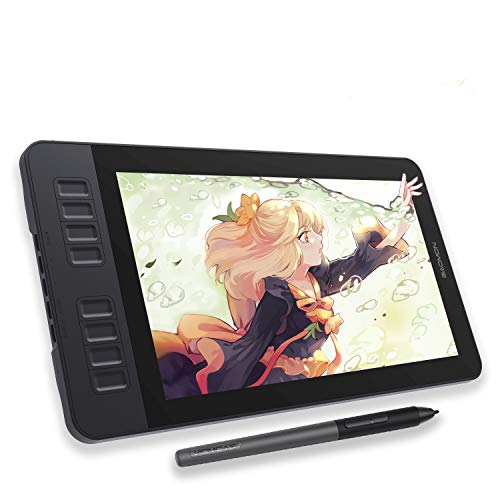
- Pre-installed matte film reduces glare
- Battery-free stylus with 8192 pressure levels
- 8 programmable shortcut keys on side
- Full HD IPS screen for vivid color
Trade-offs
- Requires connection to a computer to function
- 11.6-inch screen is compact for detailed work
- No standalone operation without PC or Mac
An 11.6-inch full HD IPS screen with a pre-installed matte film reduces glare and reflection, so you can work in bright rooms or near windows without fighting reflections. The matte surface gives the display a paper-like feel, which helps your pen strokes feel more natural. With 8192 levels of pressure sensitivity and a battery-free stylus, you never have to pause to recharge the pen, just pick it up and draw. The 72% NTSC (100% sRGB) color gamut enables smoother color gradation and more lifelike presentation, making this a good fit for beginner artists and note-takers who want a glare-free workspace.
The GAOMON PD1161 is not a standalone tablet; it must be connected to a Windows or Mac computer to work, so unlike the Frunsi RubensTab T11 Pro, it can’t be used independently without a laptop. Its 11.6-inch screen gives you a compact workspace that fits easily on a desk, though some users may prefer a larger area for broad strokes. For anyone who already owns a capable computer and wants a glare-resistant drawing monitor for home or office, this model delivers exactly what it promises.
UGEE UE16 Drawing Tablet

What We Like
- 143% sRGB color gamut for vivid hues
- Four color spaces: sRGB, Adobe RGB, DCI-P3, Black & White
Trade-offs
- Requires connection to a computer or device
- No built-in battery or standalone operation
A 143% sRGB color gamut means this display reproduces noticeably richer, more saturated colors than standard sRGB screens, useful for illustrators or designers who work with vibrant palettes and want accurate, punchy hues. The 8-bit color depth handles 16.7 million colors, so gradients and subtle shading come across smoothly without banding. Switching between sRGB, Adobe RGB, DCI-P3, and a dedicated Black & White mode lets you adapt the screen to different tasks, design work, photo editing, or just reading without color distraction. That flexibility is rare at this price point and saves you from having to calibrate for each project.
This tablet is not a standalone device; it needs a computer, phone, or compatible device to function, unlike the XP-Pen Magic Pro 13 which runs on its own. The 15.4-inch screen is generous for a desk setup. If you already have a laptop or desktop and want a wide color gamut, the UE16 delivers vivid color without the need for a standalone tablet.
VEIKK VK1200 Drawing Tablet

What We Like
- Two battery-free pens included
- 28 pen nibs for experimenting
- Artist glove included for clean drawing
Trade-offs
- 11.6-inch screen is smaller than many alternatives
- Only 72% NTSC color gamut limits color accuracy
- Requires connection to a computer (not standalone)
An 11.6-inch screen with 1920 x 1080 resolution and 8192 levels of pressure sensitivity gives you a capable drawing surface that responds to the lightest touch. For beginners and students who want a full drawing monitor without spending heavily, this bundle delivers two battery-free pens, 28 nibs, and a glove right in the box.
The 72% NTSC color gamut covers a moderate range of colors, which is typical for displays in this size class. The 11.6-inch screen is compact enough to fit in a smaller bag, making it easy to carry between home and studio. Reviewers report that the bundle includes two pens, 28 nibs, a pen holder, and an artist glove, so you have spare parts and accessories from the start.
Product photos
Frunsi RubensTab T11 Pro Standalone Drawing Tablet
What We Like
- No computer needed for drawing
- Pre-installed drawing apps and tutorials
- 5800mAh battery for 5-hour sessions
- USB-C charging with power bank support
Trade-offs
- Battery and charger sold separately
- 10.1-inch screen is small for detailed work
The Frunsi RubensTab T11 Pro is a fully self-contained drawing tablet that runs entirely on its own, no computer, no phone, no tether. With a 10.1-inch Full HD screen and a battery-free pressure-sensitive pen, you can power it on and start sketching immediately. The pre-installed drawing apps and tutorials make it especially welcoming for beginners or anyone who wants a grab-and-go creative tool without the complexity of setting up software on a PC. Its 5800mAh battery gives you about five hours of continuous use, and you can extend that with a standard USB-C power bank, so it works well for travel, coffee shop sessions, or classroom note-taking.
Size and battery life are the main compromises here. At 10.1 inches, the screen is noticeably smaller than the 12.95-inch display on the XP-Pen Magic Pro 13, which means less room for detailed illustrations or multitasking. Five hours of drawing time is reasonable for a day out, but if you often work through long studio sessions, you’ll need to keep a power bank handy. Remember that the charger itself is not included. For someone who values absolute portability and independence over screen real estate, the RubensTab is a straightforward, no-fuss standalone option.
Product photos
How We Evaluated Draw On Screen Tablets
Our evaluation draws from manufacturer specifications, expert design round-ups, and common themes in user feedback. We focused on the features that matter most to artists: display quality, pressure sensitivity, standalone capability, and overall value for the investment.
The three criteria that carried the most weight were screen performance (resolution, color gamut, and lamination), pressure sensitivity levels and pen technology, and whether the tablet works as a standalone device or requires a computer. Portability and build quality also factored in, especially for artists on the go.
A research-led evaluation cannot replace hands-on studio testing. We rely on published data and the collective experience of the art community to identify the strongest options, but personal preference for pen feel or screen texture may vary. We recommend considering your primary software and workspace before deciding.
What To Look For In Draw On Screen Tablets
Choosing a draw on screen tablet comes down to matching the hardware to your creative habits. Focus on the display, the pen, and how the tablet connects to your workflow.
Look for a fully laminated display with anti-glare treatment for a natural paper feel. Higher pressure sensitivity (8K to 16K levels) allows finer control. Decide if you need a standalone tablet or a computer-connected display.
Display Quality and Size
The screen is where you create, so resolution, color accuracy, and size are critical. A fully laminated display eliminates the gap between the glass and the LCD, reducing parallax so your pen tip meets the cursor exactly. Anti-glare or nano-etched glass mimics the texture of paper and cuts reflections. Color gamut, measured in sRGB percentage, determines how vivid your colors appear; 100% sRGB or higher is standard for professional work. Screen size ranges from 10 to 16 inches, with larger displays offering more room for sweeping strokes but less portability.
Pressure Sensitivity and Pen Technology
Pressure sensitivity controls how the line weight changes with your touch. Levels range from 8,192 to 16,384, with higher numbers allowing more nuanced strokes for inking, shading, and calligraphy. Battery-free pens are preferred because they never need charging and feel lighter. Tilt support enables shading effects, and programmable buttons on the pen or tablet speed up your workflow. Look for a pen that feels balanced in your hand and responds without noticeable lag.
Standalone vs. Computer-Connected
This is the biggest fork in the road. Standalone tablets run their own operating system (usually Android) and include drawing apps, so you can sketch anywhere without a computer. They are heavier and have smaller screens but offer total freedom. Computer-connected pen displays rely on a PC or Mac for processing power, offering full access to desktop software like Photoshop or Clip Studio Paint. They are lighter and often have larger, higher-resolution screens. Consider your software needs and whether you work at a desk or on the move.
- Check if your preferred drawing software is available on Android if choosing a standalone tablet.
- Confirm the tablet supports your computer’s ports (USB-C, HDMI, or DisplayPort) without extra adapters.
- Look for adjustable stands or foldable legs for comfortable drawing angles.
- Note the weight: a 1-pound tablet is easy to carry; a 3-pound model is better for a desk.
- Verify that the pen is battery-free and replacement nibs are easy to find.
A good rule of thumb: if you work mostly at a desk, prioritize screen quality and size. If you sketch on the go, prioritize standalone capability and portability.
Draw On Screen Tablets Compared
The table below compares the ten draw on screen tablets across display size, resolution, pressure sensitivity, and standalone capability. Use it to narrow down your options at a glance.
| Product | Screen Size | Pen Type | Weight |
|---|---|---|---|
| XP-Pen Magic Pro 13 Standalone Drawing Tablet | 12.95" | X4 Smart Chip Stylus | 1.1 lbs |
| Wacom MovinkPad 11 Android Drawing Tablet | 11.45 inches | battery-free | 1.3 pounds |
| Wacom One 14 Drawing Tablet | 14 inches | Battery-free | 1.7 pounds |
| Huion Kamvas Pro 16 Drawing Tablet | 15.6 inches | Battery-free | 3.0 pounds |
| Huion Kamvas 13 Gen 3 Drawing Tablet | 13.3 inches | N/A | 4.2 pounds |
| XP-Pen Artist Pro 16 Gen 2 Drawing Tablet | 16 inch | X3 Pro battery-free | 8.6 pounds |
| GAOMON PD1161 Drawing Tablet | 11.6 inches | Battery-free | 1.9 pounds |
| UGEE UE16 Drawing Tablet | 15.4 inches | Battery-Free | N/A |
| VEIKK VK1200 Drawing Tablet | 11.6 inches | Battery-free | 1.0 pounds |
| Frunsi RubensTab T11 Pro Standalone Drawing Tablet | 10.1 inch | Battery-free pressure-sensitive | N/A |
Frequently Asked Questions
What is the best draw on screen tablet for beginners?
The Wacom One 14 is our best for beginners pick. It offers a battery-free pen with responsive pressure sensitivity, 98% sRGB color accuracy, and works with Windows, Mac, and Chromebook computers. Its plug-and-play setup means less time configuring and more time drawing.
Can you use a draw on screen tablet without a computer?
Yes, if you choose a standalone tablet. The XP-Pen Magic Pro 13 and Wacom MovinkPad 11 both run Android and include pre-installed drawing apps. The Frunsi RubensTab T11 Pro is another option that does not require a computer, though it has a smaller 10.1-inch screen.
What is the difference between a drawing tablet and a pen display?
A drawing tablet has no screen; you draw on a surface while looking at your computer monitor. A draw on screen tablet, or pen display, has an LCD screen that shows your artwork directly under the pen tip. Pen displays offer a more natural drawing experience because your hand and cursor are in the same place.
How much pressure sensitivity do I need for digital art?
Most modern draw on screen tablets offer 8,192 levels of pressure sensitivity, which is sufficient for nearly all digital art. Higher levels, like 16,384 found on the Huion Kamvas 13 Gen 3 and XP-Pen Artist Pro 16 Gen 2, provide extra nuance for very fine line control and subtle shading.
What screen size is best for a draw on screen tablet?
A 13 to 16-inch screen is ideal for detailed work at a desk, while 10 to 12-inch tablets are better for portability. The Huion Kamvas Pro 16 offers a large 16-inch display for studio use, while the GAOMON PD1161‘s 11.6-inch screen is compact for travel.
The Bottom Line
For most artists, the XP-Pen Magic Pro 13 Standalone Drawing Tablet is the best overall choice. It gives you the freedom to sketch on the go with its standalone Android mode and the precision of a 3K 120Hz pen display when connected to a computer. This hybrid design covers the widest range of creative scenarios.
If your budget is tighter or you are just starting out, the Wacom One 14 offers a reliable, computer-connected experience with excellent color accuracy. For those who want maximum portability and a paper-like feel without a laptop, the Wacom MovinkPad 11 is the best portable standalone option.
The single most important factor is deciding whether you need a standalone tablet or a computer-connected pen display. Match that choice to your workspace and software, and you will find a tablet that feels like a natural extension of your hand.
