10 Best Digital Tablets For Artists in 2026
This post contains affiliate links. As an Amazon Associate, we earn from qualifying purchases.
The Wacom Cintiq 22 Drawing Tablet is our pick for best overall, with professional-grade pressure sensitivity and a large, color-accurate display that makes drawing feel natural. The XPPen Artist Pro 22 Gen 2 Drawing Tablet earned the award for best color accuracy, while the Huion Inspiroy 2 Medium is the best budget pen tablet for those who already have a computer.
The real challenge isn’t finding a tablet, it’s finding the right one for your specific setup. You need to decide between a standalone tablet that works without a computer and a pen display that connects to one, and balance screen size against portability.
This guide is built on a careful comparison of specifications, manufacturer details, and patterns we’ve found in owner feedback and expert round-ups. We’ve organized the ten best digital tablets for artists to help you find the one that fits your workflow and budget.
Top 10 Digital Tablets For Artists in the Market
Certain content that appears on this site comes from Amazon. This content is provided "as is" and is subject to change or removal at any time.
The Best Digital Tablets For Artists, Reviewed
Wacom Cintiq 22 Drawing Tablet
What We Like
- 8192 pressure levels for fine control
- Tilt recognition and lag-free tracking
- Full HD display with true-to-life color
- Relaxed parallax for natural drawing feel
Trade-offs
- Requires connection to a computer
- Heavier than portable standalone tablets
- No built-in storage or standalone operation
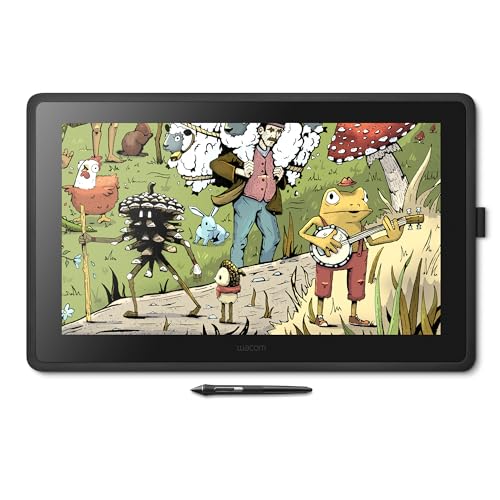
A 22-inch Full HD display with 8192 levels of pressure sensitivity means you get a large, responsive canvas that captures every subtle shift in your hand. This is a pen display built for artists who want a dedicated studio setup. The Pro Pen 2 tracks with virtually no lag and recognizes tilt, so shading and line weight feel as natural as pencil on paper. The relaxed parallax gives you full control with your fingertips, which helps keep your strokes accurate during detailed illustration, comic work, or animation.
This pen display requires a computer connection via the included 3-in-1 cable, so it’s not a portable standalone like the Wacom MovinkPad 11. Weighing 4.2 pounds with a 22-inch screen, it needs a dedicated desk space rather than a lap or coffee table. For artists who work at a fixed workstation and want a large, color-accurate display with responsive pen input and tilt control, this fits that setup well.
XPPen Magic Note Pad Standalone Tablet
What We Like
- 16K pressure sensitivity for fine shading
- Paper-like X-Paper display with anti-glare
- Ultra-portable at 7mm thick and 495g
- Pre-installed XPPen Notes app, lifetime free
Trade-offs
- Battery and charger not included
- Smaller screen than desktop drawing tablets
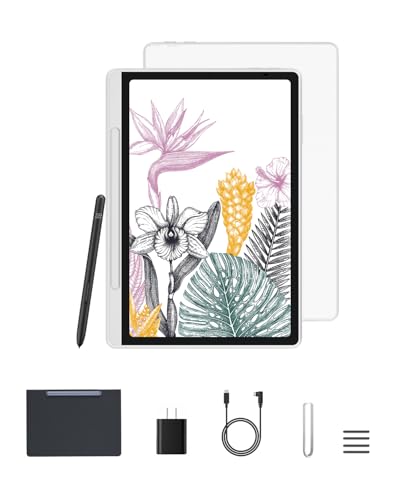
A 10.95-inch X-Paper display with 16,384 pressure levels means every pencil stroke, from the lightest sketch to the darkest shadow, translates with remarkable precision. The AG nano-etching technology gives the screen a real paper-like texture and friction, so your stylus feels like a real pencil on sketchbook paper. This tablet runs Android 14 on its own, no computer needed, and the battery-free stylus is always ready to go. For artists who crave fine control in a portable package, sketching on the couch, taking notes in class, or doodling at a café, this is a focused tool that delivers exactly that.
The trade-off is size and power. At 495 grams and 7mm thick, it slips into any bag, but the 10.95-inch screen is noticeably smaller than a desktop display like the Wacom Cintiq 22. You also need to supply your own battery and charger, since they are sold separately. That said, if your priority is high pressure sensitivity in a truly portable, standalone device, this XPPen Magic Note Pad offers a level of nuance that bigger, heavier tablets can’t match when you’re away from your desk.
Product photos
XPPen Artist Pro 22 Gen 2 Drawing Tablet

What We Like
- Calman Verified Delta E<1 color accuracy
- 99% Adobe RGB and 94% Display P3 coverage
- 16K pressure sensitivity with X3 Pro chip
- Includes ACK05 wireless shortcut remote
Trade-offs
- At 12.2 pounds, it needs a sturdy desk setup
- Stand adjusts 15°–88° but no height adjustment included
- Requires separate computer, no standalone operation
With a Calman Verified Delta E less than 1 and 99 percent Adobe RGB coverage, this display delivers color precision that photo editors and graphic designers can trust straight out of the box. The 2.5K resolution on a 21.5-inch screen gives you a spacious canvas without losing pixel density, so fine details stay crisp. Pair that with the first-ever 16K pressure sensitivity from the X3 Pro chip, and you get a responsive, natural stroke that feels closer to traditional media than most screens offer. This tablet is built for artists who need their monitor to match their final output, whether retouching photographs or building brand palettes.
At 12.2 pounds, this is a desktop fixture, not something you toss in a bag. If portability matters more than color fidelity, the lighter Huion Kamvas 13 Gen 3 is easier to move around, but it gives up the wide Adobe RGB gamut and the larger workspace. The included ACS02 stand lets you tilt the screen from 15 to 88 degrees with one hand, but there is no built-in height adjustment. You will need the optional VESA mount if you need a different viewing height. For a studio where color-critical work is your priority, this is a focused, calibrated tool that puts color accuracy first.
Wacom MovinkPad 11 Android Tablet

What We Like
- No computer needed for drawing
- Paper-like matte etched glass screen
- 8,192 pressure levels with Pro Pen 3
- Weighs only 1.3 pounds
Trade-offs
- Android-only ecosystem limits software choices
- Smaller screen than desktop drawing tablets
This 11.45-inch Android tablet works on its own, so you can sketch without connecting to a computer. The matte screen reduces glare and fingerprints, and the included Pro Pen 3 offers 8,192 pressure levels with three buttons and replacement nibs stored in the barrel. At 1.3 pounds, it is light enough to carry in a bag like a sketchbook, making it practical for artists who want to draw on the go.
Compared to a larger desktop model like the Wacom Cintiq 22, the MovinkPad’s screen is much smaller and lacks the expansive workspace some illustrators prefer for detailed comic or animation work.
Product photos
Huion Inspiroy 2 Medium Drawing Tablet

What We Like
- Battery-free stylus with 60° tilt
- Customizable scroll wheel and 8 keys
- Works with Android phones and tablets
- Multi-OS support: Mac, PC, Linux, ChromeOS
Trade-offs
- No built-in screen requires external display
- Must stay tethered by cable to function
A 9 x 5 inch active area gives you plenty of room to sketch, shade, and edit without feeling cramped, yet the tablet itself stays light at just under a pound. That makes it easy to toss in a bag alongside a laptop or even pair with an Android phone for drawing on the go. The PenTech 3.0 stylus supports 60 degrees of tilt and is battery-free, so you never need to charge the pen. If you want a reliable, portable pen tablet without spending on a display model, this is a smart choice.
You are working entirely on the tablet surface while looking at a separate screen, which takes some hand-eye coordination to get used to. The Wacom Cintiq 22 includes a full HD display, so it does not require an external monitor. But if you already have a computer or laptop and prefer to keep your gear lightweight, the Inspiroy 2 Medium delivers a responsive, customizable drawing experience.
Product photos
Huion Kamvas 13 Gen 3 Drawing Tablet

What We Like
- Dual dial buttons for workflow
- 16384 pressure levels with 2g IAF
- Factory color calibration included
- Anti-sparkle Canvas Glass 2.0
Trade-offs
- Requires computer connection to work
- At 2.0 lb, not ultralight for travel
- 13.3-inch screen smaller than studio models
A 13.3-inch fully laminated screen with anti-sparkle glass and factory-calibrated color accuracy of ΔE<1.5 means you see your work with minimal glare and reliable hues right out of the box. No fiddling with settings before you start. The dual dial buttons and five shortcut keys let you adjust brush size, zoom, or scroll without reaching for the keyboard, which keeps your focus on the canvas. If you want a compact, color-true display with physical controls that speed up your process, this display suits anyone working at a desk or moving between a laptop and an Android device that supports USB3.1 GEN1 and DP1.2.
This pen display needs a computer or compatible Android device to work, so it won’t replace a portable sketchbook for drawing on the go. The 13.3-inch screen is compact enough to fit in a backpack, making it easy to carry between home and studio. Factory color calibration and a single USB-C cable connection simplify setup, while the dual dial buttons help speed up your workflow.
Simbans A10 Digital Tablets
What We Like
- Standalone, no computer needed
- Paper-like laminated screen reduces glare
- Lifetime VIP tutorials for beginners
- Includes 6 bonus items
Trade-offs
- 4096 pen pressure is lower than some rivals
- At 3.3 pounds, heavier than many portables
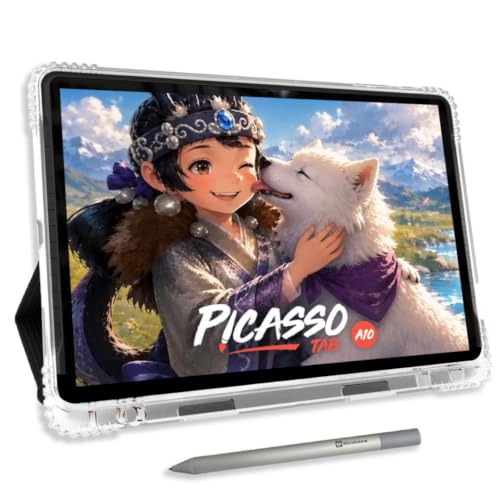
A standalone drawing tablet that runs apps without a computer means you can sketch on a park bench or in a coffee shop, not just at a desk. The laminated paper-like screen cuts glare and parallax, so your pen feels like it’s touching the page, not a layer of glass. With 6GB of RAM, it handles multitasking well, and the expandable storage lets you keep a full portfolio on the device. This is a thoughtful setup for someone new to digital art who wants to learn without a steep investment in gear or software.
At 3.3 pounds, the A10 is heavier than many portable tablets, so it’s less suited for slipping into a small bag on a long commute. Still, for a beginner who wants a complete, ready-to-draw package with guided tutorials and no computer tether, this tablet delivers a focused, frustration-free start. The 4096-level pen provides accurate, expressive strokes for sketching and illustration.
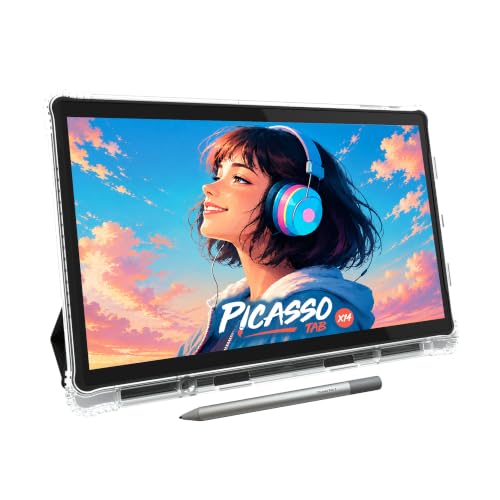
PicassoTab X14 Standalone Drawing Tablet
What We Like
- Largest standalone canvas in the guide
- Laminated paper-like display reduces glare
- Octa-core CPU with 6GB RAM for smooth apps
- Preloaded with PRO apps and 6 bonus items
Trade-offs
- At 5.1 lb, heavier than most portable tablets
- No tilt sensitivity mentioned for the pen
A 14-inch laminated screen that runs drawing apps without a computer gives you a spacious, self-contained canvas for sketching, painting, and animation anywhere. The octa-core processor and 6GB of RAM keep Concepts and Artixo moving without stutter, while the paper-like finish cuts glare so you can work by a window or under a desk lamp. This is the largest standalone tablet in this guide. If you need a big screen you can take to a coffee shop or a park, that size alone makes it worth the extra weight in your bag.
At 5.1 pounds, this is noticeably heavier than the Wacom MovinkPad 11 (1.3 lb) or even the XPPen Magic Note Pad (3.5 lb), so it won’t disappear into a backpack the way those do. You also don’t get tilt sensitivity in the product’s specifications, which matters if you rely on angled strokes for shading or calligraphy. If you prioritize a roomy, untethered drawing surface and don’t mind the heft, this is the most generous standalone option here.
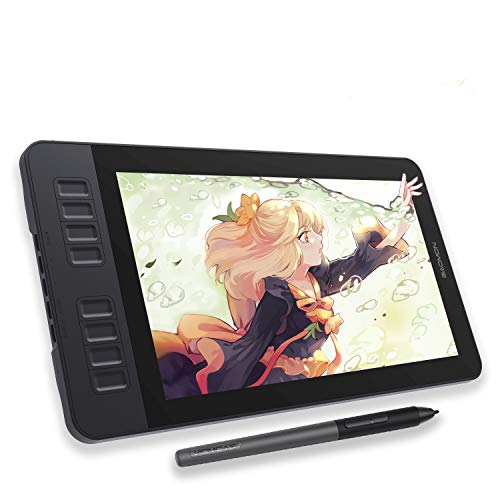
GAOMON PD1161 Drawing Tablet with Screen
What We Like
- Battery-free stylus with 8192 pressure levels
- Anti-glare matte film for paper-like feel
- 8 programmable shortcut keys and 2 pen buttons
- 72% NTSC (100% sRGB) color gamut
Trade-offs
- Not a standalone tablet; must connect to a computer
- 11.6" screen is smaller than many pen displays
An 11.6-inch full HD screen with 72% NTSC color gamut means you get vivid, lifelike colors right on the display where your pen touches. The battery-free stylus with 8192 pressure levels and tilt support gives you the familiar feel of a pencil, so you can shade and sketch naturally without stopping to charge a pen.
This is not a standalone tablet. You need a laptop or desktop running Windows or macOS to use it. The 11.6-inch screen is smaller than many pen displays. But if you already have a computer and want a pen display for digital art, note-taking, or remote collaboration, this gets the essentials right.
Product photos
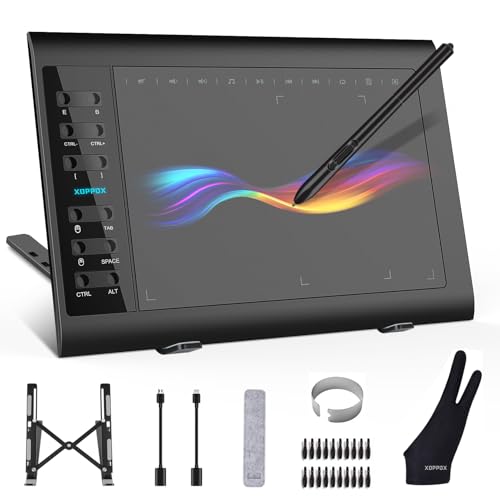
XOPPOX Graphics Drawing Tablet
What We Like
- 12 customizable shortcut keys
- 10 multimedia keys for Windows
- Battery-free pen with 8192 pressure levels
- 20 replacement nibs included
Trade-offs
- Multimedia keys work only on Windows
- Requires driver setup and restart before use
- Not compatible with iPad, iPhone, or Chromebook
With 12 customizable shortcut keys and 10 multimedia keys (Windows only), this tablet puts essential commands right at your fingertips so you can keep your stylus on the canvas. The battery-free pen delivers 8192 levels of pressure sensitivity, giving you natural line variation without ever needing a charge. It’s a strong fit for artists working on a desktop or Android device who want a dedicated shortcut-rich workflow on a budget.
Those multimedia keys only work on Windows, so Mac users lose half the shortcut convenience on a Mac. Compared to the Huion Inspiroy 2 Medium, which has a scroll wheel and tilt support but fewer keys, the XOPPOX offers more direct shortcuts for speed-focused creators. Just be ready to install the driver from the removable disk and restart your computer before you start drawing.
Product photos
How We Evaluated Digital Tablets For Artists
We began by researching the key specifications that matter most to artists: pressure sensitivity levels, color accuracy, screen size, and whether the tablet is a standalone device or requires a computer connection. We cross-referenced manufacturer data with patterns in user feedback and recommendations from art communities.
The most important criteria were pressure sensitivity (from 4096 to 16K levels), color accuracy (Delta E ratings and color gamut coverage), and the type of tablet. Standalone tablets offer freedom of movement, while pen displays provide a larger, more color-accurate canvas but require a computer. Weight and build quality also factored in for artists who travel.
A research-led evaluation like this has limits: we cannot claim to have tested each device side by side. Instead, we rely on the data that manufacturers provide and the collective experience of the artist community to guide our recommendations.
What To Look For In Digital Tablets For Artists
The best digital tablet for you balances screen size, pressure sensitivity, and whether you need a standalone device or one that connects to a computer. Start with your workspace and workflow, then match the specs to your art style.
Focus on pressure sensitivity for control, color accuracy for professional work, and the choice between standalone portability and a larger, tethered display.
Pressure Sensitivity and Tilt
Pressure sensitivity determines how finely the tablet can detect changes in pen pressure, from a light sketch to a heavy stroke. Levels range from 4096 to 16K; higher numbers allow for more subtle shading and line variation. Tilt recognition is also important for artists who angle their pen for natural brush effects.
Screen Type and Color Accuracy
For artists who work with color, a high-quality display is essential. Look for laminated screens that reduce parallax (the gap between the pen tip and the cursor) and anti-glare coatings that mimic paper. Color accuracy is measured by Delta E, with a value under 2 being excellent. Coverage of Adobe RGB and sRGB color spaces indicates how vivid and true-to-life colors will appear.
Standalone vs. Connected Operation
This is the biggest decision. A standalone tablet has its own operating system (usually Android) and works without a computer, making it ideal for sketching on the go. A pen display must be connected to a PC or Mac, but typically offers a larger, more color-accurate screen and access to full desktop software like Photoshop or Clip Studio Paint.
- Measure your desk space to ensure a pen display will fit comfortably.
- Check the tablet’s weight if you plan to carry it in a bag.
- Confirm that the tablet supports the operating system you use (Windows, Mac, Android, or ChromeOS).
- Look for programmable shortcut keys or dials that can speed up your workflow.
- Consider whether the pen needs a battery or is a battery-free stylus.
A good rule of thumb: if you work at a desk with a powerful computer, a pen display gives you the best screen. If you sketch on the couch or commute, a standalone tablet is your better bet.
Digital Tablets For Artists Compared
The table below compares the key specs of all ten digital tablets for artists, from pressure sensitivity to screen size and standalone capability.
| Product | Screen Size | Pressure Levels | Pen Type | Weight |
|---|---|---|---|---|
| Wacom Cintiq 22 Drawing Tablet | 22 inches | 8192 levels | Pro Pen 2 | 4.2 pounds |
| XPPen Magic Note Pad Standalone Tablet | 10.95 inches | 16384 | Battery-free, X3 Pro Pencil 2 | 3.5 pounds |
| XPPen Artist Pro 22 Gen 2 Drawing Tablet | 21.5 inches | 16K | X3 Pro smart chip stylus | 12.2 pounds |
| Wacom MovinkPad 11 Android Tablet | 11.45 inches | 8,192 | Pro Pen 3 | 1.3 pounds |
| Huion Inspiroy 2 Medium Drawing Tablet | 9 x 5 in | N/A | Battery-Free Stylus | 0.9 pounds |
| Huion Kamvas 13 Gen 3 Drawing Tablet | 13.3 inches | 16384 | PenTech 4.0 | 2.0 pounds |
| Simbans A10 Digital Tablets | 10 inches | 4096 levels | 4096 Level Pen | 3.3 pounds |
| PicassoTab X14 Standalone Drawing Tablet | 14 inches | 4096 | 4096-Level Active Pen | 5.1 pounds |
| GAOMON PD1161 Drawing Tablet with Screen | 11.6" FHD | 8192 | Battery-free stylus | 1.9 pounds |
| XOPPOX Graphics Drawing Tablet | 10 × 6 inches | 8192 levels | Battery-free stylus | 2.6 pounds |
Frequently Asked Questions
What is the difference between a pen display and a pen tablet?
A pen display has a built-in screen that shows your artwork directly under the pen tip, giving you a natural drawing experience. A pen tablet is a flat input surface without a screen; you draw on it while looking at your computer monitor. Pen displays are more intuitive but cost more, while pen tablets are affordable and great for beginners.
Do I need a computer for a drawing tablet?
It depends on the model. Standalone tablets like the Wacom MovinkPad 11 or Simbans A10 have their own operating system and do not require a computer. Most pen displays, such as the Wacom Cintiq 22 or Huion Kamvas 13 Gen 3, must be connected to a computer to function.
What pressure sensitivity level do professional artists need?
Most professionals are comfortable with 8192 pressure levels, which offer fine control for shading and line weight. Higher levels like 16K provide even more nuance, but the difference is subtle and often matters most for artists who do very delicate, detailed work.
Can I use a drawing tablet with my phone?
Some pen tablets, like the Huion Inspiroy 2 Medium, are compatible with Android phones and tablets. Most pen displays require a full computer connection and are not designed for phone use. Always check the model’s compatibility list before buying.
What is the best drawing tablet for a beginner?
For beginners on a budget, a pen tablet like the Huion Inspiroy 2 Medium offers a great introduction without a big investment. If you prefer a standalone device, the Simbans A10 includes tutorials and everything you need to start drawing right away, though its pressure sensitivity is lower than professional models.
The Bottom Line
For the artist who works at a desk and demands professional-grade control, the Wacom Cintiq 22 Drawing Tablet is our best overall pick. Its large, color-accurate display and 8192 levels of pressure sensitivity give you a natural canvas for serious illustration and design work.
If you need color accuracy for print or photography, the XPPen Artist Pro 22 Gen 2 is worth paying more for, with its Calman Verified Delta E<1 rating. For artists on a budget who already own a computer, the Huion Inspiroy 2 Medium offers a solid introduction to digital drawing without a big investment.
The single most important factor is choosing between a standalone tablet and a pen display. Get that right, and everything else, pressure sensitivity, screen size, portability, falls into place around your personal workflow.
