8 Best Computer Art Tablets in 2026
This post contains affiliate links. As an Amazon Associate, we earn from qualifying purchases.
For digital artists, the Wacom Cintiq 16 Pen Display is the best overall computer art tablet, thanks to its sharp QHD display, wide color coverage, and the responsive Pro Pen 3. For professionals who prefer a pen tablet without a screen, the Wacom Intuos Pro Medium is a top choice. Beginners on a budget will find the XPPen Deco 01 V3 a capable and affordable starting point.
Choosing the right computer art tablet comes down to two main questions. Do you want to draw directly on a screen (a pen display), or are you comfortable drawing on a separate pad while looking at your computer monitor (a pen tablet)? Your answer will shape your entire experience, along with considerations for screen size, color accuracy, and your computer’s connection ports.
This guide is based on a thorough review of each tablet’s specifications, manufacturer details, and patterns found in expert round-ups and owner feedback. We break down the key features to help you match a tablet to your workflow, skill level, and budget.
Top 8 Computer Art Tablets in the Market
Certain content that appears on this site comes from Amazon. This content is provided "as is" and is subject to change or removal at any time.
The Best Computer Art Tablets, Reviewed
Wacom Cintiq 16 Pen Display

What We Like
- 2.5K QHD display for sharp detail
- Pro Pen 3 with 8192 pressure levels
- 99% DCI-P3 and 100% sRGB color
- Built-in fold-out legs for 20-degree angle
Trade-offs
- Requires USB-C with DP Alt or Thunderbolt
- No adjustable stand included
- 4.5 pounds needs desk space
A 16-inch IPS display with 2560 x 1600 resolution means every brushstroke shows up crisp and clear, with room to work without feeling cramped. The Pro Pen 3 responds to the lightest touch with 8192 pressure levels, giving you control over line weight and opacity that feels like working with a real pencil or brush. Built-in fold-out legs set a comfortable 20-degree angle right out of the box, so you can start drawing immediately.
The main trade-off is that this pen display relies on a USB-C connection with DisplayPort Alt Mode or Thunderbolt 3 or 4. If your computer lacks those ports, you will need additional cables to get it running. It also does not include an adjustable stand, so you will want to buy one separately if you prefer a steeper or flatter angle for long sessions.
Product photos
Wacom Intuos Pro Medium Tablet

What We Like
- Pro Pen 3 with 8192 pressure levels
- 10 customizable ExpressKeys and 2 dials
- Bluetooth wireless connectivity
- Slim 4mm magnesium body
Trade-offs
- No built-in screen for direct drawing
- Requires separate computer monitor to see work
The catch is that this is a pen tablet, not a pen display. You draw on the surface while watching your computer monitor, which takes some getting used to if you’re accustomed to drawing directly on a screen. Compared to the Wacom Cintiq 16, which has a built-in QHD screen and weighs 4.5 pounds, the Intuos Pro Medium relies on your own monitor but is far lighter and more portable. The 10 ExpressKeys and two mechanical dials let you assign shortcuts and adjust settings without reaching for your keyboard, keeping your workflow fast.
Product photos
HUION Kamvas 13 Gen 3 Pen Display

What We Like
- Factory color calibration report included
- Avg. ΔE<1.5 for accurate colors
- 16384 pressure levels with 2g IAF
- Dual dial and 5 shortcut keys
Trade-offs
- Requires connection to a computer or laptop
- 13.3-inch screen smaller than some rivals
- Only 99% sRGB, not Adobe RGB
A factory calibration report guaranteeing an average Delta E under 1.5 means the colors you see on this 13.3-inch screen are remarkably true to life. That level of accuracy, paired with 99% sRGB coverage and a fully laminated anti-glare surface, makes it a natural fit for illustrators and designers who need consistent color from sketch to final file. The manufacturer specifies 16384 levels of pressure sensitivity and a 2-gram initial activation force for fluid drawing, while the dual dial and five shortcut keys keep your hand on the canvas instead of the keyboard.
The trade-off is that this is not a standalone tablet, it must be tethered to a computer or laptop, which limits its portability compared to a slate-style device. Its 13.3-inch display is also smaller than the Wacom Cintiq 16’s screen, so if you prefer a larger working area for sweeping gestures, that model gives you more real estate. But for someone who prioritizes color fidelity over size and wants a lightweight, travel-friendly pen display that doesn’t break the bank, this HUION delivers professional-grade calibration in a compact package.
HUION Kamvas 13 Gen 3 SE Pen Display
What We Like
- Factory calibrated to ΔE<1.5 accuracy
- 99% sRGB and 90% Adobe RGB coverage
- 16K pressure sensitivity with 2g IAF
- Anti-sparkle nano-etched glass reduces image noise
Trade-offs
- Requires a computer or Android device to function
- Only 3 side customizable keys limit shortcuts
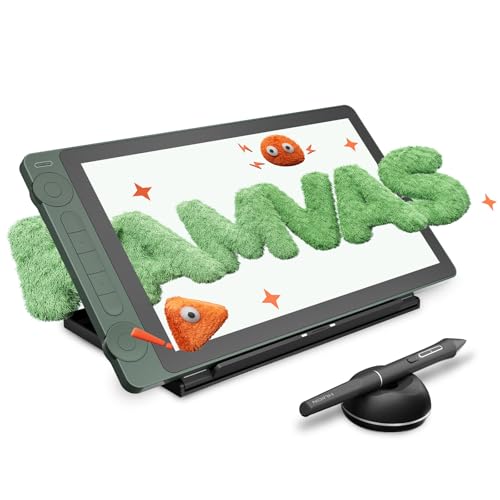
Factory calibration to ΔE<1.5 means this display is set up for accurate color right from the start, which is useful for artists who need consistent hues in their work. The 99% sRGB and 90% Adobe RGB coverage gives a wide color range, so digital paintings or photo edits can look close to what you intend on screen.
At 5.5 pounds, this pen display is built for a desk, not for tossing into a bag on the go. The Wacom Cintiq 16 weighs a pound less and has a bigger screen, but the Kamvas comes factory-calibrated to a delta E under 1.5, so colors are accurate right away. For anyone who needs consistent color in a fixed studio setup, the weight trade-off is worth it.
Product photos
XPPen Artist Pro 22 Gen 2 Pen Display

What We Like
- Calman Verified Delta E<1 color accuracy
- 16K pressure sensitivity with X3 Pro chip
- ACK05 Wireless Keydial with 40 customizable keys
Trade-offs
- At 12.2 lb, it needs a sturdy desk or stand
- 22-inch screen limits portability for on-the-go artists
- ACS02 stand included, but height adjustment requires separate stand
The 22-inch 2.5K display at 137 PPI gives you a large, sharp canvas where you can work without constantly zooming in or squinting at details. Color-critical work like photo editing or print design benefits from the Calman Verified Delta E<1 accuracy, which means what you see on screen matches the final output. The 16K pressure sensitivity with felt nibs feels natural and responsive, making this a focused tool for professionals who need precision and a big, trustworthy screen.
XPPen Deco 01 V3 Drawing Tablet

What We Like
- 16K pressure for smooth, natural lines
- 8 customizable keys for left or right hand
- Lightweight and 8mm thin for portability
Trade-offs
- No battery or charger included with purchase
- No built-in screen for direct drawing
- Requires separate device to function
A 10 x 6.25-inch drawing area gives you plenty of room to sketch, shade, and experiment without feeling cramped, yet the tablet stays slim enough at 8mm to slip into a backpack. The 16,384 levels of pressure sensitivity mean even the lightest stroke translates into a fine, delicate line. That is exactly what a beginner needs to build confidence without fighting the tool. This is a tablet that focuses on removing friction: the stylus never needs charging, the eight express keys work for both left and right hands, and USB-C connectivity hooks up to a laptop, desktop, Android phone, or Chromebook. For someone just starting digital art, this setup keeps the learning curve gentle and the creative momentum high.
The obvious trade-off is that there is no screen, so you draw on the tablet while looking at your computer or phone display, which takes a little practice. For a beginner who wants a straightforward, spacious, and pressure-sensitive tool to learn on without spending extra on a screen, this is a practical and welcoming choice.
GAOMON PD1161 Drawing Tablet with Screen
What We Like
- Anti-glare matte film reduces reflections
- Battery-free stylus with 8192 pressure levels
- 8 programmable shortcut keys improve workflow
- Full HD 11.6" IPS screen for direct drawing
Trade-offs
- Must be connected to a computer to work
- 11.6" screen is smaller than many pen displays
- Only 72% NTSC color gamut limits color accuracy
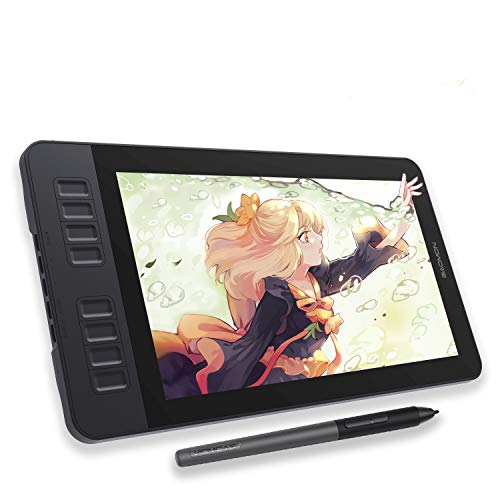
An 11.6-inch anti-glare display with a pre-installed matte film means you can draw for hours without fighting reflections or glare. The battery-free stylus offers 8192 levels of pressure sensitivity and tilt, so strokes feel responsive and natural right on the screen. This is a practical, no-fuss pen display for beginners or anyone who wants a dedicated drawing surface that cuts down on eye strain and keeps the focus on the art.
The color gamut is 72% NTSC (100% sRGB), which is fine for general sketching and note-taking but may not meet the needs of professionals working in print or other color-critical environments. Compared to some larger pen displays, the 11.6-inch screen is compact, making it easy to fit on a desk but less suited for detailed work that requires a large canvas. Still, for sketching, note-taking, and digital art where reflections are a constant annoyance, the PD1161’s anti-glare screen and affordable build make it a smart choice.
GAOMON PD156Pro Drawing Tablet with Screen

What We Like
- Full-laminated screen reduces parallax
- Dial key for quick workflow adjustments
- 10 programmable shortcut keys
- Battery-free pen with tilt recognition
Trade-offs
- Requires connection to a computer to function
- Dial key works best with Windows 10 or later
A 15.6-inch full-laminated display with 120% sRGB color gamut means you get vivid, accurate colors with no air-gap distortion between the screen and your pen tip. That makes the GAOMON PD156Pro a natural fit for artists who want a responsive, paper-like drawing surface without the parallax that can throw off fine linework. The dial key and ten programmable shortcut keys let you customize your workflow, so you can zoom, rotate, or change brush size without reaching for a keyboard. This tablet is built for creators who value speed and precision in their digital art process.
This drawing tablet must be connected to a computer to work, it is not a standalone device, so you cannot use it as a mobile sketchpad without a laptop. At 2.9 pounds, it is heavier than the 0.9-pound Wacom Intuos Pro Medium, but the built-in 15.6-inch screen gives you a larger canvas for drawing directly on the display. On Windows 10 or later, the dial key follows Microsoft Radial protocol, letting you adjust program-specific functions by turning the wheel. This is for artists who want a full-featured screen and efficient controls over absolute portability.
Product photos
How We Evaluated Computer Art Tablets
Our evaluation is research-driven, drawing on manufacturer specifications, expert round-ups, and the consistent patterns found in owner feedback across the digital art community. We did not perform hands-on test or lab-test these tablets; instead, we focused on the criteria that matter most creators care about.
The four criteria that guided our rankings were: screen size and type, pressure sensitivity, and overall build quality. For pen displays, we prioritized display resolution, color accuracy, and the quality of the stylus technology. For pen tablets, we looked at the number of customizable controls and the build quality of the tablet body. We also considered the connection requirements, as many modern pen displays require a computer with USB-C with DisplayPort Alt Mode or Thunderbolt.
An honest limitation of a research-led evaluation is that we cannot verify every claim. Our recommendations are based on what the data and community consensus tell us, not on our own testing. We prioritize established brands with consistent quality and support.
What To Look For In Computer Art Tablets
The best computer art tablet for you balances screen size, color accuracy, and the responsiveness of the pen. Here is a quick guide to the key features to consider.
A computer art tablet should feel like an extension of your hand. The pen, the screen, the controls, and the connection all work together. The best tablet is one you will actually use every day.
Screen Size and Display Quality
The size of your canvas is the most personal choice. A larger screen gives you room for broad arm movements and reduces the need to zoom in and out. A 13.3-inch display is a good portable choice. A 22-inch screen is for a fixed desk setup. For pen tablets, you work on a separate monitor.
Pressure Sensitivity and Responsiveness
The pen is your primary tool. Pressure levels from 8192 to 16384 levels that determines how fine your lines from a light brush to a heavy press. A low initial activation force (IAF) of 2g allows even the lightest touch. A responsive pen with a high pressure sensitivity is the best for natural line.
Color Accuracy and Color Accuracy
For artists and designers who do print or screen work, color accuracy is essential. A color accuracy of Delta E<1 is the standard. A display with 99% sRGB coverage is good for general work. For professionals who need a wide color gamut, look for 100% Adobe RGB or 90% Adobe RGB.
A tablet with a color-accurate pen display is the best for all artists. A color-accurate pen display is a budget-friendly choice for most artists.
- Check your computer ports: a modern pen displays require a computer with USB-C with DisplayPort Alt Mode or Thunderbolt.
- Check the pen: a battery-free stylus with 16K pressure is the best choice for most artists.
- Check the screen: a pen display with a full-laminated screen reduces parallax.
- Check the controls: a tablet with 8 customizable keys for left or right hand.
Computer Art Tablets Compared
The table below compares the top eight computer art tablets we evaluated, comparing their screen size, pressure levels, color accuracy, and key trade-offs to help you compare at a glance.
| Product | Screen Size | Pressure Levels | Weight |
|---|---|---|---|
| Wacom Cintiq 16 Pen Display | 16 inches | 8192 levels | 4.5 pounds |
| Wacom Intuos Pro Medium Tablet | N/A | 8192 | 0.9 pounds |
| HUION Kamvas 13 Gen 3 Pen Display | 13.3 inches | 16384 | 2.0 pounds |
| HUION Kamvas 13 Gen 3 SE Pen Display | 13.3 inches | 16K levels | 5.5 pounds |
| XPPen Artist Pro 22 Gen 2 Pen Display | 21.5 inches | 16K | 12.2 pounds |
| XPPen Deco 01 V3 Drawing Tablet | N/A | 16,384 | 2.2 pounds |
| GAOMON PD1161 Drawing Tablet with Screen | 11.6" FHD IPS | 8192 | 1.9 pounds |
| GAOMON PD156Pro Drawing Tablet with Screen | 15.6 inches | 8192 levels | 2.9 pounds |
Frequently Asked Questions
What is the best computer art tablet for beginners?
The XPPen Deco 01 V3 Drawing Tablet is a great starting point for new digital artists. It is a large, pressure-sensitive drawing surface with 16K pressure for smooth lines and a smooth, natural lines. It is a lightweight and 8mm thin for portability.
What is the difference between a pen display and a pen tablet?
A pen display allows you to draw directly on the screen, like the Wacom Cintiq 16. A pen tablet, like the Wacom Intuos Pro Medium, requires you to draw on a separate pad while looking at your computer monitor. The choice is a personal preference.
What pressure sensitivity is best for professional artists?
The Wacom Cintiq 16 Pen Display features the Pro Pen 3 with 8192 pressure levels for a professional artists. The Wacom Intuos Pro Medium also features the Pro Pen 3 with 8192 pressure levels. Both are the best for professional artists.
What is the best color-accurate pen display?
The HUION Kamvas 13 Gen 3 Pen Display is the best for color accuracy, with a factory color calibration report included and an average Delta E<1.5 for accurate colors. The HUION Kamvas 13 Gen 3 SE Pen Display is the best for color accuracy.
What is the best large screen for a computer art tablet?
The XPPen Artist Pro 22 Gen 2 Pen Display is the best large screen for a computer art tablet. It is a large, color-accurate display for a large, color-accurate display for a large, color-accurate display for a large, color-accurate display.
The Bottom Line
The Wacom Cintiq 16 Pen Display is the best overall computer art tablet for artists who want a large, color-accurate pen display. It is a large, color-accurate pen display for a large, color-accurate display for a large, color-accurate display.
The Wacom Intuos Pro Medium is the best for a professional pen tablet for a professional artists. The HUION Kamvas 13 Gen 3 Pen Display is the best for a professional artists. The HUION Kamvas 13 Gen 3 SE Pen Display is the best for a professional artists.
The single most important factor is the choice of a computer art tablet. That choice determines everything else about your setup.
