10 Best Beginner Digital Art Tablets in 2026
This post contains affiliate links. As an Amazon Associate, we earn from qualifying purchases.
The Wacom One 14 Drawing Tablet is the best overall choice for a beginner because it has a laminated 14-inch IPS Full HD display and a battery-free pen with pressure sensitivity, so you get a clear, glare-resistant screen and never have to charge the stylus. The Simbans A10 Beginner Digital Art Tablet is our pick for Best Standalone For Beginners, while the XP-Pen Deco 01 V3 offers the highest pressure sensitivity in a pen tablet.
Starting with digital art means choosing between a screen tablet, where you draw directly on the display, and a pen tablet, where you draw on a pad while looking at your computer. For a beginner, the right choice depends on whether you already own a computer, how much desk space you have, and whether you value portability or a larger drawing area.
This guide is based on a careful review of manufacturer specifications, expert round-ups, and patterns in owner feedback. We focused on the features that matter most for a new artist: display quality, pen performance, ease of setup, and whether the tablet works with or without a computer.
Top 10 Beginner Digital Art Tablets in the Market
Certain content that appears on this site comes from Amazon. This content is provided "as is" and is subject to change or removal at any time.
The Best Beginner Digital Art Tablets, Reviewed
Wacom One 14 Drawing Tablet

What We Like
- Laminated 14-inch IPS Full HD display
- Battery-free pen with pressure sensitivity
- 98% sRGB color accuracy
- Includes software trials and training courses
Trade-offs
- Requires computer to operate
- HDMI converter and power kit sold separately for some setups
The laminated 14-inch IPS Full HD display covers 98% of the sRGB color space, so colors look natural and consistent, important for anyone learning to judge their work. The battery-free pen responds to pressure without needing a charge, letting you draw without interruptions. This tablet is designed to work reliably with Windows, Mac, or Chromebook, and it includes trial versions of creative software to help you start exploring digital art right away.
The trade-off is that you need a computer to use it, unlike standalone tablets such as the Simbans A10 PicassoTab, which can run without one. Also, if your computer lacks a USB-C port that supports video, you will need to buy an HDMI converter and power adapter kit separately, adding a small step to the setup. For a beginner who already has a laptop or desktop and values a true pen display experience, this is a straightforward and dependable way to start drawing digitally.
Product photos
Simbans A10 Beginner Digital Art Tablet
What We Like
- Standalone tablet, no computer needed
- Preloaded with 5 creative apps
- Lifetime VIP tutorial upgrade included
- Paper-like laminated screen reduces glare
Trade-offs
- At 3.3 pounds, heavier than most tablets
- At 3.3 pounds, heavier than the 1.7-pound Wacom One 14
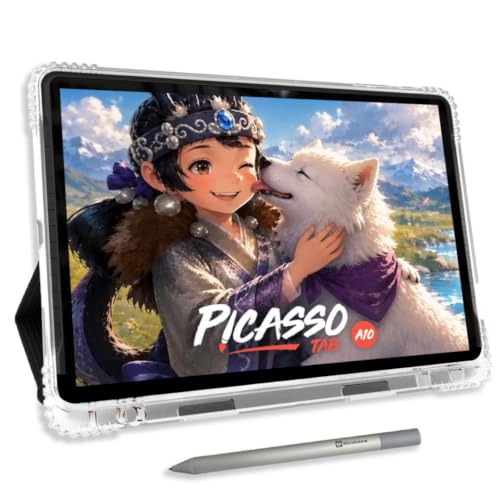
A compact 10-inch standalone drawing tablet lets you create, draw, and design without connecting to a computer, so it fits easily into a bag for sketching on the couch or during a commute. It comes preloaded with five creative apps for drawing, painting, animation, and guided lessons. The included lifetime VIP upgrade for the Artixo tutorials app provides step-by-step lessons and guided practice, making it easy for beginners to learn at their own pace. Two app upgrades and four bonus accessories, a premium case, drawing glove, universal power adapter, and pre-installed screen protector, add significant value right out of the box.
The trade-off is weight: at 3.3 pounds, the Simbans A10 is noticeably heavier than a Wacom One 14, which weighs only 1.7 pounds. Storage is also limited to 64GB out of the box, though you can expand it up to 1TB if you need more room for apps and artwork.
XP-Pen Deco 01 V3 Drawing Tablet

What We Like
- 16K pressure sensitivity for fine control
- Battery-free stylus works like a real pen
- 8 customizable shortcut keys
- Lightweight and 8mm thin for portability
Trade-offs
- No screen means you draw while looking at your computer
- Battery and charger not included
- At 2.2 pounds, heavier than some pen-only tablets
A full 16,384 levels of pressure sensitivity is the kind of precision that lets a beginner feel every subtle change in line weight and shading, just like pressing harder with a pencil on paper. The battery-free stylus never needs charging, so you can pick it up and draw whenever inspiration hits without hunting for a cable. This makes the Deco 01 V3 a natural fit for someone who wants to focus on building drawing skills rather than fiddling with tech. Its 10 x 6.25-inch active area gives you plenty of room to sketch freely, while the eight customizable shortcut keys keep your most-used tools right under your fingers. If you are starting out and want a pen tablet that responds to the lightest touch, this one delivers.
This is a pen tablet without a screen, so you will be watching your computer monitor while your hand moves on the pad. That takes some practice to master, but many beginners adapt quickly. The Wacom One 14 has a built-in display, while the Deco 01 V3 offers high pressure sensitivity at a lower price point. For a beginner who values responsive pen feel over an all-in-one display, this tablet offers serious capability at a reasonable cost.
PicassoTab X11 Standalone Drawing Tablet
What We Like
- Fully standalone, no computer needed
- Laminated 2K screen reduces glare and parallax
- Preloaded with 5 creative apps and tutorials
- Expandable storage up to 1TB
Trade-offs
- 11-inch screen is smaller than some desktop displays
- No tilt support listed in specifications
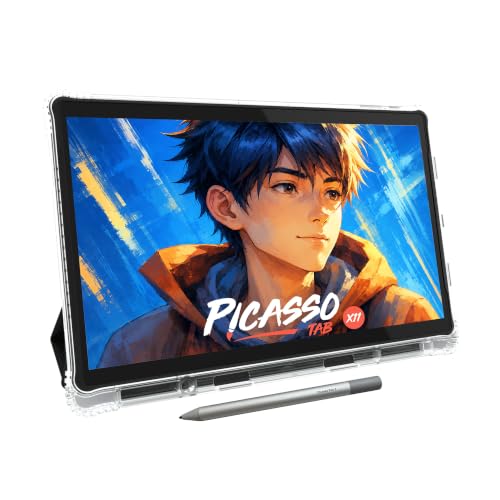
A fully standalone tablet that doesn’t need a computer at all is the big draw here. The 11-inch laminated 2K screen cuts down on glare and parallax, so your pen tip feels closer to where the line actually appears, a real help when you’re learning to control pressure and shading. With 4096 levels of sensitivity and an octa-core processor backed by 6GB of RAM and 128GB of storage (expandable to 1TB), this tablet is built to run drawing apps smoothly without the lag that can frustrate a beginner. The bundled lifetime Pro upgrade for Concepts and VIP tutorials in Artixo mean you can start learning right out of the box, which is exactly what a student or new artist needs.
The PicassoTab X11 is a fully standalone drawing tablet that doesn’t need a computer, so you can draw, design, and animate anywhere without being tethered to a laptop. Its 11-inch laminated 2K screen cuts down glare and parallax, giving a paper-like feel that makes sketching and shading feel natural. The 4096-level pressure-sensitive stylus delivers precise strokes for fine detail work, and the octa-core processor with 6GB RAM handles drawing apps and multitasking without lag. Reviewers note the included lifetime Pro upgrade for Concepts and lifetime VIP upgrade for Artixo tutorials make it especially beginner-friendly, with step-by-step lessons built right in.
Wacom Intuos Pen Small Tablet

What We Like
- Battery-free pressure-sensitive pen
- Four customizable ExpressKeys for shortcuts
- Compact size fits small desks
- Works with any software program
Trade-offs
- No built-in screen for direct drawing
- Wireless accessory kit sold separately
The battery-free pressure-sensitive pen is the heart of this tablet, letting you draw thicker or thinner lines by how hard you push. That simplicity makes it an ideal starting point for someone who wants to learn digital sketching without a big investment. Its small footprint, 8.2 by 6.9 inches, fits neatly beside a laptop on a desk. The four ExpressKeys put your favorite shortcuts like undo or copy/paste at your fingertips, so you can focus on the drawing.
This is a pen tablet, not one with a built-in screen: you draw on the pad while watching your computer display, a skill that requires some practice to master. A display tablet like the Wacom One 14, with its own screen, lets you draw directly on the display. For a way to start digital art, this small Wacom gets the fundamentals right.
Huion Kamvas Slate 11 Standalone Tablet

What We Like
- 90Hz refresh rate for smooth visuals
- Full-laminated anti-glare screen reduces parallax
- Pre-installed drawing app and Android 14
- 8000mAh battery for all-day drawing
Trade-offs
- 1.1-pound tablet can feel heavy for extended handheld use.
A 90Hz refresh rate on a standalone drawing tablet means every stroke and scroll feels fluid, with no perceptible lag as you sketch or flip between layers. That smoothness, paired with a full-laminated anti-glare screen that cuts glare and brings your pen tip close to the image, makes this a comfortable choice for beginners who want a paper-like feel without needing a computer. The 8000mAh battery keeps you drawing through a long studio session or commute. The pre-installed drawing app plus Android 14 access to Google Play means you can start creating right away.
128GB of storage may fill up if you work with large files, though you can expand it up to 1TB with a microSD card. Compared to the Simbans A10, which also offers 128GB storage, both tablets require you to manage space or use an expansion card.
Product photos
GAOMON M10K PRO Graphics Drawing Tablet
What We Like
- Tilt-sensitive stylus for natural shading
- Battery-free pen with 8192 pressure levels
- 10 express keys plus radial controller
- Works with Android, Windows, and Mac
Trade-offs
- No built-in display requires external screen
- Requires OTG adapter for Android connection
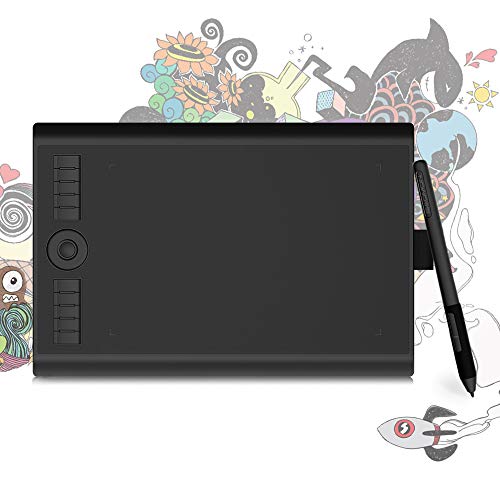
A tilt-sensitive pen that behaves like a real pencil, so you can shade, sketch, and vary stroke width naturally, makes this tablet a strong pick for beginners who want to learn digital drawing without fighting the tool. The 8192 levels of pressure and battery-free stylus mean no charging interruptions and smooth, responsive lines from the start. Ten customizable shortcut keys and a radial controller let you zoom, scroll, or adjust brushes without reaching for a keyboard, keeping your focus on the canvas.
This is a pen tablet without a screen: you draw on the pad while watching your computer or Android device, a skill that requires some practice to master. Compared to the Wacom One 14, which has a built-in display, the GAOMON M10K PRO asks you to coordinate hand and eye separately. It suits beginners who are comfortable learning on a pad and want expressive, pencil-like control from day one.
Huion Kamvas 13 Gen 3 Drawing Tablet

What We Like
- Factory color calibration report included
- Dual dial and 5 shortcut keys
- Fully laminated 13.3-inch screen with anti-sparkle glass
Trade-offs
- Requires connection to a computer to work
- At 2.0 pounds, heavier than the Wacom One 14 (1.7 pounds)
This device is not a standalone model: it must be tethered to a computer or laptop to function. For anyone who needs to sketch away from a computer, a standalone tablet like the Simbans A10 would be a better fit.
Product photos
XP-Pen Artist 12 3rd Drawing Tablet
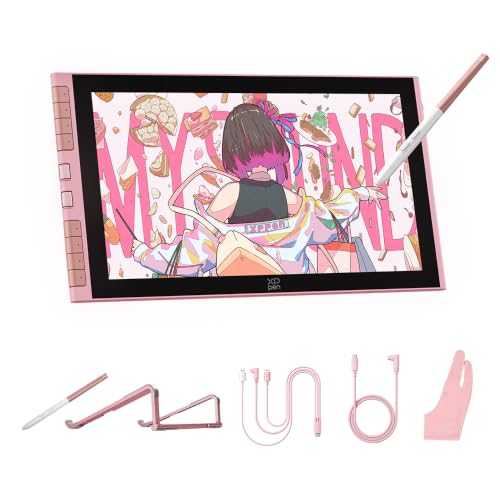
What We Like
- 16K pressure with ±60° tilt
- Full-lamination anti-glare glass display
- USB-C one-cable plug-and-play setup
- Includes dual rollers and drawing stand
Trade-offs
- Requires a computer or Android device to function
- Screen is smaller than some competing displays
The 16,384 pressure levels and ±60° tilt recognition give you fine control over stroke weight and shading, so beginners can draw without constantly adjusting settings. The full-lamination glass eliminates parallax, keeping the pen tip aligned with the cursor, and the anti-glare surface reduces reflections. With 99% sRGB color gamut and a USB-C one-cable connection, setup is straightforward and colors are factory-calibrated for consistency. This pen display is designed to offer precision and simplicity for someone new to digital art.
The 11.9-inch screen is compact enough to fit in a bag, but that same portability means less drawing area than a larger display like the Wacom One 14. Beginners who prefer a bigger canvas for broad strokes might lean toward the Wacom, while those who value high pen sensitivity and a tidy desk setup will appreciate the XP-Pen’s included stand and dual roller wheels. It is a focused tool for learning digital drawing without unnecessary complexity.
Product photos
ienRon IES1060 Graphic Drawing Tablet

What We Like
- 22 customizable shortcut keys for keyboard-free workflow
- Includes adjustable stand (15°–60°) and 30 nibs
- Battery-free pen with 60° tilt and 8192 pressure levels
- Works with Windows, Mac, Android, and major creative software
Trade-offs
- Requires connection to a computer or Android device to function
- No built-in screen, so you draw while looking at a monitor
- Not compatible with iPhone, iPad, or Chromebook
Twenty-two customizable shortcut keys let you switch brushes, zoom, undo, and control media without touching your keyboard. The included multi-angle stand adjusts from 15° to 60°, so you can protect your neck and wrists during long sessions. With 8192 levels of pressure sensitivity and 60° tilt recognition, the battery-free pen gives you accurate control over line thickness and shading.
This model is a pen tablet, not one with a built-in screen. You move the pen on the pad while watching your computer display, a skill that requires some practice to master. It also won’t work with an iPad or Chromebook, only with Windows, Mac, or Android devices. If you prefer a standalone tablet that doesn’t need a computer, the Simbans A10 offers a built-in screen and works on its own, while the ienRon provides an ergonomic stand and 22 shortcut keys for a desk-based setup.
Product photos
How We Evaluated Beginner Digital Art Tablets
Our evaluation is research-based, drawing from manufacturer documentation, expert round-ups, and common themes in owner feedback. We analyzed the specifications and features that directly affect a beginner’s learning experience.
We prioritized four criteria. First, display quality for screen tablets, resolution, lamination, and color accuracy matter because you want to see what you draw clearly. Second, pen performance, pressure sensitivity, tilt support, and whether the pen needs charging affect how natural the drawing feels. Third, ease of use, plug-and-play setup, included software, and training resources help a beginner start quickly. Fourth, the tablet’s computer dependency, standalone tablets offer more freedom, while computer-dependent models are often more affordable.
A research-led approach has limits. We cannot report on long-term durability or how the pen feels in hand over months of use. We can, however, tell you what specifications reliably indicate quality and what owners commonly praise or criticize.
What To Look For In Beginner Digital Art Tablets
Choosing your first digital art tablet comes down to a few key decisions. Here is what to focus on.
For a beginner, the most important choice is between a screen tablet (pen display) and a pen tablet. Screen tablets let you draw directly on the display, which feels more natural. Pen tablets are more affordable and portable but require hand-eye coordination to draw while looking at a separate monitor.
Screen vs. Pen Tablet
A pen display has a built-in screen, so you draw directly on the image. This is the most intuitive option for beginners. A pen tablet has no screen; you draw on a flat pad while looking at your computer monitor. Pen tablets are lighter, more portable, and generally more affordable, but they require some practice to coordinate your hand and eye.
Display Quality
For pen displays, look for a laminated screen that reduces the gap between the glass and the image. This minimizes parallax, making your cursor appear directly under the pen tip. Color accuracy, measured in sRGB coverage, is important if you plan to print your work or share it online. A resolution of Full HD or higher is standard for beginner models.
Pen Performance
The pen is your primary tool. A battery-free pen is ideal because it never needs charging and stays light. Pressure sensitivity, measured in levels (8192 is standard, 16K is premium), determines how the line thickness changes with pressure. Tilt sensitivity allows for natural shading and brush effects, similar to a real pencil.
- Decide if you need a standalone tablet (works without a computer) or one that connects to a computer.
- Check the active drawing area size to ensure it matches your natural drawing motion.
- Look for customizable shortcut keys to speed up your workflow.
- Verify compatibility with your computer’s operating system and your preferred drawing software.
A battery-free pen with at least 8192 levels of pressure sensitivity is the standard for a good beginner experience.
Beginner Digital Art Tablets Compared
The table below compares all ten beginner digital art tablets side by side, highlighting their key specifications and best-use scenarios.
| Product | Pen Type | Pressure Levels | Weight |
|---|---|---|---|
| Wacom One 14 Drawing Tablet | Battery-free | N/A | 1.7 pounds |
| Simbans A10 Beginner Digital Art Tablet | 4096 Level Pen | 4096 levels | 3.3 pounds |
| XP-Pen Deco 01 V3 Drawing Tablet | Battery-free stylus | 16,384 | 2.2 pounds |
| PicassoTab X11 Standalone Drawing Tablet | 4096 Pressure Pen | 4096 | N/A |
| Wacom Intuos Pen Small Tablet | Battery-free, pressure sensitive | N/A | 0.7 pounds |
| Huion Kamvas Slate 11 Standalone Tablet | H-Pencil | N/A | 1.1 pounds |
| GAOMON M10K PRO Graphics Drawing Tablet | Battery-free | 8192 | 1.6 pounds |
| Huion Kamvas 13 Gen 3 Drawing Tablet | N/A | 16384 | 2.0 pounds |
| XP-Pen Artist 12 3rd Drawing Tablet | battery-free stylus | 16,384 | N/A |
| ienRon IES1060 Graphic Drawing Tablet | Battery-free | 8192 | 1.1 pounds |
Frequently Asked Questions
What is the difference between a pen display and a pen tablet?
A pen display has a built-in screen that you draw on directly, which feels more natural for beginners. A pen tablet is a flat pad without a screen; you draw on the pad while looking at your computer monitor. Pen tablets are usually more affordable and portable.
Do I need a computer to use a beginner digital art tablet?
It depends on the model. Standalone tablets like the Simbans A10 and PicassoTab X11 work on their own without a computer. Pen displays and pen tablets like the Wacom One 14 and XP-Pen Deco 01 V3 require a connection to a computer or Android device to function.
What pressure sensitivity level should a beginner look for?
A beginner should look for at least 8192 levels of pressure sensitivity, which is the standard for most modern tablets. Some models offer 16K pressure sensitivity for finer control, but 8192 levels are more than enough to learn the basics of digital drawing.
Is a battery-free pen better for a beginner?
Yes, a battery-free pen is generally better for a beginner. It never needs charging, stays lightweight, and feels more like a real pen or pencil. Most beginner-friendly tablets, including the Wacom Intuos and GAOMON M10K PRO, use battery-free pens.
Can I use a beginner digital art tablet with my smartphone?
Some tablets work with Android smartphones and tablets, but compatibility varies. Models like the GAOMON M10K PRO and ienRon IES1060 support Android devices with an OTG adapter. Most pen displays and pen tablets are designed primarily for Windows and Mac computers.
The Bottom Line
The Wacom One 14 Drawing Tablet is the best overall pick for most beginners. Its laminated 14-inch display, battery-free pen, and color-accurate screen give you a reliable, natural drawing experience right from the start. It is ideal if you already own a computer and want a screen tablet that feels like drawing on paper.
If you prefer a standalone tablet that works without a computer, the Simbans A10 is your best bet with its preloaded apps and built-in tutorials. For those on a tight budget, the Wacom Intuos Pen Small Tablet offers a compact, affordable way to learn digital drawing on a computer.
The single most important factor for a beginner is choosing between a screen tablet and a pen tablet. Get that decision right, and everything else, pressure sensitivity, display quality, shortcut keys, will fall into place naturally as you learn.
