8 Best Art Tablets For Animation in 2026
This post contains affiliate links. As an Amazon Associate, we earn from qualifying purchases.
For animators, the right tablet can make the difference between a fluid workflow and constant frustration. The XPPen Artist Ultra 16 4K OLED Touchscreen Drawing Tablet wins as the best overall for its combination of a vibrant 4K OLED display, a dual stylus setup, and customizable touch controls. We also highlight the HUION Kamvas 13 Gen 3 for its superb color accuracy and the Wacom Intuos Pro Medium for those who prefer a screenless, shortcut-driven workflow.
The challenge for animators is finding a tablet that balances a responsive drawing surface with the color precision needed for frame-by-frame work. A sluggish pen or an inaccurate display can ruin the timing and feel of your animation. We’ve focused on pressure sensitivity, screen quality, and control customization to help you find the perfect fit.
This guide is based on a thorough analysis of manufacturer specifications, expert round-ups, and common patterns in owner feedback. We break down the key features that matter most for animation, so you can choose with confidence.
Top 8 Art Tablets For Animation in the Market
Certain content that appears on this site comes from Amazon. This content is provided "as is" and is subject to change or removal at any time.
The Best Art Tablets For Animation, Reviewed
XPPen Artist Ultra 16 4K OLED Touchscreen Drawing Tablet

What We Like
- 4K OLED screen with 99% Adobe RGB
- Dual 16K pressure styli included
- Multi-point touch with customizable gestures
- ACK05 shortcut remote for 40 keys
Trade-offs
- Requires connection to a computer
- At 3.4 pounds, heavier for lap use
- Touch area must be manually adjusted to avoid palm accidents
A 15.6-inch 4K OLED display with 99% Adobe RGB coverage delivers vivid, wide-gamut color that’s useful for work where color accuracy matters, such as photo editing or design. The dual 16K pressure styli, one standard and one slim, offer two pen options, and the multi-point touch lets you zoom and rotate your canvas with your fingers. This is a tool suited for creative professionals who need precise color and responsive linework.
This display requires a computer to operate, so it won’t work on its own like the XPPen Magic Drawing Pad. At 3.4 pounds, it’s light enough to move around a desk but a bit heavy for extended lap use.
HUION Kamvas 13 Gen 3 Drawing Tablet

What We Like
- Factory-calibrated ΔE<1.5 color accuracy
- 16384 pressure levels with 2g IAF
- Anti-glare Canvas Glass 2.0 screen
- Dual dial and 5 programmable keys
Trade-offs
- Requires a computer or laptop to function
- 13.3-inch screen smaller than 16-inch rivals
- No built-in battery; always needs cable power
A factory calibration report with ΔE<1.5 and 99% sRGB coverage means the colors you see on screen are accurate enough for matching skin tones or lighting in animation work. The 16384 pressure levels with a 2g initial activation force let you lay down light sketch lines without losing control on heavier shading. It weighs 2.0 pounds and connects over a single USB-C cable, so you can slip it into a bag and work on a laptop or an Android device that supports USB3.1 GEN1 and DP1.2. This is a pen display for artists who need consistent color out of the box.
The trade-off is size: at 13.3 inches, the drawing area is smaller than the 16-inch screens on some rival models, so you may need to zoom and pan more during detailed work. It also isn’t standalone; you must tether it to a computer, unlike some other tablets that run without a computer. If color fidelity matters more than canvas real estate and you already have a capable laptop, this Huion gives you factory-calibrated accuracy in a compact, portable package.
Wacom Cintiq 16 Drawing Tablet

What We Like
- 2.5K QHD resolution for crisp detail
- 99% DCI-P3 cinematic color coverage
- Pro Pen 3 with 8192 pressure levels
- Built-in fold-out legs for 20° angle
Trade-offs
- 4.5 lb weight needs desk space for stability
- No adjustable stand included for varied angles
A 2560 x 1600 QHD display on a 16-inch canvas gives you the pixel density to see every line and shadow in your animation frames without squinting. Combined with 99% DCI-P3 color coverage, the screen matches the wide gamut used in modern film and game production, so what you paint is what you get on the final render. The Pro Pen 3 responds to the lightest touch with 8192 pressure levels, making in-betweening and delicate expression work feel natural and immediate. This is a tool built for animators who need accurate color and sharp detail from the first sketch to the final composite.
Product photos
Wacom Intuos Pro Medium Bluetooth Drawing Tablet

What We Like
- 10 customizable ExpressKeys for shortcuts
- 2 mechanical dials for quick adjustments
- 8192 pressure levels for precise strokes
- Bluetooth wireless freedom
Trade-offs
- No built-in screen requires monitor reference
- Magnesium body at 0.9 lb feels light but rigid
The ten customizable ExpressKeys and two mechanical dials let you keep your hands on the tablet instead of reaching for the keyboard, which speeds up repetitive tasks like zooming or brush resizing. The Pro Pen 3 detects 8192 pressure levels and tilt, so you can vary line thickness and angle naturally as you draw. Since this is a pen tablet without a screen, you work while looking at your monitor, a setup many professionals choose to reduce neck strain and keep their workspace flexible.
The downside is the lack of a built-in display; if you prefer drawing directly on the image, a pen display like the Wacom Cintiq 16 is a better fit. At 0.9 pounds and just 4mm at its thinnest point, the Intuos Pro Medium slips easily into a laptop bag, while the magnesium body keeps it rigid on a desk. For artists who prioritize shortcut control and Bluetooth wireless freedom over an integrated screen, this tablet delivers a streamlined, efficient workflow.
Product photos
XPPen Magic Drawing Pad 12.2 Standalone Tablet
What We Like
- No computer needed for drawing
- 16K pressure sensitivity for fine control
- Paper-like AG-etched screen
- Long 13-hour battery life
Trade-offs
- 12.2-inch screen smaller than desktop displays
- Android 14 limits access to professional desktop software
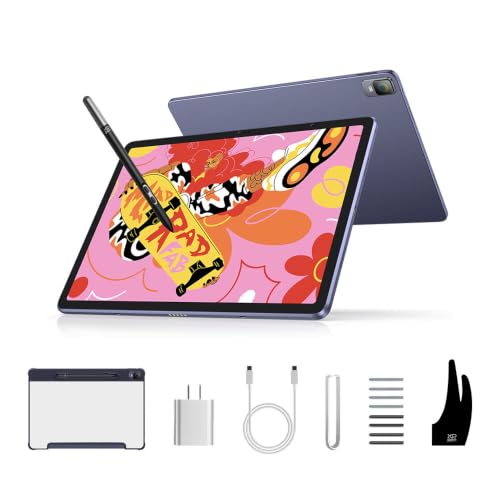
This standalone drawing tablet works without a computer, so you can sketch and draw anywhere. Its 16K pressure levels give you fine control over line weight, and the AG-etched screen feels like paper. With 256 GB of storage (expandable to 1TB) and a 13-hour battery, you can work through long sessions without worrying about power or space. It runs Android 14, so you can download apps like Clip Studio Paint and ibis Paint X from Google Play, ideal if you prefer mobile creative tools.
The Magic Drawing Pad runs Android 14, which won’t support full desktop versions of industry-standard animation software like Toon Boom or TVPaint. If your workflow depends on those, you’ll need a tethered tablet like the Wacom Cintiq 16 instead. At 1.3 pounds and 6.9 mm thin, it slips into a bag easily, but its 12.2-inch screen feels compact compared to a 15.6-inch display.
Product photos
HUION Kamvas Pro 16 Pen Display
What We Like
- 120% sRGB color gamut volume
- Fully laminated anti-glare glass screen
- Adjustable stand (20-60 degrees)
- Battery-free pen with tilt recognition
Trade-offs
- Requires connection to a computer to work
- 8-bit color depth limits gradient smoothness
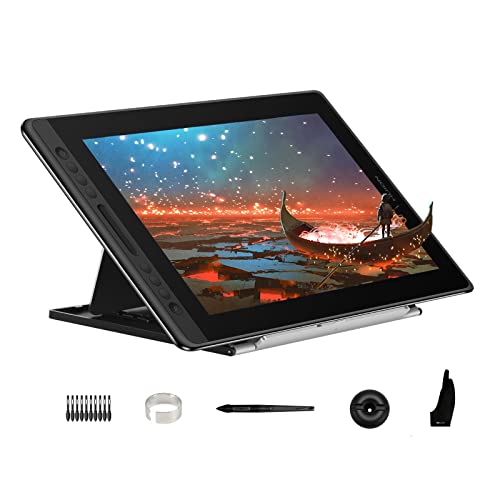
A 120% sRGB color gamut volume (92% AdobeRGB) gives this display a noticeably wider palette than standard screens. Your animation frames hold truer blues, richer reds, and more nuanced skin tones straight from the tablet. The fully laminated anti-glare glass reduces parallax, making your pen tip feel like it’s touching the pixel itself. For animators who rely on color consistency across scenes, this level of accuracy helps maintain color fidelity from creation to export.
The 8-bit panel can show subtle banding in very smooth gradients, and at 3.0 pounds it’s not the lightest for propping on a lap. It also needs a computer to run, unlike standalone tablets such as the XPPen Magic Drawing Pad. But if your priority is faithful color reproduction for animation work, and you already have a laptop or desktop, the Kamvas Pro 16 delivers that accuracy at a price that feels fair for the quality.
Product photos
XENCELABS Pen Display 16 Lite
What We Like
- 4K OLED display with 1.07 billion colors
- Fanless metal backing for silent, cool use
- Ultra-thin 12mm and lightweight 2.67 lbs
- Two battery-free pens included
Trade-offs
- No built-in shortcut keys or buttons
- Virtual Tablet Mode requires another display
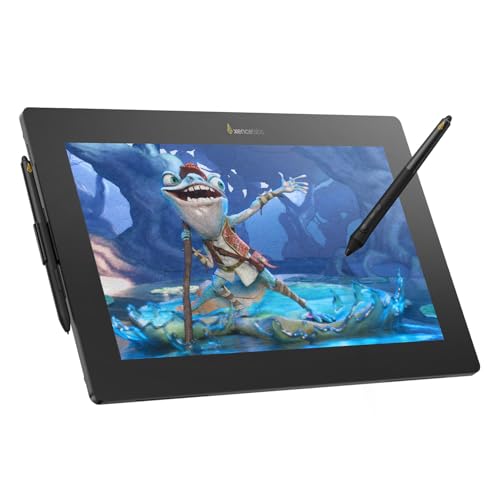
At just 0.47 inches thick and weighing only 2.67 pounds, this 16-inch display slips easily into a laptop bag for working between home and studio. The single USB-C cable connection simplifies setup and allows flexible positioning on a desk or lap. Reviewers note that the thin profile keeps it stable on a stand, while the portable design means you can move from one workspace to another without hassle. For artists who need to create in different locations, this level of portability makes a real difference in daily workflow.
The trade-off for that slim portability is the lack of physical shortcut keys or dials, so you’ll rely on keyboard shortcuts or the on-screen driver panel to switch tools. Compared to the XPPen Artist Ultra 16 4K OLED Touchscreen, which includes a Mini Keydial, the Xencelabs keeps the surface button-free, letting your wrist glide smoothly without interruption. If you prefer tactile controls built into the tablet itself, you might miss those shortcuts during fast-paced work. For users who prioritize color fidelity, a silent workspace, and a lightweight travel-ready design, this is a focused and capable choice.
Product photos
Simbans A10 Art Tablet
What We Like
- Standalone use, no computer needed
- Lifetime VIP tutorials for beginners
- Paper-like laminated screen reduces glare
- Expandable storage up to 1TB
Trade-offs
- 10" screen is small for complex animation
- 3.3 pounds is heavy for a portable tablet
- 4096 pen levels lag behind 16384-level rivals
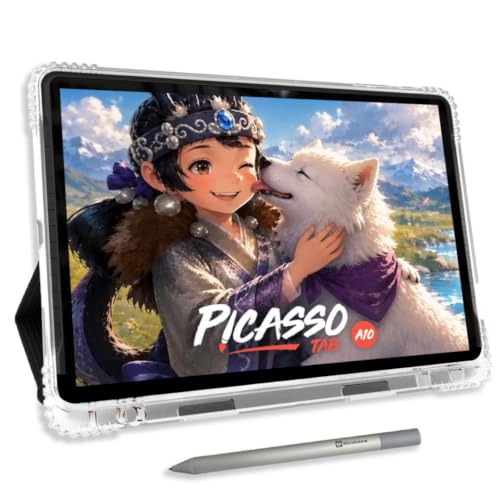
The 64GB of onboard storage, expandable to 1TB, means you can keep a growing library of animation projects and reference files without running out of room. This standalone tablet runs drawing and animation apps directly, so you can sketch and learn anywhere without tethering to a computer. It’s built for someone just starting out who wants a complete, ready-to-go setup. The included lifetime tutorials and preloaded creative apps guide you through the basics, and the paper-like laminated screen helps your strokes feel natural from day one.
The 10-inch display keeps the tablet compact for travel, but artists working on multi-frame animations may find the canvas limiting. At 3.3 pounds, it’s heavier than some slates, which can affect comfort during long sessions. The 4096-level pen provides accurate strokes for sketching and illustration, though some standalone tablets offer higher pressure sensitivity.
How We Evaluated Art Tablets For Animation
Our evaluation is a research-based process that examines specifications, manufacturer documentation, and patterns found in expert reviews and user feedback.
For animation, we prioritized three core criteria. First, pressure sensitivity is critical for creating varied line weights and expressive strokes; we looked for high pressure levels and low initial activation force. Second, display quality, including resolution, color accuracy, and screen technology, directly affects how you see your work. Third, workflow integration, such as shortcut controls and whether the tablet is standalone or requires a computer, determines how well the tablet fits into your existing process.
A research-led approach has limitations: it cannot replicate the feel of a pen on a screen or the real-world responsiveness of a tablet. However, by cross-referencing multiple sources, we can identify the most reliable features and common trade-offs to guide your decision.
What To Look For In Art Tablets For Animation
Choosing an art tablet for animation means focusing on the tools that make your workflow smoother and your art more precise.
Look for high pressure sensitivity (8192 levels or more), a color-accurate display with a wide gamut, and a screen size that fits your workspace. Consider whether you need a standalone tablet or one that connects to a computer, and check for programmable shortcut keys to speed up your animation process.
Pressure Sensitivity and Pen Performance
The pen is your primary tool, so its responsiveness is paramount. Higher pressure levels, such as 8192 or 16384, allow for finer control over line weight and opacity. Also consider the initial activation force (IAF), which is the amount of pressure needed to register a stroke; a lower IAF, like 2 grams, feels more natural and responsive to light touches. A battery-free pen is generally preferred for consistent performance and no need to recharge.
Display Quality: Resolution, Color, and Technology
Animators rely on accurate colors to ensure their work translates correctly to final output. Look for a display with a high color gamut coverage, such as 99% DCI-P3 or 99% Adobe RGB, and a low Delta E (ΔE) value for factory-calibrated accuracy. Resolution matters too: a 4K or QHD (2.5K) screen provides the crisp detail needed for precise linework. OLED displays offer exceptional contrast and vibrant colors, while laminated screens reduce parallax for a more natural drawing feel.
Workflow and Control Options
Your tablet should adapt to your workflow, not the other way around. Consider whether you prefer a standalone tablet that doesn’t need a computer, or a pen display that connects to your main machine for full desktop software access. Programmable shortcut keys, dials, and touch gestures can significantly speed up your animation process by giving you quick access to tools like undo, rotate, and zoom.
- Check the tablet’s weight and dimensions to ensure it fits your desk or lap comfortably.
- Verify the connection type (USB-C, HDMI, DisplayPort) is compatible with your computer.
- Look for a screen size that balances portability with a comfortable drawing area.
- Consider if you need Bluetooth connectivity for wireless use.
A good rule of thumb: the best tablet for you is the one that removes the most friction between your hand and the software.
Art Tablets For Animation Compared
The table below compares the key specifications of our top picks, helping you see at a glance how they differ in screen size, pressure sensitivity, and connectivity.
| Product | Screen Size | Pen Pressure | Weight |
|---|---|---|---|
| XPPen Artist Ultra 16 4K OLED Touchscreen Drawing Tablet | 15.6 inches | 16K levels | 3.4 pounds |
| HUION Kamvas 13 Gen 3 Drawing Tablet | 13.3 inches | 16384 | 2.0 pounds |
| Wacom Cintiq 16 Drawing Tablet | 16 inches | 8192 levels | 4.5 pounds |
| Wacom Intuos Pro Medium Bluetooth Drawing Tablet | N/A | 8192 levels | 0.9 pounds |
| XPPen Magic Drawing Pad 12.2 Standalone Tablet | 12.2 inches | 16384 | 1.3 pounds |
| HUION Kamvas Pro 16 Pen Display | 15.6 inches | N/A | 3.0 pounds |
| XENCELABS Pen Display 16 Lite | 16-inch | N/A | 2.67 lbs |
| Simbans A10 Art Tablet | 10" | 4096 levels | 3.3 pounds |
Frequently Asked Questions
What pressure sensitivity level do I need for animation?
For professional animation, look for a tablet with at least 8192 pressure levels. This provides the range needed for subtle line weight variations and expressive strokes. Some newer models offer 16384 levels for even finer control, but 8192 is a solid standard for most animation work.
Can I use a drawing tablet without a computer?
Yes, standalone tablets like the XPPen Magic Drawing Pad and the Simbans A10 Art Tablet are designed to work without a computer. They have built-in operating systems (often Android) and run drawing and animation apps directly. However, they may not support professional desktop-only software like Adobe Animate or Toon Boom Harmony.
What is the best screen size for an animation tablet?
A 13- to 16-inch screen is a popular sweet spot for animation, offering enough drawing area for detailed work without taking up too much desk space. Smaller screens (around 10 inches) are more portable but can feel cramped for complex scenes. Larger screens (16 inches and above) provide more room but are heavier and less portable.
How important is color accuracy for an animation tablet?
Color accuracy is very important if you are creating content for broadcast, film, or web, where consistent colors are critical. Look for tablets with factory-calibrated displays and a wide color gamut, such as 99% DCI-P3 or 99% Adobe RGB. A low Delta E (ΔE) value, ideally under 2, ensures what you see on screen matches the final output.
What is the difference between a pen display and a pen tablet?
A pen display has a built-in screen, allowing you to draw directly on the image. A pen tablet (like the Wacom Intuos Pro) has no screen; you draw on a flat surface while looking at a separate monitor. Pen displays offer a more intuitive experience, while pen tablets are often more affordable and can be a better choice for those who prefer a specific monitor setup.
The Bottom Line
For most animators, the XPPen Artist Ultra 16 4K OLED Touchscreen Drawing Tablet is the best overall choice. Its 4K OLED display, dual styli, and customizable touch controls provide the color accuracy and control needed for serious animation work, especially if you work at a desk with a computer.
If you need a portable, computer-free option for sketching on the go, the XPPen Magic Drawing Pad is a strong standalone pick. Beginners who want a complete, guided experience should consider the Simbans A10 Art Tablet with its built-in tutorials. The single most important factor is finding a tablet whose pressure sensitivity, display quality, and workflow features align with your specific animation needs.
