10 Best Tablets For Artists in 2026
This post contains affiliate links. As an Amazon Associate, we earn from qualifying purchases.
For artists who demand a studio-grade digital canvas, the XPPen Artist Pro 22 Gen 2 is the best overall pick, thanks to its Calman-verified Delta E<1 color accuracy and the included wireless shortcut remote. If you need to draw without a computer, the portable Wacom MovinkPad 11 is the best standalone option, while the UGEE UE16 offers the widest color gamut for vibrant work.
Choosing the right tablet for digital art means balancing screen size, color fidelity, and whether you need a computer to run it. A large, color-accurate display helps with detailed studio work, but a lightweight standalone tablet lets you sketch anywhere, from coffee shops to the park.
This guide is built from a careful review of manufacturer specifications, expert round-ups, and common patterns in artist feedback. We’ve ranked 10 tablets to help you find the right fit, whether you are a professional illustrator or just starting your digital art journey.
Top 10 Tablets For Artists in the Market
Certain content that appears on this site comes from Amazon. This content is provided "as is" and is subject to change or removal at any time.
The Best Tablets For Artists, Reviewed
XPPen Artist Pro 22 Gen 2

What We Like
- Calman-verified Delta E<1 color accuracy
- 16K pressure sensitivity with X3 Pro chip
- Includes ACK05 wireless shortcut remote
- Adjustable stand with 15° to 88° tilt
Trade-offs
- At 12.2 pounds, heavy for desk repositioning
- Requires a computer, no standalone operation
- 21.5-inch screen needs ample workspace
The trade-off is weight and portability: at 12.2 pounds, this is a studio anchor, not something you toss in a bag. If you need to draw on the go, the XPPen Magic Drawing Pad is a standalone 1.3-pound option that works without a computer, but it has a smaller 12.2-inch screen and lower resolution. The Artist Pro 22 Gen 2 also requires a computer (Windows, macOS, Android, ChromeOS, or Linux), so it’s best for a dedicated workspace where accuracy and a large canvas are priorities.
Wacom MovinkPad 11

What We Like
- No computer needed to draw
- Paper-like matte etched glass screen
- Battery-free Pro Pen 3 with 8,192 levels
- Weighs only 1.3 pounds
Trade-offs
- Android apps limited compared to desktop software
- 11.45-inch screen feels small for detailed work
An 11.45-inch Android tablet that works entirely on its own means you can sketch anywhere without lugging a laptop or plugging into a wall. The matte etched glass screen cuts glare and fingerprints, so it feels like drawing on real paper even under bright light. With 8,192 pressure levels from the battery-free Pro Pen 3, every brushstroke responds exactly how you want. This is a tool for artists who want to capture ideas the moment they strike, whether on a train, in a coffee shop, or sprawled on the couch. The tablet comes with the Wacom Canvas app and a two-year license for CLIP STUDIO PAINT DEBUT, plus trials of Ibis Paint, Magma blaze, and Artwod training, so you have software to start creating immediately.
The trade-off for that portability is storage: 128GB fills up fast if you work on high-resolution files or install many apps, and Android’s app ecosystem doesn’t match the full desktop versions of programs like Photoshop or Corel Painter. The XPPen Magic Drawing Pad offers 256GB of storage and a 12.2-inch screen. The MovinkPad 11 gives you Wacom’s renowned pen feel in a slightly smaller, lighter package.
Product photos
XPPen Magic Drawing Pad
What We Like
- Paper-like AG-etched screen with 97% sRGB
- 8000 mAh battery for 13-hour sessions
- Android 14 with included art app memberships
Trade-offs
- Compact 12.2-inch screen limits canvas visibility
- Android-only system cannot run desktop software
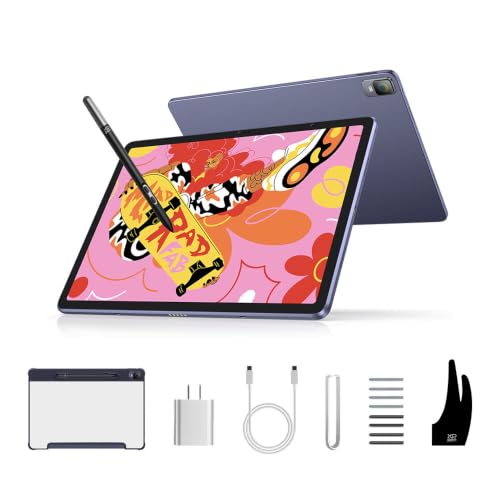
A stylus with 16,384 pressure levels registers every change in force, from the lightest tick to a heavy stroke, giving you fine control over line weight. This standalone tablet runs Android 14, so you can download apps from Google Play, and it comes with three-month memberships for Clip Studio Paint and ibis Paint X after activation. The 12.2-inch screen uses AG-etched glass for a paper-like feel, and its 97% sRGB coverage keeps colors vivid. For artists who want precise linework and the freedom to draw anywhere, this tablet delivers a responsive, portable creative tool.
The 12.2-inch canvas is compact compared to the Wacom Cintiq 16’s larger display, which suits artists who prefer a bigger workspace at a desk. But for sketching, inking, and painting on the go, the 13-hour battery and 1.3-pound frame make it easy to slip into a bag and keep creating without hunting for an outlet.
Product photos
Wacom Cintiq 16

What We Like
- 99% DCI-P3 and 100% sRGB coverage
- Pro Pen 3 with 8192 pressure levels
- Built-in fold-out legs for 20° angle
- USB-C connectivity for modern computers
Trade-offs
- Requires computer with DP Alt Mode or Thunderbolt
- No adjustable stand included for ergonomic tilt
- At 4.5 lb, heavier than portable standalone tablets
A 99% DCI-P3 and 100% sRGB color gamut means the Wacom Cintiq 16 shows the wide, cinematic palette used in modern film and digital media. So your blues, reds and greens land exactly where you put them.
The catch is that this is a tethered display, not a standalone tablet, so you’ll need a computer with USB-C DisplayPort Alt Mode or Thunderbolt 3 or 4 to run it. That makes it less portable than an all-in-one like the Wacom MovinkPad 11, which needs no computer at all.
Product photos
UGEE UE16

What We Like
- 143% sRGB gamut for vivid color
- Four switchable color spaces
- 16K pressure sensitivity for fine strokes
- 8 shortcut keys plus scroll wheel
Trade-offs
- 15.4-inch size is less portable than smaller models
- Requires a computer to function
- 3-in-1 cable must be unpacked separately
A 143% sRGB color gamut means this display can show a noticeably wider range of colors than standard monitors, which matters when you’re matching vibrant digital hues to real-world paints or prints. The four color spaces let you switch between sRGB, Adobe RGB, DCI-P3, or even a black-and-white mode, so you can preview how your art will look in different formats without leaving your drawing software. This tablet suits artists who work with bold, saturated palettes or need accurate color reproduction for client work.
The 15.4-inch screen gives you a large drawing area for detailed work, but it is not a standalone device, you need a computer nearby. The 16K pressure levels and eight shortcut keys offer precise control and quick tool access, though the separate 3-in-1 cable adds a small setup step. For color-conscious artists who value gamut over portability, this is a strong fit.
Huion Kamvas 13 Gen 3

What We Like
- Factory calibration report included
- Avg. ΔE<1.5 color accuracy
- 16384 pressure levels with 2g IAF
- Anti-glare Canvas Glass 2.0
Trade-offs
- Requires computer or laptop to operate
- 2.0 lb is heavier than some portable tablets
A factory calibration report with an average Delta E under 1.5 means the colors you see are the colors you get, right out of the box. That kind of accuracy saves serious time for illustrators and designers who need consistent results across projects. The 13.3-inch fully laminated screen uses anti-glare glass to cut reflections, and the 16384 pressure levels with a 2-gram initial activation force respond to the lightest touch. It suits anyone who wants a dependable, color-true display without spending hours tweaking settings.
The catch is that this is a pen display, not a standalone tablet. You must connect it to a computer or laptop to draw, which limits where you can work compared to an all-in-one like the XPPen Magic Drawing Pad. At 2.0 pounds it is portable enough for a desk setup, but heavier than a standalone slate you could take to a café. For artists who already have a capable computer and want a calibrated screen for serious color work, this is a focused and practical choice.
Huion Kamvas Slate 11

What We Like
- Standalone design, no computer needed
- Full-laminated anti-glare screen reduces glare
- 90Hz refresh rate for smooth visuals
- 8000mAh battery for all-day drawing
Trade-offs
- 4096 pressure levels, lower than some rivals with 16384
- Heavier than some rivals at 1.1 pounds for extended handheld use
An 8000mAh battery means you can sketch, note, and draw all day without hunting for an outlet. This standalone tablet runs Android 14 out of the box, so there is no computer tether, just grab the H-Pencil with 4096 levels of pressure and 60° tilt and start working. The 10.95-inch full-laminated anti-glare screen cuts reflections and feels paper-like, which helps during long sessions. For artists who want a lightweight, portable setup that fits in a bag and lasts through travel or a coffee-shop afternoon, this is a natural fit.
The screen size and pen sensitivity are where this model compromises. At 10.95 inches, it is noticeably smaller than the XPPen Magic Drawing Pad’s 12.2-inch display, which can make detailed linework feel tighter. And while 4096 pressure levels work well for most sketching, the XPPen offers 16384 for finer nuance. If you prioritize portability and battery life over canvas space and maximum precision, the Huion Kamvas Slate 11 delivers a focused, no-fuss drawing experience. Just know that for large compositions or ultra-fine control, you may want to look at a bigger model.
Product photos
Simbans PicassoTab A10 Standalone Tablet
What We Like
- Standalone design, no computer needed
- Paper-like laminated screen reduces glare
- Lifetime VIP tutorials for beginners
- 6 bonus items included
Trade-offs
- At 3.3 lb, heavier than portable rivals
- Only 4096 pressure levels, not 16K
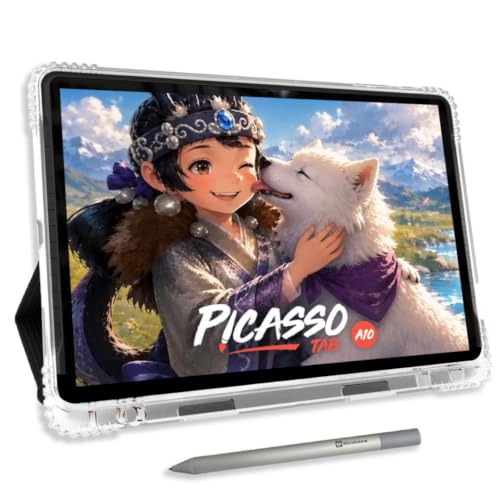
A 10-inch standalone tablet with a paper-like laminated screen and 4096 levels of pressure sensitivity means you can sketch, paint, and learn anywhere without plugging into a computer. That freedom is exactly what a beginner needs, no cables, no complicated setup, just pick up the active pen and start. The included lifetime VIP tutorials and preloaded creative apps provide guided lessons, so you have direction from the start. For someone new to digital art, this setup removes much of the confusion.
The Cintiq 16 is heavier than many standalone tablets, and its pen has 4096 levels of pressure sensitivity. While that is plenty for learning basic strokes, artists who later want finer control may find themselves eyeing the 16384-level stylus on the XPPen Magic Drawing Pad.
PicassoTab X14 Standalone Drawing Tablet
What We Like
- Fully laminated paper-like display reduces glare
- Octa-core CPU with 6GB RAM for smooth apps
- 14-inch laminated paper-like display reduces glare
Trade-offs
- At 5.1 lb, heavier than many portable tablets
- 4096 pen pressure is lower than some competitors' 16384 levels
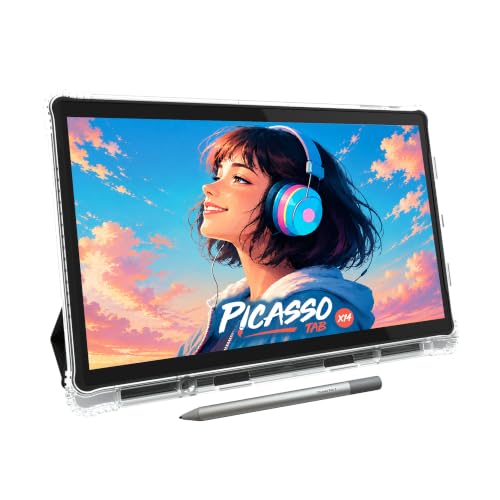
The 14-inch laminated screen on this tablet gives you a spacious canvas for sketching, storyboarding, or painting without needing to zoom or pan as often as on smaller models. The octa-core processor and 6GB of RAM keep drawing apps like Concepts running smoothly, and the preloaded apps plus bonus accessories get you started right out of the box. Anyone wanting a self-contained studio they can take to a coffee shop or a park will find this the largest PicassoTab model that still fits in a bag.
At 5.1 pounds, the X14 is noticeably heavier than the 1.3-pound Wacom MovinkPad 11, so it’s less comfortable for long handheld sessions or working on a lap. The 4096-level pen also falls short of the 16K pressure sensitivity found on the XPPen Magic Drawing Pad, which matters for fine control in detailed line work. If absolute portability or ultra-fine pressure response is your priority, one of those lighter models might serve you better. But if screen real estate and a computer-free workflow matter most, the PicassoTab X14 delivers a spacious, glare-reduced drawing surface that few standalone tablets can match.
GAOMON PD1161 Pen Display
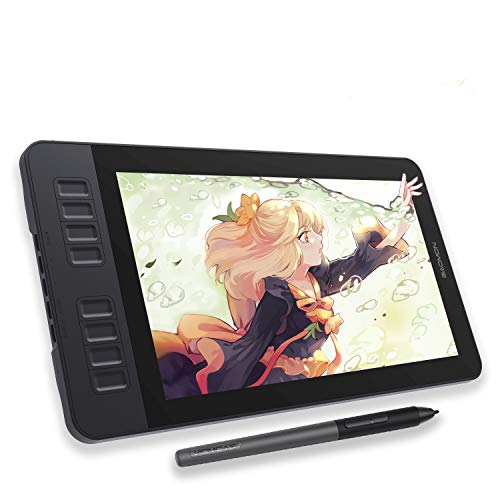
What We Like
- Matte anti-glare screen reduces reflections
- Battery-free stylus with 8192 pressure levels
- 8 programmable shortcut keys on side
- Works with major creative software
Trade-offs
- Requires connection to a computer to function
- Smaller screen limits detailed work area
An 11.6-inch matte screen with an anti-glare film means you can draw directly on the display without fighting reflections, and the paper-like texture helps your pen strokes feel natural right from the start. With 8192 levels of pressure sensitivity and a battery-free stylus, you get precise control over line weight and shading without ever worrying about charging the pen. This makes the PD1161 a comfortable companion for someone wanting a true drawing-on-screen experience at a manageable size, especially for sketchbook-style work or digital note-taking.
This display must be connected to a Windows or Mac computer to work, so it won’t replace a standalone tablet for on-the-go sketching. The 11.6-inch screen is compact, fitting easily into a small bag or workspace. For artists who already own a laptop and want a dedicated drawing surface with an anti-glare, paper-like feel, this is a practical option.
Product photos
How We Evaluated Tablets For Artists
Our evaluation focused on the specifications that matter most to digital artists: color accuracy, pressure sensitivity, and the practical choice between a computer-dependent pen display and a standalone tablet. We examined manufacturer data for each model, including color gamut coverage (sRGB, DCI-P3), Delta E ratings, and pressure level counts. We also looked at expert round-ups from art and tech publications to see which features professionals consistently prioritize.
The three criteria that carried the most weight were color accuracy (essential for print and animation work), pressure sensitivity (for natural brush strokes and line variation), and form factor (standalone vs. Tethered to a computer). A tablet with factory calibration or verified Delta E ratings scored higher for professional use, while lightweight standalone models with long battery life were favored for portability.
A research-led evaluation has limits: it cannot replicate the feel of a pen against a screen or the subjective experience of a matte finish. We rely on reported user feedback and spec sheets to highlight trade-offs, so we encourage you to consider your own workspace and software needs when making a final choice.
What To Look For In Tablets For Artists
Choosing a drawing tablet comes down to how you work. Here are the key specs to consider before you buy.
Focus on color accuracy for professional work, pressure sensitivity for natural strokes, and whether you need a standalone tablet or one that connects to a computer. Screen size and weight matter for your workspace and portability.
Color Accuracy (Gamut & Delta E)
For artists working in print, animation, or any medium where color consistency matters, look for a tablet with high sRGB or DCI-P3 coverage. A Delta E rating of 1 or less indicates excellent color fidelity, meaning what you see on screen will closely match the final output. The Wacom Cintiq 16 covers 99% DCI-P3 and 100% sRGB, while the UGEE UE16 offers an exceptionally wide 143% sRGB gamut for vivid, punchy colors.
Pressure Sensitivity
Pressure sensitivity determines how your tablet detects the force of your stroke. Higher levels, like 8,192 or 16,384, allow for finer control over line weight and opacity. The XPPen Artist Pro 22 Gen 2 and UGEE UE16 both offer 16K pressure sensitivity, which is excellent for detailed inking and shading. Entry-level tablets often use 4,096 levels, which is still perfectly capable for sketching and note-taking.
Standalone vs. Pen Display
This is the most fundamental choice. A pen display (like the XPPen Artist Pro 22 Gen 2) must be connected to a computer to function, offering a large, high-resolution screen for detailed work. A standalone tablet (like the Wacom MovinkPad 11 or Huion Kamvas Slate 11) has its own operating system and battery, letting you draw anywhere without a computer. Standalone models are more portable but may have limited software options compared to desktop applications.
- Measure your desk space to ensure a large pen display will fit comfortably.
- Consider your typical drawing location: a studio desk or a mobile bag.
- Check if your computer has the necessary ports (USB-C, HDMI, or Thunderbolt).
- Look for a laminated or anti-glare screen to reduce parallax and reflections.
A comfortable drawing setup is one you will actually use, so prioritize the form factor that fits your daily routine.
Tablets For Artists Compared
The table below compares the key specs of each tablet, from color accuracy and pressure sensitivity to weight and standalone capability, so you can see how they stack up at a glance.
| Product | Screen Size | Pressure Levels | Weight |
|---|---|---|---|
| XPPen Artist Pro 22 Gen 2 | 21.5 inches | 16K | 12.2 pounds |
| Wacom MovinkPad 11 | 11.45 inches | 8,192 levels | 1.3 pounds |
| XPPen Magic Drawing Pad | 12.2 inch | 16384 | 1.3 lbs |
| Wacom Cintiq 16 | 16" | 8192 | 4.5 pounds |
| UGEE UE16 | 15.4 inches | 16K | N/A |
| Huion Kamvas 13 Gen 3 | 13.3 in | 16384 | 2.0 pounds |
| Huion Kamvas Slate 11 | 10.95 inches | 4096 | 1.1 pounds |
| Simbans PicassoTab A10 Standalone Tablet | 10 inches | 4096 | 3.3 pounds |
| PicassoTab X14 Standalone Drawing Tablet | 14 inches | 4096 | 5.1 pounds |
| GAOMON PD1161 Pen Display | 11.6 inches | 8192 | 1.9 pounds |
Frequently Asked Questions
What is the difference between a drawing tablet and a pen display?
A drawing tablet (like the Huion Kamvas Slate 11) has a screen you draw on directly. A pen display (like the GAOMON PD1161) is a monitor that you connect to a computer, showing your canvas on its screen. Standalone tablets are a type of drawing tablet that runs its own operating system, so no computer is needed.
Do I need a computer to use a drawing tablet?
It depends on the model. Pen displays like the XPPen Artist Pro 22 Gen 2 require a computer to function. Standalone tablets like the Wacom MovinkPad 11 and Simbans PicassoTab A10 have their own processors and operating systems, so you can draw without a computer.
What pressure sensitivity level should I look for?
For professional illustration and inking, 8,192 levels or higher will give you the most control over line variation. For sketching and note-taking, 4,096 levels are perfectly adequate. The XPPen Magic Drawing Pad and UGEE UE16 offer 16K pressure sensitivity for very fine stroke control.
Is a matte screen important for a drawing tablet?
A matte, anti-glare screen is helpful because it reduces reflections from overhead lights and windows, and it creates a paper-like texture that many artists find more natural to draw on. Several models in this guide, including the Wacom MovinkPad 11 and GAOMON PD1161, feature matte screens.
Which tablet is best for a beginner digital artist?
The Simbans PicassoTab A10 works well for beginners because it is a standalone tablet that does not need a computer. It also includes lifetime VIP tutorials and six bonus accessories to get you started. Its 4,096 pressure levels are more than enough for learning the basics of digital art.
The Bottom Line
For artists who work from a dedicated studio desk and need professional-grade color accuracy, the XPPen Artist Pro 22 Gen 2 is the best overall choice. Its large 21.5-inch display, Calman-verified Delta E<1 performance, and included wireless shortcut remote make it a complete workstation for serious illustrators and designers.
If you prefer to draw on the go without a computer, the Wacom MovinkPad 11 offers a premium paper-like screen and a lightweight design at just 1.3 pounds. For beginners on a budget, the Simbans PicassoTab A10 provides a self-contained drawing experience with built-in tutorials. The most important factor is matching the tablet’s form factor and screen size to where and how you actually create.
