8 Best Devices For Digital Art in 2026
This post contains affiliate links. As an Amazon Associate, we earn from qualifying purchases.
For digital artists, the XP-Pen Artist Ultra 14 Drawing Tablet earns the Best Overall spot with its reference-grade OLED display and Calman-verified color accuracy. Beginners will appreciate the Wacom One 14, while those wanting a standalone option can look to the XP-Pen Magic Pro 13. This guide covers eight devices for digital art, from compact travel companions to professional-grade pen displays.
The real challenge is matching a device to your workflow. A standalone tablet frees you from a computer, while a pen display offers a more direct drawing experience. Screen size, color accuracy, and pressure sensitivity all factor into the final decision.
This guide is research-based, drawing on manufacturer specifications, expert round-ups, and patterns in owner feedback. We break down the key features of each device to help you find the right fit for your art and budget.
Top 8 Devices For Digital Art in the Market
Certain content that appears on this site comes from Amazon. This content is provided "as is" and is subject to change or removal at any time.
The Best Devices For Digital Art, Reviewed
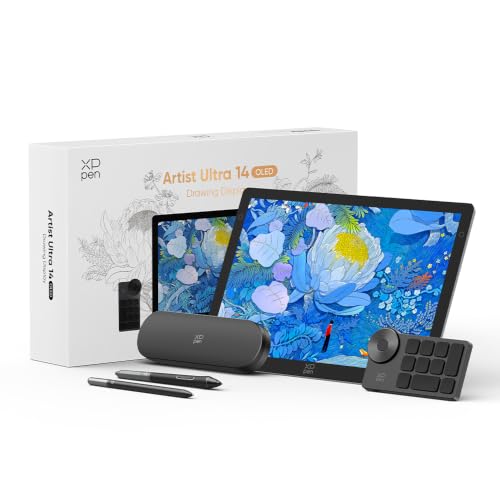
XP-Pen Artist Ultra 14 Drawing Tablet
What We Like
- 2.8K OLED with 90Hz refresh rate
- Calman-verified Delta E<1 color accuracy
- Multi-touch gestures and palm rejection
- Includes two 16K styli and shortcut remote
Trade-offs
- 5.7 pounds is heavy for frequent travel
- Touch function limited to Windows 10+ / macOS 12+
- Requires separate computer to operate
A 2.8K OLED display with 99% Adobe RGB and Delta E<1 color accuracy means this screen shows exactly what your print or video will look like, without guesswork. The 90Hz refresh rate reduces motion blur, and the multi-touch gestures let you zoom and rotate the canvas naturally. For professionals who need precise color for photo retouching, illustration, or animation, this is a tool that removes the gap between eye and output.
The trade-off is weight: at 5.7 pounds, it’s noticeably heavier than a Wacom One 14 (1.7 pounds), so it stays on a desk rather than in a bag. The touch function also only works on Windows 10 or later and macOS 12 or later, which limits older setups.
Product photos
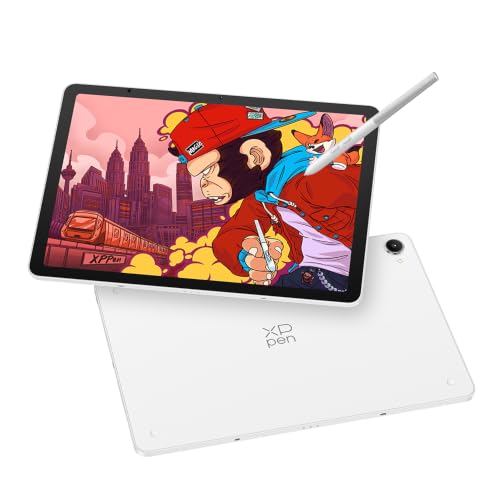
XP-Pen Magic Pro 13 Standalone Drawing Tablet
What We Like
- 3K 120Hz paper-like display with nano-etched glass
- 16K pressure stylus with 2g activation force
- Standalone mode plus one-cable PC connection
- 8GB RAM and 256GB storage expandable to 2TB
Trade-offs
- At 655g, it is light but still a dedicated device to carry
- No built-in stand or kickstand included
This standalone drawing tablet runs on Android 16 with a MediaTek Dimensity 8300 processor, 8GB of RAM, and 256GB of internal storage. Storage expands via microSD up to 2TB, so large layered illustrations and brush packs live on the device without constant file shuffling.
The trade-off is that this device runs a custom Android 16 ecosystem, not a general-purpose operating system like Windows or macOS. It comes pre-installed with Clip Studio Paint, ibisPaint X, and MediBang Paint, so you can start creating right away, but if your workflow depends on software that isn’t available on Android, you can switch into Drawing Display Mode via a single USB-C cable to use it as a monitor for your PC. Compared to the Wacom Cintiq 16, which is a pen display that connects to a computer, the Magic Pro 13 lets you work without a laptop, though you give up the larger 16-inch screen size. For creators who want a portable device that works both on its own and as a desktop display, the high-resolution screen and dual-mode design offer flexibility.
Wacom Cintiq 16 Drawing Tablet

What We Like
- Cinematic 99% DCI-P3 color coverage
- Pro Pen 3 with 8192 pressure levels
- Built-in fold-out legs for 20° angle
- Sharp 2.5K QHD resolution
Trade-offs
- Requires computer with DP Alt Mode or Thunderbolt
- No adjustable stand included
- 4.5 pounds limits easy portability
The built-in fold-out legs provide a steady 20-degree working angle, which is comfortable for many sketching and painting positions. If you find you need a steeper tilt for detailed line work or to reduce glare, you will need to purchase an adjustable stand separately, as the tablet does not include one. This flexibility lets you tailor the setup to your desk height and personal posture preferences, keeping your wrist and arm in a natural position during long creative sessions.
Product photos
Wacom One 14 Drawing Tablet

What We Like
- Battery-free pen never needs charging
- Laminated screen reduces glare and smudge
- 98% sRGB color accuracy
- Includes software and training trials
Trade-offs
- Requires separate adapter for HDMI devices
- Pen has no tilt support for shading angles
A 14-inch laminated IPS display with 98% sRGB color accuracy means you get a crisp, color-accurate canvas that won’t distract you with glare or fingerprints. The battery-free pen responds to every light line and bold stroke without ever needing a charge, so you can stay in your creative flow. This is a reliable, no-hassle setup for anyone stepping into digital art, with included software trials to help you start drawing right away. Wacom’s proven driver stability means you plug in and work, no mystery disconnects or setup headaches.
The Full HD resolution isn’t as sharp as the XP-Pen Artist Ultra 14’s 2.8K OLED, and if your computer uses HDMI, you’ll need to buy an adapter and power kit separately. But for a beginner focused on learning and experimenting, the Wacom One 14’s straightforward compatibility with Windows, Mac, and Chromebook, plus its light 1.7-pound build, makes it easy to move around and set up anywhere. It prioritizes simplicity and reliability over the highest specs, which is exactly what most newcomers need.
Product photos
Huion Kamvas 13 Gen 3 Drawing Tablet

What We Like
- Factory calibration report for color consistency
- Fully laminated anti-sparkle glass reduces glare
- USB-C single cable connection
Trade-offs
- Requires connection to a computer to function
- Weighs 2.0 pounds, heavier than some models like the Wacom One 14 at 1.7 pounds
Because it relies on a connected computer or laptop for processing, this pen display isn’t something you can grab for sketching in a coffee shop or on a train. A single USB-C cable handles both data and power, so you’re tied to a desk or a workspace with a computer nearby. That trade-off keeps the unit itself lightweight and compact, it weighs just two pounds and measures about a third of an inch thick, making it easy to slip into a bag alongside a laptop. For artists who do most of their work at a fixed setup, that cable connection is a minor inconvenience for the drawing experience you get in return.
Product photos
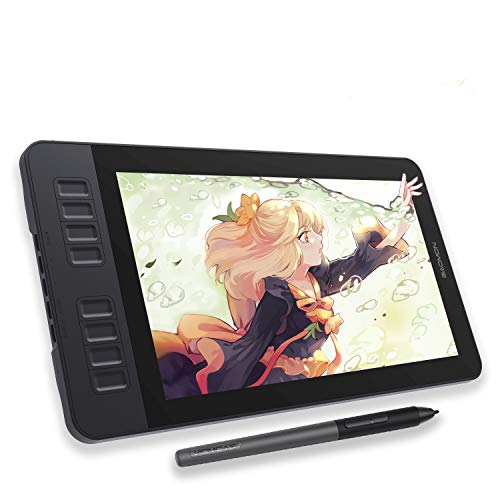
GAOMON PD1161 Drawing Tablet
What We Like
- Battery-free stylus with 8192 pressure levels
- Anti-glare matte screen for paper-like feel
- 8 programmable shortcut keys
- Compact and lightweight at 1.9 pounds
Trade-offs
- Requires connection to a computer to work
- 11.6-inch screen is small for detailed multitasking
- 72% NTSC color gamut is less vivid than some rivals
The GAOMON PD1161 is not a standalone tablet, it must be connected to a laptop or computer to work, so it’s best for artists who already have a main machine and want a screen they can draw on directly. The 11.6-inch full HD IPS display comes with a matte film that feels like paper and cuts glare, making it comfortable to sketch even under bright lights. The battery-free stylus has 8192 pressure levels and tilt, and owners say it gives predictable line response without needing to charge. With eight programmable shortcut keys on the side, you can set up your most-used commands and keep your hand on the tablet instead of reaching for a keyboard.
This display is not a standalone tablet, you must connect it to a Windows or Mac computer to use it. That means it cannot be used on its own like the XP-Pen Magic Pro 13 that works without a computer. The 11.6-inch screen offers a 72% NTSC color gamut (100% sRGB), which is less wide than some larger or pricier displays, so color-critical work may feel a bit muted. Still, for the artist who values a lightweight, affordable, and glare-free drawing surface with a reliable pen, this is a straightforward tool that gets the job done without extra fuss.
HUION Kamvas Pro 16 Drawing Tablet
What We Like
- Fully laminated anti-glare glass reduces reflections
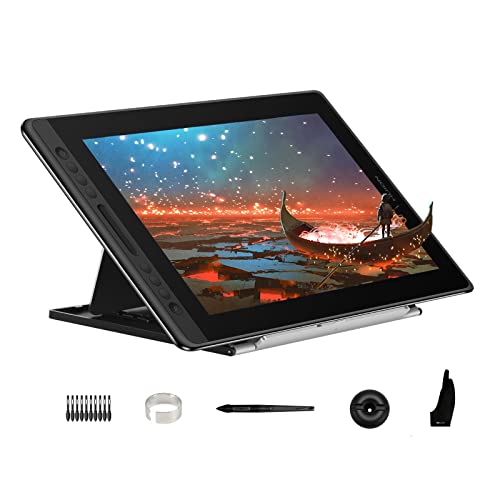
- Adjustable stand from 20 to 60 degrees
- Battery-free pen with 60° tilt recognition
Trade-offs
- Requires a computer to function, not standalone
- At 3.0 pounds, heavier than portable options like Wacom One 14
- Only 6 shortcut keys limit quick access for complex workflows
The fully laminated anti-glare glass cuts down on distracting reflections and brings the drawing surface closer to the screen, so your cursor sits right under the pen tip without a gap. This makes it a natural fit for illustrators and designers who work in color-critical projects and want a smooth, direct drawing feel without eye strain from glare.
This pen display must be connected to a computer to work, so it won’t replace a standalone tablet for sketching on the go. At 3.0 pounds, it’s heavier than the Wacom One 14 (1.7 pounds), making it less convenient for mobile use. But if your setup stays at a desk and you want a wide color range and a glare-free screen for long sessions, this model delivers those features.
Product photos
PicassoTab X11 Standalone Drawing Tablet
What We Like
- Standalone design needs no computer
- Laminated 2K screen reduces glare
- Lifetime VIP tutorials for beginners
- Expandable storage up to 1TB
Trade-offs
- 4096 pressure levels less sensitive than higher-end styli
- 11-inch screen is smaller than many desktop displays
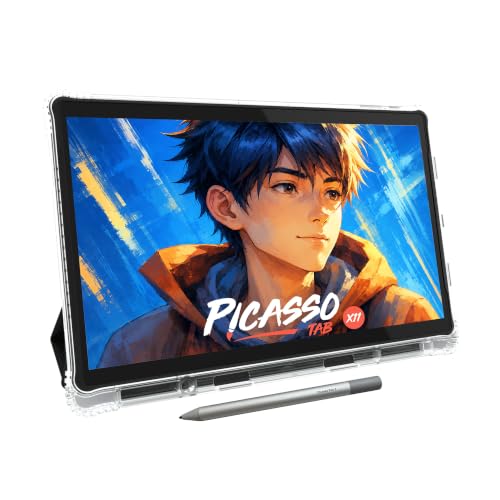
The PicassoTab X11 is a fully standalone drawing tablet, so you can use it anywhere without connecting to a computer. Its 11-inch 2K laminated screen cuts glare and parallax, giving a paper-like feel that helps your strokes land where you intend. With 6GB of RAM and 128GB of storage that expands up to 1TB, you have room for apps and projects. The included lifetime VIP tutorials in Artixo offer step-by-step lessons and guided practice, making this a good fit for someone just starting out.
The trade-off for that portability is a 4096-level stylus, which is fine for sketching and shading but not as sensitive as some higher-end pens. The 11-inch screen is compact, so if you prefer working on a larger canvas at a desk, you might find it limiting. For a student or hobbyist who values freedom of movement and a guided learning path, the PicassoTab X11 delivers a complete, ready-to-go creative toolkit.
How We Evaluated Devices For Digital Art
We started by examining the technical specifications of each device: screen resolution, color gamut coverage, pressure levels, and connectivity options. Manufacturer documentation provided the baseline, while expert round-ups from art and tech publications helped us understand how these specs translate to real-world drawing performance. We also looked for common praise and recurring complaints in owner feedback to spot reliable strengths and honest trade-offs.
The criteria that mattered most were display quality, pressure sensitivity, standalone capability, and portability. Display quality covers resolution, color accuracy, and screen lamination, all critical for seeing your work accurately. Pressure sensitivity determines how naturally a stylus responds to light and heavy strokes. Standalone capability matters for artists who want to draw without a computer, while portability affects whether a device can travel in a bag.
A research-led evaluation has limits. We haven’t tested these devices ourselves, so we rely on published data and the collective experience of reviewers and users. The best choice for you will depend on your specific art style, software preferences, and workspace.
What To Look For In Devices For Digital Art
Choosing a digital art device means balancing screen quality, stylus performance, and how you want to work. Focus on the features that matter most to your art style and setup.
Look for a laminated display with high color gamut coverage (sRGB or DCI-P3), a pressure-sensitive stylus with at least 4096 levels, and a connection method that works with your computer or operating system.
Display Quality and Color Accuracy
A clear, color-accurate screen is essential for digital painting and illustration. Look for a laminated display, which reduces the gap between the glass and the screen, minimizing parallax and glare. Color gamut is measured in sRGB or DCI-P3; a wider gamut means more vibrant and accurate colors. For professional work, a factory calibration report adds confidence that colors are correct out of the box.
Pressure Sensitivity and Stylus Feel
The stylus is your primary tool. Higher pressure levels (8192 is common on premium models) allow for finer control over brush strokes, from faint pencil lines to bold ink swells. A battery-free pen is convenient because it never needs charging. Some styli offer tilt recognition, which lets you shade naturally by angling the pen like a real pencil. Low activation force means the pen registers even the lightest touch.
Standalone vs. Pen Display
A pen display requires a connection to a computer or laptop to function, offering a large, high-resolution workspace with full desktop software access. A standalone tablet runs its own operating system and drawing apps, making it portable and independent of a computer. Consider your workflow: if you work from a single desk, a pen display is often the better choice. If you draw on the go or in different rooms, a standalone tablet adds flexibility.
- Check that the device’s connection (USB-C, HDMI, DisplayPort) is compatible with your computer’s ports.
- Verify operating system requirements, as some touch features are limited to Windows 10+ or macOS 12+.
- Consider screen size: larger screens offer more room for multitasking, while smaller ones are more portable.
- Look at the included accessories: some devices come with a stand, shortcut remote, or extra nibs.
A device that matches your primary software and operating system will save you from adapter headaches and driver issues.
Devices For Digital Art Compared
The table below compares the eight devices side by side, highlighting their key specs and best-use scenarios.
| Product | Screen Size | Resolution | Weight |
|---|---|---|---|
| XP-Pen Artist Ultra 14 Drawing Tablet | 14 inches | 2.8K OLED | 5.7 pounds |
| XP-Pen Magic Pro 13 Standalone Drawing Tablet | 12.95 inches | 3K | 1.1 pounds |
| Wacom Cintiq 16 Drawing Tablet | 16 inches | 2560 x 1600 | 4.5 pounds |
| Wacom One 14 Drawing Tablet | 14 inches | Full HD IPS | 1.7 pounds |
| Huion Kamvas 13 Gen 3 Drawing Tablet | 13.3 inches | N/A | 2.0 pounds |
| GAOMON PD1161 Drawing Tablet | 11.6 inches | FHD | 1.9 pounds |
| HUION Kamvas Pro 16 Drawing Tablet | 15.6 inches | N/A | 3.0 pounds |
| PicassoTab X11 Standalone Drawing Tablet | 11 inches | 2K | N/A |
Frequently Asked Questions
What is the difference between a drawing tablet and a pen display?
A drawing tablet is a touch-sensitive pad you draw on while looking at a separate computer monitor. A pen display has a built-in screen, so you draw directly on the surface where your artwork appears. Pen displays offer a more intuitive, hand-to-eye coordination experience, while drawing tablets are often more affordable and portable.
Do I need a computer to use a drawing tablet?
It depends on the device. Pen displays like the Wacom Cintiq 16 and Huion Kamvas 13 Gen 3 require a computer to function. Standalone tablets like the XP-Pen Magic Pro 13 and PicassoTab X11 have their own operating system and can run drawing apps without a computer. They can also connect to a PC as a pen display.
What pressure sensitivity level should I look for?
For most digital art, 4096 pressure levels are sufficient for smooth, expressive strokes. Higher-end models offer 8192 or even 16K levels, which provide more nuanced control for professional illustration and painting. Beginners will be well served by 4096 levels, while artists who rely on very fine pressure variation may benefit from a higher-sensitivity stylus.
How important is color accuracy for digital art?
Color accuracy is very important if you create art for print or client work where precise color matching is needed. Look for a display with high sRGB or DCI-P3 coverage and factory calibration. For casual sketching or digital painting shared on screens, a good-quality display with 98% sRGB or better will look great without the premium cost of reference-grade panels.
Can I use a drawing tablet with a phone or tablet?
Some pen displays can connect to Android devices with USB-C video output, but compatibility varies. Most drawing tablets and pen displays are designed for use with Windows and macOS computers. Standalone tablets run their own operating system and do not require a phone or tablet. Always check the manufacturer’s compatibility list before purchasing.
The Bottom Line
The XP-Pen Artist Ultra 14 Drawing Tablet is the best overall pick for professionals and serious hobbyists who need reference-grade color accuracy and a responsive OLED screen. Its Calman-verified Delta E<1 accuracy and 90Hz refresh rate make it a strong choice for illustration, photo editing, and animation. If you work from a single desk and demand the best display quality, this is the device to consider.
For artists who want a standalone tablet without sacrificing high resolution, the XP-Pen Magic Pro 13 offers a 3K paper-like display and expandable storage. Beginners on a budget should start with the Wacom One 14 for its reliable, battery-free pen and laminated screen, or the PicassoTab X11 if they prefer a standalone device with built-in tutorials.
The single most important factor is matching the device to your workflow. A pen display gives you the best desktop experience, while a standalone tablet offers freedom from the computer. Choose the one that fits how and where you make art.
