10 Best Tablets To Draw On in 2026
This post contains affiliate links. As an Amazon Associate, we earn from qualifying purchases.
For digital artists, the XPPen Artist Pro 22 Gen 2 Drawing Tablet is the best overall choice, thanks to its Calman Verified Delta E<1 color accuracy and included wireless shortcut remote. The Wacom Cintiq 16 offers the best wide color gamut for cinematic work, while the HUION Inspiroy 2 Medium is a standout budget pen tablet for those who already own a computer.
The biggest challenge in choosing a drawing tablet is balancing screen size, pressure sensitivity, and whether you need a standalone device or a computer-connected display. A tablet that works for a professional illustrator may feel overkill for a beginner sketching on the couch.
This guide is research-based, drawing on manufacturer specifications, expert round-ups, and patterns in owner feedback. We break down the ten best tablets to draw on by their strengths, so you can match the right tool to your workflow and budget.
Top 10 Tablets To Draw On in the Market
Certain content that appears on this site comes from Amazon. This content is provided "as is" and is subject to change or removal at any time.
The Best Tablets To Draw On, Reviewed
XPPen Artist Pro 22 Gen 2 Drawing Tablet

What We Like
- Calman Verified Delta E<1 color accuracy
- Included ACK05 wireless shortcut remote
- Adjustable stand with 15°–88° tilt
Trade-offs
- At 12.2 lb, heavy for frequent repositioning
- Requires external computer to operate
The trade-off is size and weight: at 12.2 pounds, it is far less portable than a standalone tablet like the Wacom MovinkPad 11, and it needs a computer to run. That makes it a fixed-studio companion rather than something you toss in a bag. But for anyone who spends long hours at a desk and demands the sharpest detail and most responsive pen feel available, the Artist Pro 22 Gen 2 delivers a level of control and color fidelity that smaller or less accurate screens cannot match.
Wacom Cintiq 16 Drawing Tablet

What We Like
- 99% DCI-P3 color coverage for cinematic work
- Pro Pen 3 with 8192 pressure levels
- Built-in fold-out legs for 20-degree angle
- USB-C connection for modern computers
Trade-offs
- Requires computer with DP Alt or Thunderbolt
- 4.5 lbs needs desk space, not lap-friendly
- No adjustable stand included for ergonomics
A 99% DCI-P3 color gamut means the 16-inch display reproduces the wide color space used in modern film and digital media, so your artwork matches what you’d see on cinema-grade screens. The Pro Pen 3 responds to your lightest touch with 8192 pressure levels, giving you precise control for fine linework and subtle shading. This is a serious tool for illustrators and animators who need accurate color reproduction and a responsive pen in a compact, desk-friendly package.
The trade-off is that you need a computer with DisplayPort Alt Mode or Thunderbolt 3 or 4 to connect it, no standalone operation here. At 4.5 pounds with built-in legs that offer a single 20-degree angle, it sits solidly on a desk but isn’t designed for lap use or quick portability.
Product photos
Wacom MovinkPad 11 Android Drawing Tablet

What We Like
- No computer needed, all-in-one design
- Paper-like matte etched glass screen
- Pro Pen 3 with 8,192 pressure levels
- Thin and light at 1.3 pounds
Trade-offs
- Only 128 GB storage, no expansion mentioned
- Smaller screen than desktop drawing tablets
An 11.45-inch Android 14 tablet that runs entirely on its own, no computer, no cables, no fuss. That means you can pull it out in a coffee shop, on a train, or in the backyard and start sketching the moment an idea hits. The Pro Pen 3 delivers 8,192 pressure levels and has three buttons, and the matte etched glass feels like real paper under the nib.
Compared to a desktop tablet like the XPPen Artist Pro 22, the MovinkPad’s 8 GB RAM and 128 GB storage are built for drawing apps and note-taking, not heavy video or 3D work. Reviewers note the slim design makes it easy to slip into a backpack, and the anti-glare screen keeps reflections from interrupting your focus. For artists who want to sketch on the go without being tethered to a desk, this tablet offers that freedom in a portable package.
Product photos
UGEE UE16 Drawing Tablet

What We Like
- 143% sRGB color gamut
- Four switchable color spaces
- 16K pressure sensitivity
- 8 shortcut keys plus wheel
Trade-offs
- 15.4-inch screen is less portable than 11-inch tablets
- Requires connection to a computer or Android device
The UE16’s 143% sRGB color gamut and four switchable color spaces (sRGB, Adobe RGB, DCI-P3, black-and-white) let you switch between color workflows without losing fidelity. The 16K pressure sensitivity captures light sketches and heavy strokes, so your linework stays expressive and precise. This is a screen that rewards artists who care deeply about color accuracy and want a dedicated monitor-style drawing experience without jumping to a larger display.
At 15.4 inches, this tablet is a desktop companion that requires a computer or compatible Android device to run, so it’s not for on-the-go sketching without a host. For anyone working at a desk who wants a color-rich canvas, the 143% sRGB gamut and 16.7 million colors make every shade pop, which is exactly what illustrators and designers need for accurate work.
HUION KAMVAS Slate 11 Standalone Drawing Tablet

What We Like
- No computer needed to draw
- 8000mAh battery for all-day use
- Full-laminated anti-glare screen reduces glare
- Pre-installed drawing apps on Android 14
Trade-offs
- 10.95-inch screen is smaller than desktop models
- Android 14 limits high-end desktop software
The full-laminated anti-glare screen with a 90Hz refresh rate gives you a paper-like feel and smooth strokes, and you don’t need a computer to start drawing. At just 1.1 pounds and with an 8000mAh battery, this tablet is light enough to toss in a bag and sketch on all day. It runs Android 14 out of the box with pre-installed drawing apps, so you can start creating immediately.
The 4096 pressure levels and 10.95-inch screen feel less expansive than the XPPen Magic Drawing Pad’s 16384 levels and 12.2-inch display. If you need ultra-fine pressure control or a larger canvas for detailed work, the XPPen gives you more headroom. But for quick sketches, notes, and portable creativity, the Huion’s lightness and battery life make it a natural choice.
Product photos
HUION Inspiroy 2 Medium Drawing Tablet

What We Like
- Battery-free stylus with tilt support
- 8 programmable shortcut keys and scroll wheel
- Works with Android phones and tablets
- Slim, lightweight design at 0.9 lb
Trade-offs
- No built-in screen, must look at computer monitor
- Requires wired connection to computer or phone
- Not standalone, needs external device to function
The 9 x 5 inch active area provides enough space for broad strokes and fine detail while keeping the tablet compact on a desk. The battery-free stylus uses PenTech 3.0 and supports 60-degree tilt, which helps with shading and angled lines. This tablet works with computers, laptops, and Android devices, making it a flexible option for digital sketching and photo editing if you already have a compatible device. The eight customizable shortcut keys and scroll wheel can be programmed for shortcuts, so you can access commands without moving your hand far from the drawing area.
This drawing tablet lacks a built-in screen, so you draw on the pad while watching your computer monitor, a different feel from screen-based tablets like the Wacom Cintiq 16, which has its own QHD display. The Huion must be connected to a computer, laptop, or Android device via the included cable to function. It weighs 0.9 pounds and measures 12.0 by 7.1 inches, making it convenient to pack for mobile sketching and photo editing.
Product photos
XPPen Magic Drawing Pad Standalone Drawing Tablet
What We Like
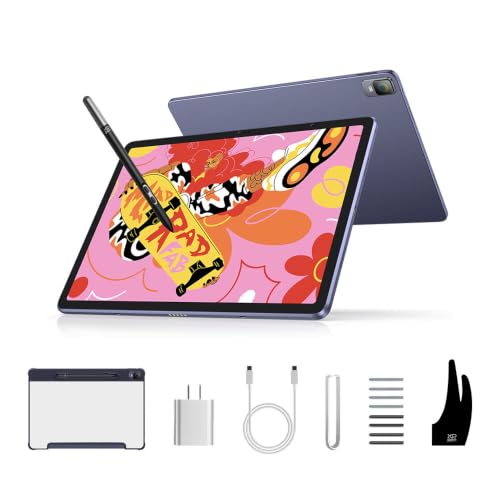
- Industry-first 16K pressure sensitivity
- Paper-like AG-etched screen with 97% sRGB
- Eye comfort with TÜV Rheinland certification
Trade-offs
- 12.2-inch screen is smaller than desktop models
- 599g weight feels light but not pocket-sized
- Android 14 limits pro desktop software access
A 16K pressure-sensitive stylus means you get twice the precision of most other pens on the market, catching every feather-light flick or bold press without skipping a beat. That alone makes this tablet a natural fit for artists who crave hyper-nuanced linework, whether you are sketching on the couch or finishing a deadline in a coffee shop. The 12.2-inch AG-etched screen feels like textured paper, and with 97% sRGB color coverage, your digital palette stays vivid and true. No computer needed, no cables, just a stylus that never needs charging and a battery that lasts thirteen hours of non-stop drawing.
At 12.2 inches, the display is smaller than desktop models like the XPPen Artist Pro 22 Gen 2, which offers a larger canvas for broad strokes or detailed layouts. Portability is the trade-off: the Magic Drawing Pad weighs just 1.3 pounds, so it fits in a bag for sketching anywhere. Storage starts at 256 GB and can be expanded to 1 TB with a micro SD card, so you won’t run out of space for projects. Keep in mind that Android apps differ from full desktop software, but for mobile drawing this is a focused, capable tool.
Product photos
GAOMON PD1161 Drawing Tablet
What We Like
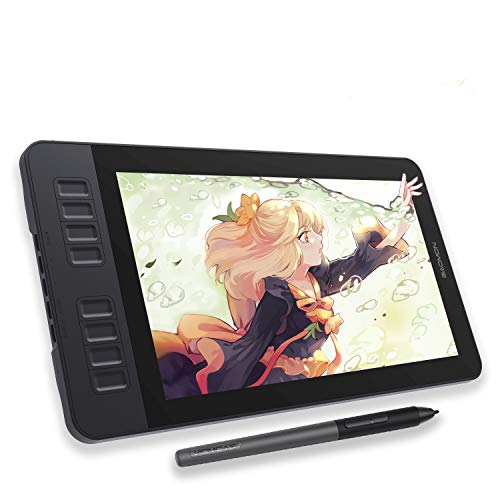
- Full HD 11.6" IPS screen with anti-glare film
- Battery-free stylus with 8192 pressure levels
- 8 programmable shortcut keys plus 2 pen buttons
- 72% NTSC (100% sRGB) color gamut
Trade-offs
- Requires a separate computer to function
- 11.6" screen is smaller than many pen displays
The 11.6-inch full HD IPS screen comes with a pre-installed matte film that reduces glare and reflection, giving a paper-like feel for sketching. The battery-free stylus AP50 offers 8192 pressure levels and tilt function, so it handles like a standard pencil. That makes it a practical choice for anyone who wants a drawing monitor with a clear screen and a pen that never needs charging.
The main limitation is that this tablet must be connected to a laptop or computer to work, so it is not portable on its own. The 11.6-inch screen is smaller than some other pen displays, which may matter if you need a larger working area. But if you already have a computer and want a display with a vivid screen (72% NTSC, 100% sRGB) and a battery-free pen, the PD1161 delivers those features at a lower price point than many standalone tablets.
Simbans A10 Tablet To Draw On
What We Like
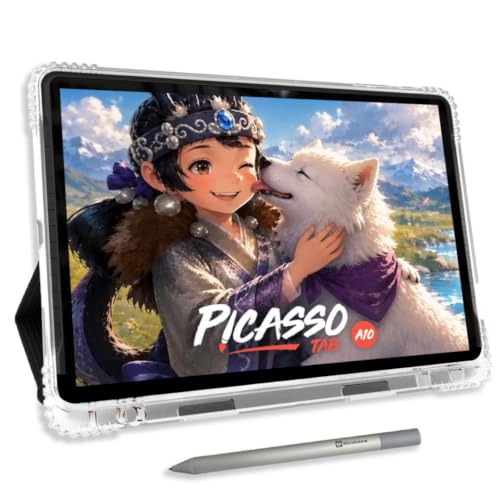
- No computer needed, fully standalone
- Preloaded with 5 creative apps
- Lifetime VIP tutorials included
- Paper-like laminated screen reduces glare
Trade-offs
- At 3.3 lb, heavier than portable rivals
- 4096 pen levels trail higher-end competitors
- 10" screen smaller than desktop models
The Simbans A10 comes preloaded with five creative apps and lifetime VIP tutorials, so a beginner can open the box and start learning to draw without hunting for software or lessons. Its 10-inch laminated paper-like screen and 4096-level pen give a natural sketching feel that reduces glare, which helps you focus on your strokes. This makes it a practical companion for anyone who wants a dedicated drawing tablet that works entirely on its own, no computer or cables needed.
Weighing 3.3 pounds, this tablet is noticeably heavier than the Wacom MovinkPad 11 at 1.3 pounds, so it is less comfortable to hold for long sketching sessions on the couch or on a crowded train. The 4096 pen levels are also a step below the 16K levels on the XPPen Magic Drawing Pad, so if you need the finest pressure nuance for high-end illustration, you may want to look at that rival. Still, for the price of a standalone entry point, the included tutorials and apps mean you are set up to start creating right away.
UGEE M708 Drawing Tablet
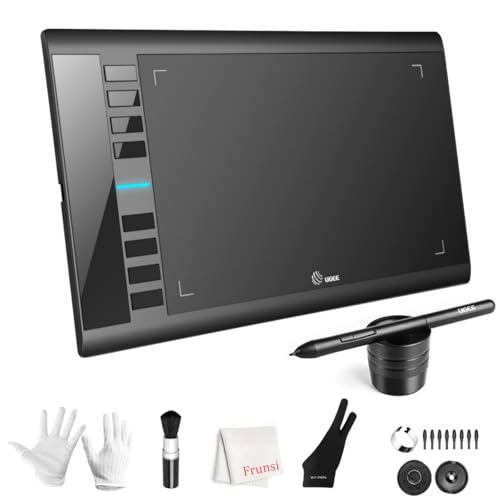
What We Like
- 16384 levels of pressure sensitivity for fine control
- 10 x 6 inch papery-texture drawing surface
- 8 customizable express keys for shortcuts
Trade-offs
- No built-in screen means you must look at your computer monitor
- Requires a computer or compatible device to function
A 10 x 6 inch active area gives you plenty of room for sweeping strokes and detailed sketches without feeling cramped. The 16384 levels of pressure sensitivity let you shift from whisper-light lines to bold, heavy marks with natural ease. This is a pen tablet built for artists who want high-pressure precision on a budget, offering a papery surface that mimics the drag of real paper so your hand feels at home. It works with software such as Photoshop, Illustrator, and ZBrush, where pressure control is a key feature.
Because this is a screenless tablet, you draw on the pad while watching your computer monitor, which takes some hand-eye coordination to get used to. At 2.4 pounds, it is heavier than the HUION Inspiroy 2 Medium (0.9 pounds), which may affect portability.
How We Evaluated Tablets To Draw On
We researched drawing tablets by examining manufacturer specifications, expert round-ups from art communities, and patterns in owner feedback across skill levels. Our goal was to identify which tablets deliver real value for different use cases, not just the most expensive or feature-packed models.
Three criteria mattered most for this category. First, pressure sensitivity and pen technology determine how naturally a tablet translates your strokes. Second, screen quality and color accuracy matter for artists who need to see their work as intended, especially for professional or print work. Third, standalone versus computer-connected design affects portability, software access, and overall workflow.
A research-led evaluation has limits: we cannot replicate the feel of every pen on every surface. What we can do is surface the specs and owner-reported patterns that help you make an informed choice for your specific art style and setup.
What To Look For In Tablets To Draw On
Choosing a drawing tablet comes down to matching the hardware to how and where you create. Here are the key factors to consider.
A drawing tablet should match your art style, workspace, and computer setup. Prioritize pressure sensitivity for control, screen type for visual feedback, and standalone or connected design for portability.
Pressure Sensitivity and Pen Feel
The pen is your primary tool. Higher pressure levels, such as 8192 or 16384, allow for finer control between light sketches and bold strokes. Look for battery-free pens that don’t need charging, and tilt support for natural shading. The surface texture matters too: paper-like etched glass feels closer to traditional drawing than smooth glass.
Screen or No Screen
Pen tablets (no screen) are lighter and more affordable, but require you to draw while looking at your computer monitor. Pen displays let you draw directly on the screen, offering a more intuitive experience. Standalone tablets combine a screen with built-in Android software, letting you draw without a computer at all.
Size and Portability
Screen size affects your canvas space and desk footprint. Desktop displays like 16 to 22 inches suit studio work, while 10 to 12 inch tablets are easy to carry. Weight matters: a 1.3-pound tablet is far more portable than a 12-pound display. Consider whether you’ll draw mostly at a desk, on the couch, or on the go.
- Check that your computer has the right ports (HDMI, USB-C with DP Alt, or Thunderbolt) for a pen display.
- Verify the tablet works with your preferred software (Photoshop, Clip Studio Paint, Procreate).
- Look for programmable shortcut keys or a remote to speed up your workflow.
- For standalone tablets, confirm the storage and battery life meet your session needs.
- Read owner feedback about driver stability and setup ease for your operating system.
A tablet that feels good in your hand and fits your workspace will get used far more than one with the highest specs.
Tablets To Draw On Compared
The table below compares the key specs of each drawing tablet, so you can see at a glance which model fits your needs.
| Product | Screen Size | Pressure Levels | Weight | Type |
|---|---|---|---|---|
| XPPen Artist Pro 22 Gen 2 Drawing Tablet | 21.5 inches | 16K | 12.2 pounds | Computer required |
| Wacom Cintiq 16 Drawing Tablet | 16 inches | 8192 | 4.5 lbs | Computer required |
| Wacom MovinkPad 11 Android Drawing Tablet | 11.45 inches | 8,192 levels | 1.3 pounds | Standalone |
| UGEE UE16 Drawing Tablet | 15.4 inches | 16K | N/A | Computer required |
| HUION KAMVAS Slate 11 Standalone Drawing Tablet | 10.95 inches | 4096 | 1.1 pounds | Standalone |
| HUION Inspiroy 2 Medium Drawing Tablet | N/A | N/A | 0.9 pounds | Computer required |
| XPPen Magic Drawing Pad Standalone Drawing Tablet | 12.2 inches | 16384 | 1.3 pounds | Standalone |
| GAOMON PD1161 Drawing Tablet | 11.6 inches | 8192 | 1.9 pounds | Computer required |
| Simbans A10 Tablet To Draw On | 10 inches | 4096-level | 3.3 pounds | Standalone |
| UGEE M708 Drawing Tablet | N/A | 16384 levels | 2.4 pounds | Computer required |
Frequently Asked Questions
Do I need a standalone drawing tablet or one that connects to a computer?
If you want to use desktop software like Photoshop or Clip Studio Paint, you need a tablet that connects to a computer. Standalone tablets run Android and come with pre-installed drawing apps, making them ideal for sketching on the go without a computer.
What is the difference between a pen tablet and a pen display?
A pen tablet has no screen; you draw on a flat surface while looking at your computer monitor. A pen display has a built-in screen so you draw directly on the image. Pen tablets are cheaper and more portable, while pen displays offer a more natural drawing experience.
How much pressure sensitivity do I really need?
8192 levels of pressure sensitivity is the current standard for professional work and offers excellent control for most artists. Higher levels like 16384 provide even finer gradation for very light strokes. Beginners will find 4096 levels perfectly adequate for learning.
Can I use a drawing tablet with an Android phone or tablet?
Some pen tablets, like the HUION Inspiroy 2 Medium, work with Android phones and tablets via a wired connection. Most pen displays and standalone tablets require a computer or are built on Android themselves. Always check compatibility before buying.
What screen size is best for digital art?
For desktop use, 16 to 22 inches provides a comfortable canvas without taking up your entire desk. For portability, 10 to 12 inches is easy to carry and works well for sketching. Smaller screens can feel cramped for detailed work, while larger screens are heavy and less portable.
The Bottom Line
For professional illustrators and designers who need a large, color-accurate desktop display, the XPPen Artist Pro 22 Gen 2 is the best overall choice. Its Calman Verified color accuracy and adjustable stand make it a serious studio tool, though its weight means it’s best kept in one place.
If you need a portable standalone tablet for sketching anywhere, the Wacom MovinkPad 11 or HUION KAMVAS Slate 11 are excellent choices. Budget-conscious artists who already own a computer will get great value from the HUION Inspiroy 2 Medium or the GAOMON PD1161 pen display.
The single most important factor is matching the tablet to your workflow: a computer-connected display for studio work, a standalone for portability, or a pen tablet for affordability. Choose based on where and how you create, not on specs alone.
