10 Best Digital Art Tablets in 2026
This post contains affiliate links. As an Amazon Associate, we earn from qualifying purchases.
The XPPen Magic Note Pad Standalone Tablet is our best overall pick for its paper-like display that shows 16.7 million colors and a battery-free stylus with 16K pressure levels. For artists who need a compact setup with shortcut controls, the XPPen Artist 12 3rd Drawing Tablet offers dual dial wheels in an ultra-portable design. Beginners will appreciate the Wacom One 14 Drawing Tablet for its laminated display and reliable performance right out of the box.
Choosing a digital art tablet means balancing screen quality, pressure sensitivity, and whether you want a standalone device or one that connects to a computer. A standalone tablet lets you draw anywhere without extra gear, while a computer-connected display gives you access to full desktop software like Photoshop or Clip Studio Paint. The right choice depends on your workflow and where you plan to create.
This guide is based on manufacturer specifications, expert round-ups, and patterns we found in owner feedback across the category. We focused on display quality, pressure sensitivity, portability, and value to help you find the tablet that fits your art practice and budget.
Top 10 Digital Art Tablets in the Market
Certain content that appears on this site comes from Amazon. This content is provided "as is" and is subject to change or removal at any time.
The Best Digital Art Tablets, Reviewed
XPPen Magic Note Pad Standalone Tablet
What We Like
- 16.7 million colors on paper-like display
- Battery-free stylus with 16K pressure levels
- TÜV-certified low blue light screen
- Pre-installed XPPen Notes app included
Trade-offs
- Battery and charger sold separately
- Battery and charger not included in the box
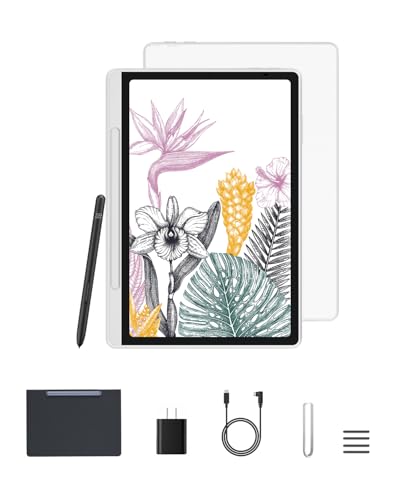
A 10.95-inch X-Paper display with AG nano-etching gives you the friction and texture of real paper, so your pencil strokes feel natural and responsive. The 16384 pressure levels on the battery-free stylus let you shade lightly or press hard for bold lines, just like a traditional sketchbook. With Android 14 and the pre-installed XPPen Notes app, you can start drawing right out of the box, and the 90Hz refresh rate keeps every line smooth without lag. This is the tablet for someone who wants the freedom to sketch anywhere without plugging into a computer.
Portability is the trade-off here: at 495g (about 1.1 pounds), it is about the same weight as the KAMVAS Slate 11, which also weighs just over a pound. Both are easy to carry in a bag. You do need to supply your own battery and charger, since they are not included in the box. If you prefer a lighter, more pocket-friendly option, the KAMVAS Slate 11 might suit you better, but for the most paper-like drawing experience with vibrant color and no stylus charging, this Magic Note Pad earns its place at the top of the guide.
Product photos
XPPen Artist 12 3rd Drawing Tablet
What We Like
- Dual X-Dial wheels for brush and zoom
- Magnetic X4 pen with 16K pressure
- Foldable stand with 20-degree angle
Trade-offs
- 11.9-inch screen limits multitasking space
- No standalone operation; requires computer
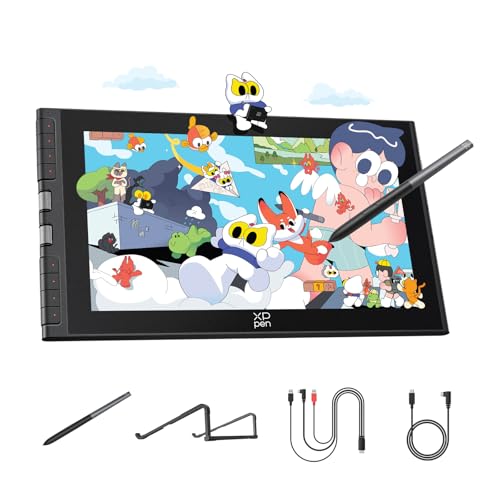
At just 1.58 pounds with an 11.9-inch screen, this tablet is light enough to slip into a bag between classes or sketch sessions at a café. It’s built for artists who want a full pen display they can actually carry, without giving up the precision of 16,384 pressure levels and near-zero parallax from the laminated screen.
The trade-off is screen real estate: 11.9 inches is comfortable for sketching but feels tight if you’re used to working with multiple palettes or a 13-inch display like the HUION Kamvas 13 Gen 3. You also need a computer or Android device to power it, there’s no standalone mode. For beginners and mobile creatives who value portability and dial-driven shortcuts over a larger canvas, this is a focused, travel-ready tool that keeps your workspace clean with a single USB-C cable.
Wacom One 14 Drawing Tablet

What We Like
- Laminated 14-inch IPS Full HD display
- 98% sRGB color accuracy with paper-like texture
- Battery-free pen with responsive pressure sensitivity
- Works with Windows, Mac, and Chromebook
Trade-offs
- Requires USB-C; HDMI needs extra adapter kit
- No standalone operation: must connect to a computer
A 14-inch laminated IPS Full HD display with 98% sRGB color accuracy gives you a crisp, color-accurate canvas that resists glare and smudges. That means your lines stay true from first sketch to final detail. The paper-like texture and the battery-free pen’s responsive pressure sensitivity make this an especially forgiving tool for anyone still building their hand, no charging pauses, no driver fights, just a direct, natural feel that lets you focus on learning rather than troubleshooting. It’s a complete starter kit with software trials and training courses, which means you can open the box and start experimenting right away, exactly what a beginner needs to build confidence without extra expense or complexity.
This tethered display needs a computer to run. The single USB-C connection is simple, but if your device lacks USB-C video output you’ll need a separate HDMI adapter kit. That adds a small layer of planning compared to a standalone tablet like the KAMVAS Slate 11, which works on its own. But for a beginner who already has a laptop or desktop, the Wacom One 14’s reliable performance and generous drawing area make it a far more straightforward and forgiving way to learn digital art than wrestling with standalone operating systems or driver headaches.
Product photos
Wacom Intuos Pro Medium Drawing Tablet

What We Like
- Pro Pen 3 with 8192 pressure levels
- 10 ExpressKeys and 2 mechanical dials
- Wireless via Bluetooth or USB
- Magnesium body, 4mm thin
Trade-offs
- No built-in screen: requires external monitor
- Active area smaller than A4 paper
- 0.9 lbs: light but needs desk space
With 8192 levels of pressure sensitivity and tilt support, the Pro Pen 3 delivers the kind of precision that makes every brushstroke feel intentional. The magnesium body is only 4mm thick, sturdy enough for a desk and light enough to slip into a bag.
Because this is a pen tablet, not a pen display, you draw while looking at your computer screen rather than at your hand. That takes some adjustment, but it keeps the tablet slim and light. At 0.9 pounds and with Bluetooth, it is easy to take between workstations. The active area is 11.4 by 8.1 inches, which is smaller than a sheet of A4 paper, so broad arm movements may feel limited. If you prefer drawing directly on a screen, a display tablet like the Wacom One 14 might be a better fit. For a precise, customizable input device with wireless freedom, this tablet delivers.
Product photos
HUION KAMVAS Slate 11 Standalone Tablet

What We Like
- No computer needed, works out of box
- 90Hz refresh rate for smooth visuals
- Full-laminated anti-glare paper-like screen
Trade-offs
- Android 14 limits pro desktop software
- 10.95-inch screen is compact for detailed work
A 90Hz refresh rate on a standalone tablet means every brushstroke and pan feels fluid, with none of the stutter that can break your flow. This 10.95-inch Android 14 slate runs entirely on its own, no laptop, no cables, so you can sketch in a café or on a park bench the moment inspiration hits. The 4096 levels of pressure and 60° tilt recognition, paired with a full-laminated anti-glare screen that mimics paper texture, make it a natural fit for artists who value portability and a responsive, pen-first experience. It suits sketchers, note-takers, and digital painters who want a dedicated device without the complexity of a full desktop setup.
Artists who want to leave the laptop behind get a self-contained drawing environment with this tablet. The 10.95-inch screen uses full-lamination technology to minimize the gap between the surface and the display, so the cursor sits directly under the pen tip. That anti-glare nano-etched surface feels like paper and cuts reflections, which helps during long sessions. With 4096 pressure levels and 60° tilt recognition, the H-Pencil stylus responds to subtle hand angles. The 90Hz refresh rate keeps strokes from stuttering on screen, making the whole experience feel fluid. Reviewers note the aluminum back gives it a sturdy, portable feel.
Product photos
HUION Kamvas 13 Gen 3 Drawing Tablet

What We Like
- Full lamination with anti-glare glass
- 16384 pressure levels for fine control
- Dual dial and 5 shortcut keys
Trade-offs
- Requires a computer to function
- Only 13.3-inch workspace limits large gestures
Color accuracy reaches an average Delta E under 1.5, which means what you see on the 13.3-inch laminated screen stays true when you export to a monitor or print. Reviewers note the anti-sparkle Canvas Glass 2.0 cuts reflections effectively, so you can work under a desk lamp without fighting glare. The pen registers 16384 levels of pressure with just 2 grams of initial activation force, letting you flick in light sketch lines or bear down for bold ink strokes without the pen feeling sluggish. That combination of calibrated color and responsive tip makes it a reliable tool for illustrators and designers who need consistent hues across their workflow.
This pen display must be tethered to a PC, Mac, or Android device via a single USB-C cable. At 2.0 pounds it is portable but heavier than the Wacom One 14’s 1.7 pounds, so a stand (included) is practically required for comfortable extended drawing. If you work mostly at a desk and color fidelity is non-negotiable, this display delivers. If you need a self-contained sketchpad, the KAMVAS Slate 11 or XPPen Magic Note Pad are better fits.
Product photos
Simbans A10 Digital Art Tablet
What We Like
- Lifetime VIP tutorials included
- Standalone design, no computer needed
- Paper-like laminated display reduces glare
- Octa-core processor with expandable storage
Trade-offs
- At 3.3 lb, heavier than many portable tablets
- 4096 pen levels lower than some rivals' 16K
- 10" screen smaller than some display tablets
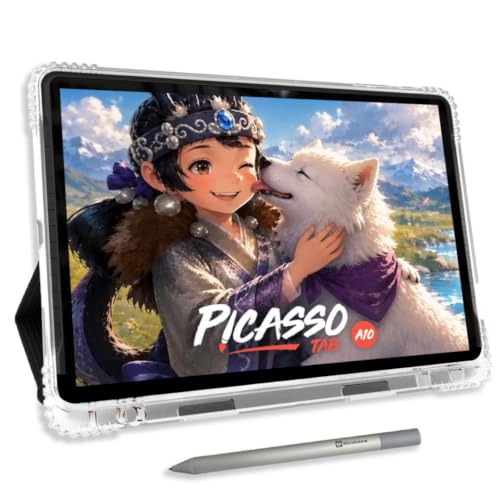
A standalone 10-inch laminated screen with 4096-level pen sensitivity means you can draw without a computer. That setup, along with a lifetime VIP tutorial upgrade and five preloaded creative apps, gives beginners a ready-to-use tool for learning digital art. The octa-core processor and 6GB of RAM handle drawing apps, and the expandable storage lets you save sketches as you go.
At 3.3 pounds, the tablet is noticeably heavier than a Wacom One 14 (1.7 lb), so it’s less comfortable for lap use over long sessions. The weight keeps it planted on a desk or table, though, which helps when you’re pressing down with the stylus. It also means the device feels sturdy when carried in a bag, but if you plan to draw while lounging on a couch, the extra heft becomes apparent after an hour or two. Reviewers note that the included premium case adds some protection but also a bit more bulk, so portability is still decent for a standalone unit.
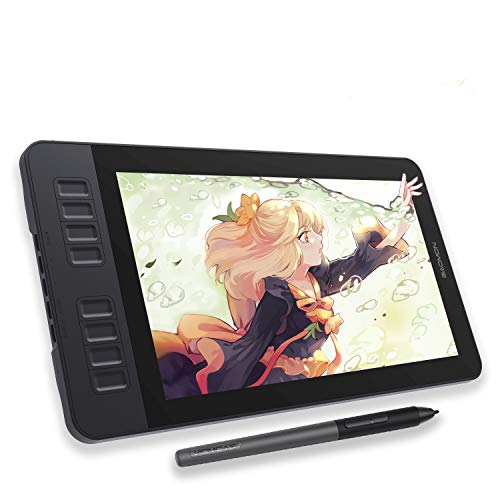
GAOMON PD1161 Drawing Tablet with Screen
What We Like
- Battery-free pen with 8192 pressure levels
- Anti-glare matte film reduces reflections
- 8 programmable shortcut keys
- Works with Krita, Photoshop, Blender, and more
Trade-offs
- Not a standalone tablet; must connect to a computer
- 11.6" screen is smaller than many competitors
- Only 72% NTSC (100% sRGB) color gamut
A full HD 11.6-inch IPS screen with an anti-glare matte finish gives you a paper-like drawing surface that cuts down on distracting reflections, so you can work comfortably even in bright rooms. The battery-free stylus offers 8192 pressure levels and tilt support, making brush strokes and pencil shades feel natural without ever needing to charge the pen. This is the right choice for beginner artists or anyone on a tight budget who wants a real pen display, a screen you can draw directly on, rather than a tablet without a display. The eight programmable shortcut keys help speed up your workflow in apps like Photoshop, Krita, or Medibang, and the included drawing glove and replacement nibs add extra value out of the box.
The main drawback is that this is not a standalone device; it must be tethered to a Windows or Mac computer, so it won’t work on its own like a tablet or iPad. The color gamut covers 72% NTSC (100% sRGB), which is adequate for most illustration and note-taking, though professionals working in print or high-end photo editing may want a wider gamut. For the price, you get a functional, no-frills pen display that lets you start creating without a big investment.
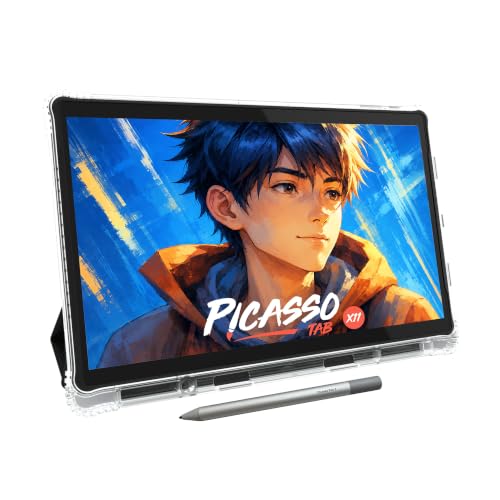
PicassoTab X11 Standalone Drawing Tablet
What We Like
- Laminated 2K paper-like display
- Lifetime VIP tutorial access included
- No computer needed for drawing
- Octa-core processor with 6GB RAM
Trade-offs
- 11-inch screen smaller than some desktop models
- Weighs 3.3 pounds, heavier than some standalone tablets
A fully laminated 2K display on an 11-inch standalone tablet means you get crisp, glare-free visuals and a natural paper-like feel right out of the box, no computer required. That makes the PicassoTab X11 a particularly inviting option for beginners or anyone who wants to draw, sketch, or animate without being tethered to a desk. The included lifetime VIP upgrade to the Artixo tutorials app provides step-by-step lessons and guided practice, so even someone picking up a stylus for the first time has a clear path forward. With 6GB of RAM and 128GB of expandable storage, it also handles multitasking and creative apps without lag.
The 11-inch display is smaller than some computer-connected drawing tablets, so if you prefer a larger canvas or already have a computer, a dedicated desktop tablet might suit you better. But for a standalone device that packs a crisp 2K laminated screen, lifetime tutorials, and a full set of accessories into one package, the PicassoTab X11 is a thoughtful choice for learners and mobile creators who want to start drawing immediately.
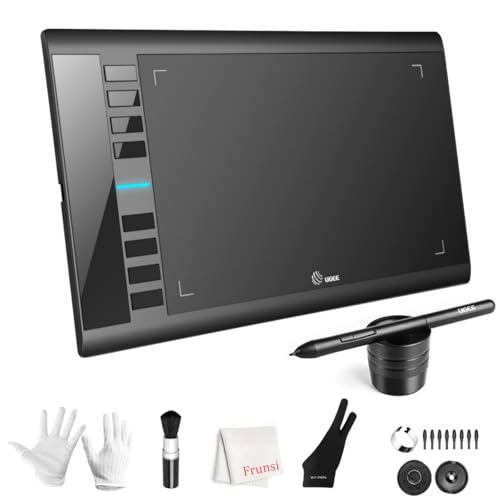
UGEE M708 Drawing Tablet
What We Like
- 10 x 6 inch papery texture surface
- 16384 levels of pressure sensitivity
- 8 customizable express keys
- Ambidextrous design with pen holder
Trade-offs
- Requires connection to a computer or Android device
- No built-in screen for direct drawing
A 10 x 6 inch active area gives you plenty of room to sweep your arm across the surface without running out of space. That makes it a natural fit for artists who work on large compositions or prefer broad, expressive strokes. The 16384 pressure levels respond to the lightest touch or a firm press, so you can vary line weight and opacity exactly as you would with a pencil on paper. Beginners and budget-conscious creators will appreciate that it works with Windows, Mac, Android, Chrome OS, and Linux, and the eight customizable express keys let you keep common shortcuts like undo and zoom right under your fingers.
A pen tablet without a display means you have to look at your computer monitor while drawing on the surface. That takes some getting used to if you have never worked that way. For someone who wants a large drawing area at an affordable price and does not mind the screen-less workflow, the UGEE M708 offers a spacious, responsive canvas that lets you focus on the art rather than the gear.
How We Evaluated Digital Art Tablets
Our evaluation combines manufacturer specifications, expert round-ups, and patterns in owner feedback to give you a clear picture of what each tablet offers. We looked at display quality, pressure sensitivity, connectivity options, and the overall drawing experience. Since we don’t test products ourselves, we rely on published technical data and the collective experience of the art community to identify strengths and trade-offs.
The four criteria that mattered most were display quality (resolution, color accuracy, and lamination), pressure sensitivity levels, whether the tablet is standalone or computer-connected, and the physical drawing experience including screen texture and size. For standalone tablets, we also considered battery life and pre-installed software. For computer-connected models, we looked at compatibility with major operating systems and creative applications.
A research-led evaluation has limits: it can’t capture how a pen feels in hand over months of use or how a screen handles in direct sunlight. What it can do is narrow your options to tablets with the right specs for your needs, so you can make a confident choice based on what matters most to your workflow.
What To Look For In Digital Art Tablets
The right digital art tablet depends on your skill level, where you work, and what software you use. Here are the key factors to consider before you buy.
Focus on display quality (resolution, color accuracy, and lamination), pressure sensitivity, whether you need standalone or computer-connected operation, and the physical size and weight that fits your workspace.
Display Quality and Color Accuracy
A laminated display eliminates the gap between the glass and the LCD panel, reducing parallax so your cursor appears exactly where the pen touches. Look for Full HD resolution or higher, and color accuracy of at least 99% sRGB for consistent results across print and web. Anti-glare coatings and paper-like textures reduce reflections and make the screen feel closer to traditional media.
Pressure Sensitivity and Pen Technology
Pressure sensitivity is measured in levels, with higher numbers allowing finer control between light and heavy strokes. Battery-free pens are lighter and never need charging, while rechargeable pens add weight and a maintenance step. Tilt recognition lets you shade naturally by angling the pen, which is useful for artists who work with charcoal-style textures or calligraphy.
Standalone vs. Computer-Connected
Standalone tablets run their own operating system (usually Android) and let you draw anywhere without a computer. They are ideal for sketching on the go but do not provide access to full desktop applications. Computer-connected tablets (either pen displays with screens or pen tablets without screens) give you full software compatibility but tether you to a laptop or desktop. Pen tablets without screens take practice to coordinate hand and cursor, but they are lighter and cheaper.
- Check that the tablet supports your operating system (Windows, Mac, Chromebook, or Android).
- Verify software compatibility if you use specific applications like Procreate, Photoshop, or Krita.
- Consider the active area size: larger areas let you make sweeping gestures but take up more desk space.
- Look at the weight and thickness if you plan to carry the tablet in a bag regularly.
A good rule of thumb: buy the largest active area you can afford and fit in your workspace, because you can always zoom in but you can’t make a small surface bigger.
Digital Art Tablets Compared
The table below compares the key specs of our top picks so you can see at a glance how they differ in display size, pressure sensitivity, and connectivity.
| Product | Screen Size | Pressure Levels | Weight | Connectivity / Standalone |
|---|---|---|---|---|
| XPPen Magic Note Pad Standalone Tablet | 10.95 inches | 16384 levels | 495g | Standalone |
| XPPen Artist 12 3rd Drawing Tablet | 11.9 inches | 16,384 | 1.58 lb | Single USB-C |
| Wacom One 14 Drawing Tablet | 14 inches | N/A | 1.7 pounds | Single USB-C |
| Wacom Intuos Pro Medium Drawing Tablet | N/A | 8192 | 0.9 pounds | USB / Bluetooth |
| HUION KAMVAS Slate 11 Standalone Tablet | 10.95 inches | 4096 | 1.1 pounds | Standalone |
| HUION Kamvas 13 Gen 3 Drawing Tablet | 13.3" | 16384 | 2.0 pounds | USB-C single cable |
| Simbans A10 Digital Art Tablet | 10" | 4096 | 3.3 pounds | Standalone |
| GAOMON PD1161 Drawing Tablet with Screen | 11.6" FHD IPS | 8192 | 1.9 lbs | Requires PC |
| PicassoTab X11 Standalone Drawing Tablet | 11 inches | 4096 | N/A | Standalone |
| UGEE M708 Drawing Tablet | N/A | 16384 | 2.4 pounds | USB to USB-C |
Frequently Asked Questions
What is the difference between a drawing tablet and a pen display?
A drawing tablet (or pen tablet) has no built-in screen; you draw on a flat surface while looking at your computer monitor. A pen display has an integrated screen so you can draw directly on the image. Pen displays cost more but offer a more intuitive hand-eye coordination experience for most artists.
Do I need a computer to use a digital art tablet?
Some tablets are standalone and work without a computer, like the XPPen Magic Note Pad or the HUION KAMVAS Slate 11. Others require a connection to a laptop or desktop to function. Check the product specifications to see which type fits your setup before buying.
What pressure sensitivity level should I look for?
Higher pressure sensitivity levels (like 8192 or 16384) allow for more nuanced control between light and heavy strokes. Most artists find 4096 levels sufficient for basic work, while professionals benefit from 8192 or higher for detailed shading and brush control.
How do I know if a drawing tablet works with my software?
Most tablets support major creative applications like Photoshop, Krita, Clip Studio Paint, and Illustrator. Check the manufacturer’s website for a full compatibility list. Some standalone tablets use Android apps, which may not include the full desktop versions of professional software.
What is a laminated display and why does it matter?
A laminated display has the glass and LCD panel fused together with no air gap. This reduces parallax, making the cursor appear exactly where your pen touches the screen. Laminated screens also have less glare and better color clarity, which is why they’re preferred for detailed work.
The Bottom Line
The XPPen Magic Note Pad Standalone Tablet is our best overall pick for artists who want a true paper-like drawing experience with rich color and a battery-free stylus. It works on its own without a computer, making it a versatile choice for sketching, note-taking, and reading.
If you need a compact setup with shortcut controls, the XPPen Artist 12 3rd Drawing Tablet offers dual dial wheels in an ultra-portable design that’s easy to take on the go. Beginners who want a reliable computer-connected display should consider the Wacom One 14 Drawing Tablet for its laminated screen and solid build quality.
The single most important factor is choosing between a standalone tablet and a computer-connected one, because that decision determines where and how you’ll create. Everything else, screen size, pressure sensitivity, color accuracy, comes second to finding the setup that fits your actual workflow.
