
8 Best Art Tablets For Mac in 2026
This post contains affiliate links. As an Amazon Associate, we earn from qualifying purchases.
For Mac users seeking a digital canvas, the XP-Pen Artist 12 3rd Drawing Tablet is the best overall choice. Its factory-calibrated color accuracy and intuitive dual dials streamline brush and zoom control. For professionals needing higher resolution, the Wacom Cintiq 16 is our pick for best professional-grade work. Beginners will appreciate the ready-to-draw experience of the Wacom One 14.
The challenge with choosing an art tablet for a Mac isn’t just about specs, it’s about finding a device that integrates smoothly with macOS, offers a natural drawing feel, and fits your workspace and budget. Many tablets look good on paper but fall short on color accuracy or driver compatibility with Apple’s operating system.
Our guide is based on an analysis of manufacturer specifications, expert round-ups, and patterns in owner feedback. We’ve focused on what truly matters for Mac artists: display quality, pressure sensitivity, ergonomics, and straightforward setup. Here are the eight best art tablets for Mac to help you choose with confidence.
Top 8 Art Tablets For Mac in the Market
Certain content that appears on this site comes from Amazon. This content is provided "as is" and is subject to change or removal at any time.
The Best Art Tablets For Mac, Reviewed
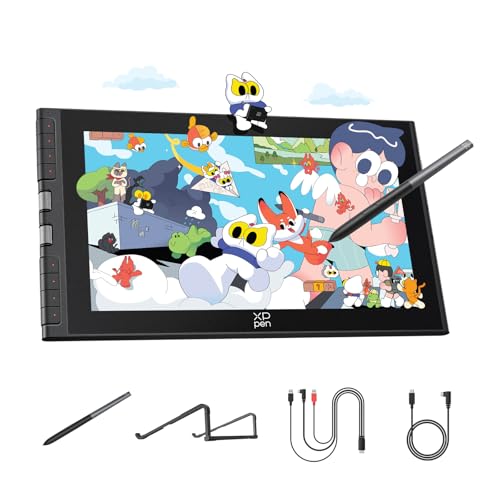
XP-Pen Artist 12 3rd Drawing Tablet
What We Like
- Dual X-Dial wheels for quick brush/zoom
- AG etched glass reduces 85% glare
- 16K pressure with 60-degree tilt
- Factory-calibrated ΔE<1.5 color accuracy
Trade-offs
- 11.9-inch screen is small for detailed layouts
- Requires USB-C cable; no wireless option
- 1920×1080 resolution limits fine text work
With 16,384 pressure levels and a fully laminated AG etched display that cuts 85% of glare, this tablet delivers a paper-like feel that keeps your eyes comfortable through long drawing sessions. The dual X-Dial wheels let you adjust brush size and zoom without digging into menus, saving real time when you’re in a flow. For anyone who wants a portable, color-accurate screen, factory calibrated to ΔE<1.5, this is a natural fit for sketching, illustration, and photo retouching on the go.
The trade-off is screen size: at 11.9 inches, it’s noticeably smaller than some larger models, so if you work on complex multi-layer compositions or need a larger canvas for sweeping strokes, you might feel cramped. The single USB-C connection keeps your desk tidy, but it also means no wireless freedom. For beginners and mobile artists who value portability and precise pen response over sheer screen real estate, this tablet offers an excellent balance of features and practicality.
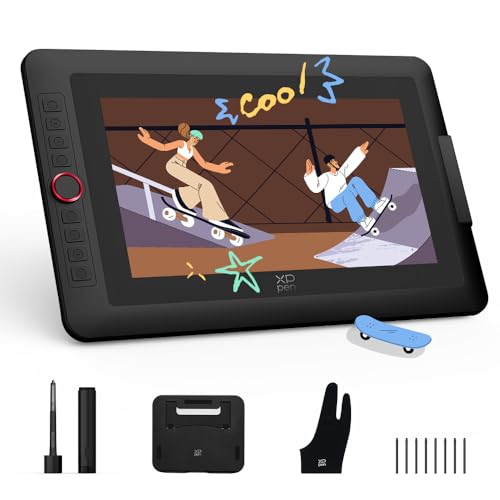
XP-Pen Artist 13.3 Pro V2 Drawing Tablet
What We Like
- Red dial roller and 8 shortcut keys
- Battery-free stylus with digital eraser
- Industry-leading 16K pressure sensitivity
Trade-offs
- Requires USB3.1 DP1.2 for single-cable use
- Weighs 6.8 lb, best for desk use, not travel
For digital artists who rely on subtle pressure control, manga inkers, portrait sketchers, or anyone working in fine linework, this tablet gives you the responsiveness of a real pencil without the lag or line wobble.
Portability is the main compromise here: at 6.8 pounds with its metal back and included foldable stand, this is a desk companion rather than a lap-friendly sketchpad. If you need something lighter to carry between studios, the XP-Pen Artist 12 3rd weighs just 2.5 pounds but shares the same 16K pressure engine. The Artist 13.3 Pro V2’s red dial roller and eight customizable keys let you zoom, undo, and adjust brushes without breaking your flow. That productivity boost is something serious Mac artists will appreciate during long sessions in Photoshop or Clip Studio Paint.
Wacom Cintiq 16 Drawing Tablet

What We Like
- 2.5K QHD resolution for crisp detail
- 99% DCI-P3 cinematic color coverage
- Pro Pen 3 with 8192 pressure levels
- Built-in fold-out legs for 20° angle
Trade-offs
- At 4.5 pounds, heavier than portable models
- No adjustable stand included for ergonomic tilt
A 16-inch 2.5K QHD display with 99% DCI-P3 and 100% sRGB coverage means the colors you see are the colors that print and screen will show. That matters deeply when your client expects the teal in that character’s scarf to match the brand guide exactly. The Pro Pen 3 responds to 8192 levels of pressure and tilt, so a whisper-light stroke for a wisp of cloud and a firm press for a bold ink line both register without lag. This tablet is built for the artist who works in illustration, comics, or animation and needs a display that won’t lie about what they’ve drawn.
At 4.5 pounds it is noticeably heavier than the Wacom One 14 (1.7 pounds), so it stays put on a desk rather than traveling easily to a coffee shop. If portability is your priority, the lighter Wacom One 14 is worth a look.
Product photos
Wacom One 14 Drawing Tablet

What We Like
- Laminated IPS display with paper-like texture
- Battery-free pen with responsive pressure sensitivity
- Includes creative software trials and Skillshare courses
Trade-offs
- Requires additional converter and power kit for HDMI devices
- No built-in HDMI port; requires separate adapter kit.
A 14-inch laminated IPS display with 98% sRGB color accuracy gives you a crisp, paper-like surface that won’t glare or smudge, so you can focus on your drawing instead of fighting reflections or oily fingerprints. This tablet is built for someone just starting out, and the battery-free pen captures everything from light sketches to bold strokes without ever needing a charge. Included trials of Clip Studio Paint Pro and Skillshare courses get you creating right away, and Wacom’s proven reliability means fewer driver headaches or disconnects compared to cheaper alternatives.
One catch is that if your Mac doesn’t have a USB-C port that supports video output, you’ll need to buy a separate converter and power adapter kit to get it running. That adds a little hassle compared to some competitors that may include a full cable kit. Still, for a beginner who values a fuss-free drawing experience and a screen that feels like paper, this Wacom is the gentler introduction to digital art.
Product photos
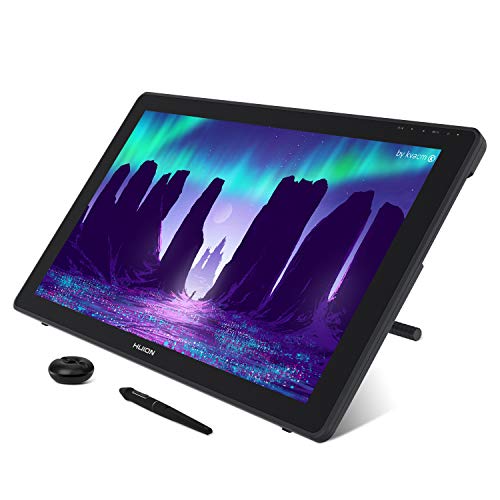
Huion Kamvas 22 Drawing Tablet
What We Like
- 120% sRGB color gamut for vivid hues
- Anti-glare matte film mimics paper feel
- Adjustable stand from 20° to 80°
- Battery-free stylus with 8192 pressure levels
Trade-offs
- At 8.6 pounds, it's heavy for frequent travel
- Requires a computer; not a standalone device
A 21.5-inch screen with 120% sRGB color gamut gives you a wide, vivid palette that keeps your digital work looking true and rich. The anti-glare matte finish cuts reflections and adds a paper-like texture under the pen, so sketching feels natural even during long sessions. With an adjustable stand that tilts from 20 to 80 degrees, you can find a comfortable angle that reduces strain on your neck and shoulders. The screen delivers a spacious canvas and color accuracy for detailed work.
Size and heft are the main trade-offs here. At 8.6 pounds, the Kamvas 22 is noticeably heavier than the Wacom Cintiq 16, which weighs 4.5 pounds, so it’s better suited for a dedicated desk setup than for tossing in a bag between studios. It also needs a connected computer to function, there’s no standalone mode. If you prioritize a large, color-rich workspace and don’t mind a stationary rig, this display delivers where smaller screens fall short.
Product photos
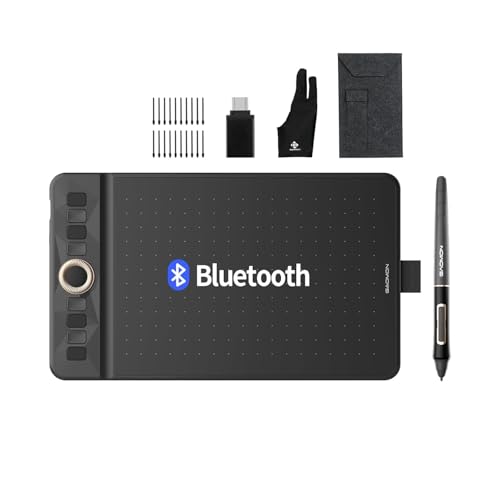
GAOMON WH851 Bluetooth Graphics Drawing Tablet
What We Like
- 16,384 pressure levels for fine line control
- Intuitive dial and 8 customizable shortcut keys
- Up to 18 hours of wireless battery life
Trade-offs
- Small 8×5-inch active area limits broad arm strokes
- No built-in display requires looking up at Mac screen
The GAOMON WH851 offers up to 18 hours of battery life on a full charge, so you can work wirelessly for long stretches without needing to plug in. Its 16,384 pressure levels detect even slight changes in pen pressure, which helps you vary line weight naturally as you sketch. The 8×5-inch active area keeps the tablet compact enough to slip into a laptop bag, and the built-in dial lets you zoom or adjust brush size quickly without reaching for keyboard shortcuts.
The small drawing surface is the main limitation here: at 8 by 5 inches, you won’t have the same sweeping room as a larger pen display, but the tablet’s lightweight build and wireless freedom make it a practical choice for portable sketching on a Mac or other compatible device. Without a built-in screen, you’ll need to look at your computer monitor while you draw. That is standard for pen tablets and works fine once you get used to the hand-eye coordination.
GAOMON PD1161 Drawing Tablet with Screen
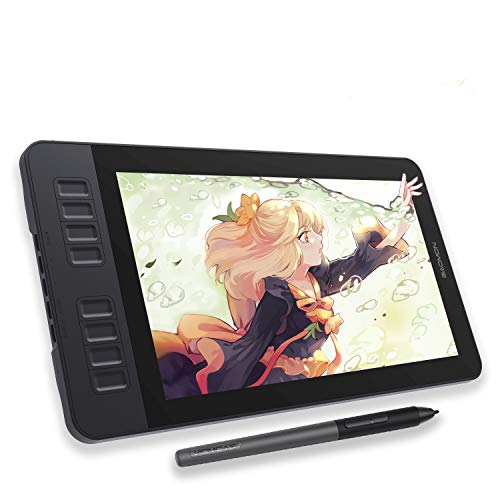
What We Like
- Battery-free stylus with tilt function
- Anti-glare matte screen for paper-like feel
- 8 programmable shortcut keys
- 72% NTSC (100% sRGB) color gamut
Trade-offs
- Requires connection to a computer to function
- 11.6-inch screen limits workspace for complex projects
The 11.6-inch full HD IPS display with an anti-glare matte film gives you a paper-like drawing surface that cuts down reflections, so you can focus on your strokes without fighting glare. With 8192 levels of pressure sensitivity and a battery-free stylus that supports tilt, this compact pen display suits beginners and space-conscious creators who want a direct-on-screen drawing experience without the hassle of charging a pen. The 72% NTSC (100% sRGB) color gamut keeps your colors lively and accurate for illustration and design work.
The GAOMON PD1161 has an 11.6-inch screen, so the drawing area is roughly the size of a standard sheet of paper. That keeps it easy to tuck into a bag or set on a crowded desk. It must connect to a laptop or computer to work, meaning it’s not a standalone tablet. For someone who wants a straightforward, no-charge stylus setup and a screen that cuts down glare, this model delivers a practical, entry-level drawing experience.
XOPPOX Graphics Drawing Tablet
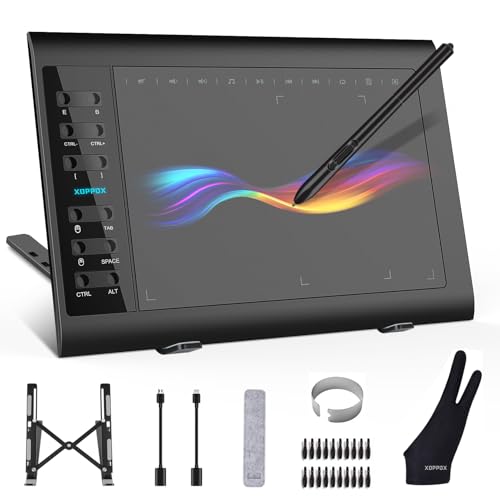
What We Like
- Battery-free stylus with 8192 pressure levels
- 12 customizable shortcut keys for workflow
- Broad macOS and Android compatibility
- Includes 20 replacement nibs
Trade-offs
- Multimedia keys only work on Windows, not Mac
- Requires manual security permissions on Mac
- No built-in screen for direct drawing
A 10×6 inch active area gives you plenty of room to sketch, paint, and annotate without feeling cramped. The battery-free stylus with 8192 pressure levels responds to every light stroke and heavy press naturally. This is the tablet to grab if your budget is tight but you still want a full-size drawing surface that works with your Mac, plus enough shortcut keys to speed up common tasks in Photoshop or MediBang. The included 20 replacement nibs mean you won’t be hunting for spares anytime soon, making it a practical, low-hassle entry into digital art.
The 10 multimedia keys are Windows-only, so Mac users get only the 12 customizable shortcut keys, and you will need to grant Accessibility, Input Monitoring, and Full Disk Access permissions before the tablet works. Compared to the XP-Pen Artist 12 3rd, which has a built-in display and a dial wheel, this XOPPOX is a pen tablet without a screen, so you draw while looking at your computer monitor. Beginners may find this adjustment straightforward, and the lower price point can free up budget for other needs.
Product photos
How We Evaluated Art Tablets For Mac
To build this list, we started with the technical specifications from each manufacturer, paying close attention to display resolution, color gamut coverage, pressure sensitivity levels, and connectivity options. We then cross-referenced these specs with expert commentary from digital art communities and professional illustrator reviews to understand real-world performance.
The four criteria that mattered most were display quality (resolution, color accuracy, and anti-glare properties), pressure sensitivity (for natural line variation), ergonomics (size, weight, and included stands), and macOS compatibility (driver support and cable requirements). A tablet with perfect specs is useless if it requires complex workarounds to function on a Mac.
Because we rely on research rather than testing, we focused on consistent patterns in user feedback, such as reports of driver stability on macOS or the feel of a screen’s surface texture. This approach gives you a reliable, evidence-based starting point, but we always recommend checking the latest user reviews and return policies before committing to a purchase.
What To Look For In Art Tablets For Mac
Choosing the right art tablet for your Mac comes down to understanding how display size, color accuracy, and pressure sensitivity affect your creative workflow. Here’s what to keep in mind.
Look for a tablet with at least 1080p resolution and 100% sRGB color coverage for accurate colors. Pressure sensitivity of 8192 levels or higher ensures natural line variation. A laminated screen reduces parallax, and an anti-glare surface mimics paper feel.
Display Quality and Color Accuracy
A tablet’s display is your window to the artwork, so resolution and color accuracy are paramount. For professional work, aim for a resolution of 1920×1080 or higher, the Wacom Cintiq 16 offers 2.5K QHD for crisp detail. Color gamut is equally important: 100% sRGB is the baseline for web art, while 99% DCI-P3 (as on the Cintiq 16) is better for print and animation. Factory-calibrated models like the XP-Pen Artist 12 3rd (ΔE<1.5) save you the hassle of manual calibration.
Pressure Sensitivity and Pen Technology
The pen is your primary tool, and its pressure sensitivity determines how naturally your strokes translate to the screen. Most modern tablets offer 8192 levels, which is sufficient for detailed work. The XP-Pen Artist 13.3 Pro V2 leads with 16K pressure sensitivity for the finest control over line weight and opacity. Look for battery-free pens (all picks here except the GAOMON WH851 use them) to avoid charging interruptions. Tilt support (60 degrees on the XP-Pen Artist 12 3rd) adds expressive shading.
Size, Weight, and Ergonomics
Your workspace and mobility needs dictate the ideal size. Compact 11- to 12-inch screens (like the GAOMON PD1161) are great for small desks and travel, while 16- to 22-inch models (Huion Kamvas 22) offer room for multi-layer compositions. Weight matters too: a 4.5-pound Wacom Cintiq 16 is manageable for desk use, but an 8.6-pound Huion Kamvas 22 is best left in one spot. An adjustable stand (20° to 80° on the Huion Kamvas 22) prevents neck strain during long sessions.
- Check that the tablet uses a single USB-C cable for video and power (many older models require a separate HDMI adapter).
- Verify macOS driver support is current and stable, check the manufacturer’s website for recent updates.
- Consider the active area: a larger area (like the XOPPOX’s generous surface) allows broader arm movements, while a smaller area (WH851’s 8×5 inches) suits wrist-based sketching.
- Look for shortcut keys or dials that can be customized for your most-used Mac apps like Photoshop or Procreate.
A good rule of thumb: if you work on a laptop, prioritize a compact pen display; if you have a dedicated desk, a larger screen with an adjustable stand will serve you better.
Art Tablets For Mac Compared
The table below compares the key specifications of each tablet side by side, making it easy to see how size, resolution, and pressure sensitivity stack up across our top picks.
| Product | Screen Size | Pressure Levels | Weight |
|---|---|---|---|
| XP-Pen Artist 12 3rd Drawing Tablet | 11.9 inches | 16,384 | 1.58 lb |
| XP-Pen Artist 13.3 Pro V2 Drawing Tablet | 13.3-inch FHD | 16,384 | 6.8 pounds |
| Wacom Cintiq 16 Drawing Tablet | 16 inches | 8192 | 4.5 pounds |
| Wacom One 14 Drawing Tablet | 14 inches | N/A | 1.7 pounds |
| Huion Kamvas 22 Drawing Tablet | 21.5 inches | 8192 | 8.6 pounds |
| GAOMON WH851 Bluetooth Graphics Drawing Tablet | N/A | 16,384 | 0.9 pounds |
| GAOMON PD1161 Drawing Tablet with Screen | 11.6" FHD | 8192 | 1.9 pounds |
| XOPPOX Graphics Drawing Tablet | N/A | 8192 | 2.6 pounds |
Frequently Asked Questions
Can I use any drawing tablet with my Mac?
Most modern drawing tablets support macOS, but compatibility varies. All eight picks in this guide work with Mac, but some require specific cable setups, for example, the XP-Pen Artist 13.3 Pro V2 needs a USB3.1 DP1.2 port for single-cable use. Always check the manufacturer’s macOS system requirements before buying.
What is the difference between a pen display and a graphics tablet?
A pen display, like the Wacom One 14 or XP-Pen Artist 12 3rd, has a built-in screen that lets you draw directly on the surface. A graphics tablet, like the GAOMON WH851 or XOPPOX, has no screen, you draw on a flat pad while looking at your Mac’s monitor. Pen displays offer a more intuitive experience, while graphics tablets are typically more affordable.
How much pressure sensitivity do I need for digital art?
8192 levels of pressure sensitivity is the standard for professional digital art and is sufficient for most tasks, including detailed linework and shading. Higher levels, like the 16K on the XP-Pen Artist 13.3 Pro V2, offer even finer control for subtle brush strokes. Beginners will find 8192 levels more than adequate.
Do I need a tablet with a screen to draw on a Mac?
No, you can use a screenless graphics tablet like the GAOMON WH851 or XOPPOX. These are often more affordable and portable, but they require hand-eye coordination since you draw on the pad while looking at your Mac’s display. Many artists prefer a pen display for a more natural drawing experience.
What should I look for in a tablet for professional illustration on a Mac?
For professional work, prioritize a high-resolution display (QHD or better), wide color gamut (99% DCI-P3 or 120% sRGB), and a battery-free pen with high pressure sensitivity. The Wacom Cintiq 16 checks all these boxes. Also ensure the tablet offers a stable single-cable connection to your Mac to avoid lag or signal issues.
The Bottom Line
For most Mac users, the XP-Pen Artist 12 3rd Drawing Tablet delivers the best balance of color accuracy, portability, and intuitive controls at a reasonable price. It’s the ideal starting point for students and artists who want a reliable, ready-to-draw experience without breaking the bank.
If your work demands the highest resolution and color fidelity, the Wacom Cintiq 16 is the professional-grade choice for serious illustrators and animators. Budget-conscious buyers should consider the XOPPOX Graphics Drawing Tablet, which offers a large drawing surface and a battery-free stylus at an entry-level price.
Ultimately, the best art tablet for your Mac is the one that fits your workspace, your budget, and the kind of art you make. Focus on display quality and pen feel first, everything else is secondary. Choose the tablet that makes you want to pick up the pen and create.
