
10 Best Tablets For Sketching in 2026
This post contains affiliate links. As an Amazon Associate, we earn from qualifying purchases.
For sketchers who want a responsive, color-accurate drawing experience, the HUION KAMVAS 13 Gen 3 SE Drawing Tablet is the best overall pick, offering 16K pressure sensitivity with PenTech 4.0 and factory-calibrated color. For those who need true portability, the Wacom MovinkPad 11 is our top standalone Android choice, while the XPPen Artist 12 3rd delivers an ultra-light pen display for sketching on the move.
The challenge with sketching tablets is balancing screen quality, pen feel, and portability without overspending on features you won’t use. Whether you work at a desk or on the go, the right tablet should feel natural in your hand and match your skill level.
This guide is based on a close look at specifications, manufacturer claims, and patterns in owner feedback. We break down the ten best options by what matters most for sketching: pressure sensitivity, display quality, and whether you need a standalone device or a computer-connected pen display.
Top 10 Tablets For Sketching in the Market
Certain content that appears on this site comes from Amazon. This content is provided "as is" and is subject to change or removal at any time.
The Best Tablets For Sketching, Reviewed
HUION KAMVAS 13 Gen 3 SE Drawing Tablet
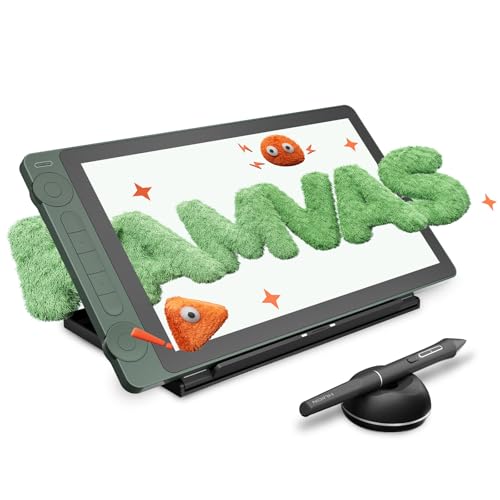
What We Like
- 16K pressure sensitivity with PenTech 4.0
- Factory-calibrated ΔE<1.5 color accuracy
- Dual dial controllers and 5 silent keys
Trade-offs
- Requires connection to a computer or Android device
- No standalone mode, requires a separate computer or device.
A 13.3-inch screen with 16K pressure sensitivity and factory-calibrated ΔE<1.5 color accuracy means every brushstroke and hue you lay down matches what you intended, right from the start. The 2g initial activation force captures the lightest touch, so delicate lines and bold strokes respond naturally. That makes this a strong fit for sketchers and illustrators who need precise line control and true-to-life color without extra setup time.
The trade-off is weight: at 5.5 pounds, this tablet is heavier than some models like the XPPen Artist 12 3rd (2.5 pounds), so it’s better suited for a dedicated desk setup than for frequent travel. You also need a computer or Android device to power it, as it is not a standalone product. But if your priority is a display tablet with accurate color and responsive pen feel at a desk, this Huion offers those features.
Product photos
XPPen Artist 12 3rd Drawing Tablet
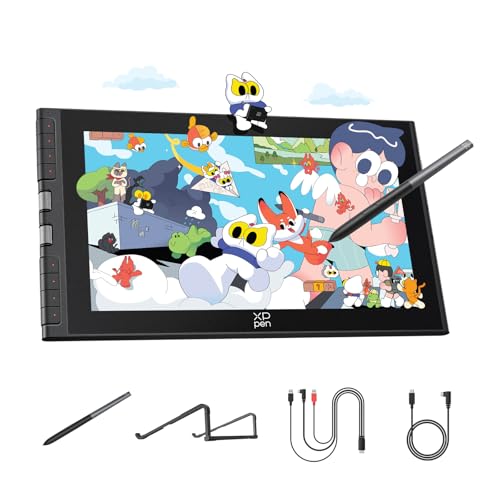
What We Like
- Dual X-Dial wheels for brush/zoom
- Magnetic X4 pen with 16K precision
- Foldable stand included for ergonomic angle
Trade-offs
- 11.9-inch screen smaller than 13.3-inch models
- Requires computer connection for use
At just 1.58 pounds with an 11.9-inch screen, this pen display is light enough to toss in a bag alongside a laptop and sketch at a café table without feeling weighed down. The 33% narrower bezels maximize the active area within the compact frame, so you get more canvas per square inch of desk space. Eight customizable keys sit within easy reach, reducing the chance of accidental presses while you work. Dual X-Dial wheels let you adjust brush size and canvas zoom instantly, which reviewers say cuts operation time by about 40% during fast-paced digital painting sessions.
The trade-off for that featherlight portability is a smaller drawing area than the HUION KAMVAS 13 Gen 3 SE, which offers 13.3 inches but weighs over three times as much at 5.5 pounds.
Wacom MovinkPad 11 Android Tablet

What We Like
- Battery-free Pro Pen 3 with 8,192 levels
- Anti-glare matte etched glass screen
- Lightweight 1.3 lbs, truly portable
- Quick Draw launches sketch app instantly
Trade-offs
- 11.45" screen smaller than many laptop tablets
- Only 8 GB RAM for multitasking heavy apps
The Wacom MovinkPad 11 pairs a battery-free Pro Pen 3 with 8,192 pressure levels and an anti-glare matte etched glass screen that feels like paper under the nib, reducing glare and fingerprints so you can focus on your work. Weighing just 1.3 pounds, it slips into a bag as easily as a sketchbook, and the Quick Draw feature lets you tap the pen to launch Wacom Canvas and start sketching the moment an idea hits. For an artist who wants to draw anywhere, on a train, in a café, on the couch, this Android tablet delivers a polished, paper-like drawing experience without needing a computer.
128 GB of storage and 8 GB of RAM mean you can keep a good library of sketches and layered files on the tablet. But if you routinely work with massive projects or want to store hundreds of high-res pieces without offloading, you might find the XPPen Magic Drawing Pad’s 256 GB more accommodating. Still, for someone who values a paper-like drawing feel and a lightweight Android setup that goes anywhere a sketchbook can, this tablet delivers a focused, ready-when-you-are experience.
Product photos
XPPen Magic Drawing Pad Standalone Tablet
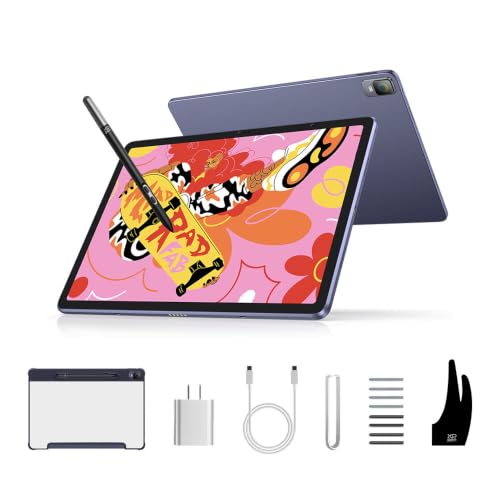
What We Like
- Industry-first 16K pressure sensitivity
- 16K pressure sensitivity with X3 Pro Slim stylus
Trade-offs
- 12.2-inch screen smaller than some desktop models
- Android-only ecosystem limits professional desktop software
- At 1.3 pounds, still heavier than a phone for pocket carry
The XPPen Magic Drawing Pad packs 16,384 levels of pressure sensitivity into a 12.2-inch standalone tablet that needs no computer at all. That pressure resolution is double what many competitors offer, so every featherlight stroke and heavy press translates exactly as you intend. For artists who want to grab a tablet and draw anywhere without booting up a laptop, this is a liberating setup.
At 12.2 inches the screen is smaller than a desktop display like the HUION Kamvas 13 Gen 3 SE, which gives you more room for complex compositions. And because it runs Android rather than full Windows or macOS, you are limited to apps from Google Play rather than the full desktop versions of Photoshop or Clip Studio Paint. But if portability and instant-on freedom matter more than a massive canvas, the Magic Drawing Pad delivers a focused, high-pressure-sensitivity drawing experience that frees you from the desk.
Product photos
HUION Kamvas 13 Gen 3 Drawing Tablet

What We Like
- Factory-calibrated color with ΔE<1.5
- 16384 pressure levels for fine control
- Dual dial and 5 shortcut keys
- Anti-glare Canvas Glass 2.0 screen
Trade-offs
- Requires a computer or laptop to function
- Smaller 13.3-inch screen limits workspace
- USB-C needs DP1.2 Android support
The Kamvas 13 Gen 3 ships with a factory calibration report, so you get consistent color from the start, useful for artists who need prints to match what’s on screen. The fully laminated 13.3-inch screen uses anti-sparkle glass to cut glare, and the 16384 pressure levels with a 2g initial activation force let you make very light strokes. It’s a pen display built for illustrators and designers who want reliable color without extra setup time.
This is a tethered tool, it needs a computer or laptop to work, so it won’t replace a standalone tablet for sketching on the go. But its dual dial and five programmable shortcut keys streamline your workflow once you’re set up. If you already work at a desk and color fidelity is your priority, this display gives you factory-calibrated accuracy in a portable 2-pound package.
Wacom Cintiq 16 Drawing Tablet

What We Like
- 2.5K resolution for sharp detail
- 99% DCI-P3 cinematic color coverage
- Pro Pen 3 with 8192 pressure levels
- Built-in fold-out legs for 20° angle
Trade-offs
- At 4.5 pounds, not ultra-portable for travel
- No adjustable stand included for varied angles
A 2560 x 1600 resolution on a 16-inch IPS display means every brushstroke appears with crisp, fine detail, exactly what you need when sketching delicate linework or shading tiny areas. The Pro Pen 3 responds to the lightest touch with 8192 pressure levels, so a whisper of a stroke translates naturally on screen. With 99% DCI-P3 and full sRGB coverage, your colors match modern digital media standards, making this a strong fit for illustrators and comic artists who rely on accurate hues from concept to final export.
At 4.5 pounds, it’s heavier than the XPPen Artist 12 3rd (2.5 pounds), so it’s less suited for tossing in a bag for coffee-shop sketching. But if your priority is a large, high-resolution canvas with professional-grade pen feel, the Cintiq 16 delivers that focused experience without compromise.
Product photos
Simbans A10 Tablet
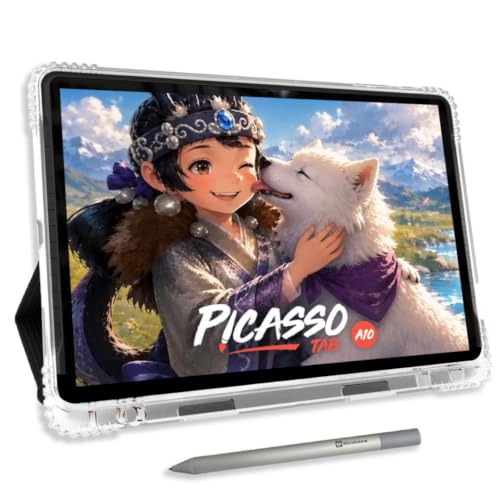
What We Like
- Standalone tablet, no computer needed
- Paper-like laminated screen reduces glare
- 6GB RAM and expandable storage up to 1TB
Trade-offs
- At 3.3 pounds, heavier than most standalone tablets
- Only 4096 pressure levels vs. 16K on some rivals
- Beginner-focused; lacks advanced pen features
The trade-off shows up in the details. At 3.3 pounds, the Simbans A10 is noticeably heavier than the Wacom MovinkPad 11 (1.3 pounds), so it’s less comfortable to hold for long sessions without a desk or lap support. If your priority is an affordable, all-in-one tablet that gets you drawing immediately with guided lessons, this is the sensible pick.
GAOMON PD1161 Drawing Tablet
What We Like
- Battery-free stylus with 8192 pressure levels
- Anti-glare matte film for paper-like feel
- 8 programmable shortcut keys
- Full HD 11.6-inch IPS display
Trade-offs
- Requires connection to a computer to function
- Must be connected to a computer to function
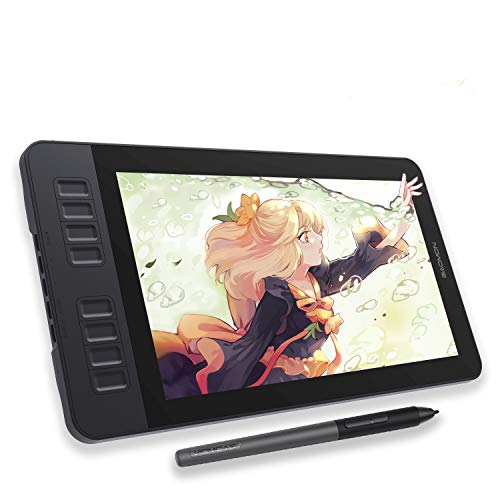
An 11.6-inch full HD IPS screen with a matte anti-glare film means you draw directly on a display that feels like paper, reducing reflections while you work. The battery-free stylus offers 8192 levels of pressure sensitivity and tilt, so you get natural line variation without ever stopping to charge a pen. This is a straightforward, no-fuss pen display built for beginners who want to sketch, paint, or edit images on screen without a steep learning curve or a big investment. The eight programmable shortcut keys help speed up your workflow in apps like Photoshop or Krita, and the lightweight 1.9-pound build makes it easy to shift around your desk.
The main trade-off is that this is not a standalone tablet, it must be tethered to a Windows or Mac computer, so it won’t replace a portable device for sketching on the go. If you are just starting out with digital art and want an affordable, reliable pen display that gets the basics right, the GAOMON PD1161 delivers exactly what you need without extra complexity.
PicassoTab X11 Standalone Drawing Tablet
What We Like
- Fully standalone, no computer needed
- Preloaded with 5 creative apps
- Laminated 2K paper-like display
- Includes lifetime Pro app upgrades
Trade-offs
- Only 4096 pressure levels vs 16K rivals
- Requires separate purchase for advanced creative software.
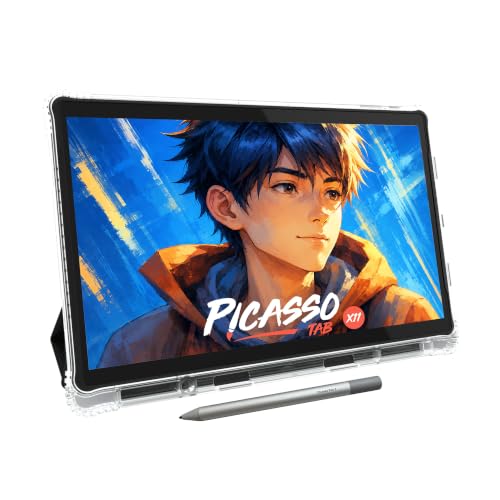
A fully standalone 11-inch tablet with a laminated 2K screen and a 4096-level pressure pen means you can sketch anywhere without lugging a laptop. Preloaded with five creative apps and lifetime Pro upgrades for Concepts and Artixo, it’s designed to get a beginner drawing from the first tap. The octa-core processor and 6GB of RAM keep things snappy for layered illustrations or guided tutorials, and the expandable storage (up to 1TB) gives room to grow. This is a tablet built to remove every barrier between a new artist and their first confident stroke.
The PicassoTab X11’s 4096 pressure levels are still perfectly capable for sketching and learning, but experienced artists may notice the difference compared to the 16,384 levels on the XPPen Magic Drawing Pad. That trade-off comes with the convenience of a standalone tablet that needs no computer, making it a practical choice for beginners and students.
Frunsi RubensTab T11 Pro Drawing Tablet
What We Like
- No computer needed for drawing
- Battery-free pressure-sensitive pen
- Pre-installed drawing apps and tutorials
- 5800mAh battery for portable use
Trade-offs
- 5-hour battery limit for long sessions
- No included charger or battery for power
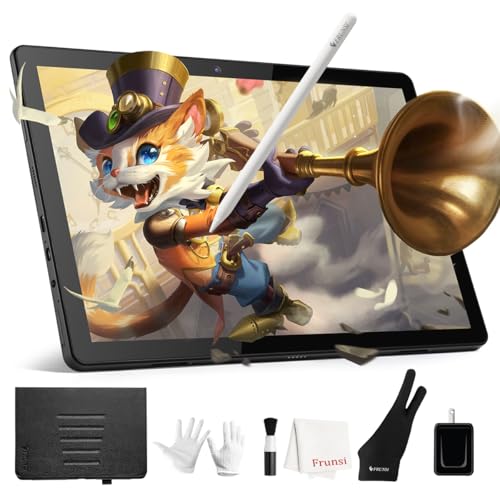
A standalone 10.1-inch FHD screen means you can sketch anywhere without hooking up a laptop or phone. This Frunsi tablet boots straight into pre-installed drawing apps and tutorials, so beginners can start making marks right away. The battery-free pen feels natural in the hand, and the 5800mAh battery gives you about five hours of portable creativity. For someone looking to dip into digital art without a big upfront investment in a computer or a high-end tablet, this is a practical entry point that doesn’t chain you to a desk.
The trade-off shows up in battery life and accessories. Five hours of continuous use is fine for a café session or a classroom, but a full day of sketching means you’ll need a power bank or a wall outlet. If your budget is tight and you want a self-contained drawing tool, this gets you started without breaking the bank.
Product photos
How We Evaluated Tablets For Sketching
Our evaluation draws from manufacturer documentation, expert round-ups from art and tech publications, and common patterns in owner reviews. We focused on the specifications that directly affect the sketching experience rather than general tablet performance.
The four criteria that mattered most were pressure sensitivity levels, color accuracy (Delta E ratings), display size and resolution, and whether the tablet is standalone or requires a computer. For sketchers, pen responsiveness and screen feel often matter more than raw processing power.
A research-led evaluation like this has limits: we cannot replicate the subjective feel of a stylus on glass, and individual preferences for screen texture vary widely. We recommend reading owner feedback on specific models to confirm the pen-on-screen experience matches your expectations.
What To Look For In Tablets For Sketching
Choosing a sketching tablet comes down to matching the technology to your workflow. Here are the key factors to consider before you buy.
Focus on pressure sensitivity, display quality, and whether you need a standalone device. A tablet that requires a computer offers more power for less money, while a standalone model gives you freedom to sketch anywhere.
Pressure Sensitivity Levels
Pressure sensitivity determines how finely the tablet registers changes in pen pressure, from a light whisper to a bold stroke. Entry-level tablets offer 4,096 levels, while premium models reach 8,192 or even 16,384 levels. Higher sensitivity means more natural line variation and better control for shading and detail work. For serious sketching, look for at least 8,192 levels.
Display Quality and Color Accuracy
The screen is your canvas. Look for a laminated display that reduces parallax (the gap between the pen tip and cursor). Color accuracy matters if you plan to share or print your work; a Delta E (ΔE) rating under 2 indicates colors are factory-calibrated to be very close to true. Anti-glare coatings help reduce reflections during long sessions.
Standalone vs. Computer-Connected
This is the biggest workflow decision. Pen displays (like the HUION KAMVAS and Wacom Cintiq) must connect to a computer or Android device and offer more power and larger screens for less money. Standalone tablets (like the Wacom MovinkPad and XPPen Magic Drawing Pad) run their own operating system and let you sketch anywhere without a computer, but often cost more for equivalent specs.
- Decide whether you will sketch primarily at a desk or on the go
- Check that your computer supports the required connection (USB-C with DisplayPort Alt Mode or Thunderbolt)
- Consider screen size: 11 to 13 inches is portable, 16 inches or larger offers more workspace
- Look for shortcut keys or dials that speed up your workflow
- Verify pressure sensitivity matches your skill level and preferred art style
A standalone tablet is worth the extra cost if you sketch in multiple locations or want to leave your computer behind.
Tablets For Sketching Compared
The table below compares the key specs of our top picks, including pressure sensitivity, screen size, and whether each model is standalone or requires a computer.
| Product | Screen Size | Pressure Sensitivity | Weight | Connection/Standalone |
|---|---|---|---|---|
| HUION KAMVAS 13 Gen 3 SE Drawing Tablet | 13.3" | 16K levels | 5.5 pounds | USB-C single cable |
| XPPen Artist 12 3rd Drawing Tablet | 11.9 inches | 16,384 | 1.58 lb | Single USB-C cable |
| Wacom MovinkPad 11 Android Tablet | 11.45" | 8,192 | 1.3 pounds | Android 14 tablet |
| XPPen Magic Drawing Pad Standalone Tablet | 12.2 inches | 16,384 | 1.3 pounds | Android 14 system |
| HUION Kamvas 13 Gen 3 Drawing Tablet | 13.3 inches | 16384 | 2.0 pounds | USB-C single cable |
| Wacom Cintiq 16 Drawing Tablet | 16 inches | 8192 | 4.5 pounds | USB-C cable |
| Simbans A10 Tablet | 10" | 4096 | 3.3 pounds | No computer needed |
| GAOMON PD1161 Drawing Tablet | 11.6 inches | 8192 | 1.9 pounds | not a standalone tablet |
| PicassoTab X11 Standalone Drawing Tablet | 11 inches | 4096 | N/A | No computer needed |
| Frunsi RubensTab T11 Pro Drawing Tablet | 10.1 inches FHD | N/A | N/A | No computer needed |
Frequently Asked Questions
What is the best tablet for sketching without a computer?
The Wacom MovinkPad 11 Android Tablet is our top standalone choice. It runs its own operating system, weighs only 1.3 pounds, and includes a battery-free Pro Pen 3 with 8,192 pressure levels for sketching anywhere.
Do I need a drawing tablet with a screen?
A pen display (a tablet with a screen) lets you see your strokes directly on the canvas, which feels more natural for most sketchers. Tablets without screens are cheaper but require hand-eye coordination to draw while looking at a monitor.
What pressure sensitivity should I look for in a sketching tablet?
For serious sketching, look for at least 8,192 pressure levels. Entry-level tablets with 4,096 levels work for beginners, but higher sensitivity offers better control for shading and fine line variation.
Can I use a regular tablet for digital sketching?
Yes, you can sketch on an iPad or Android tablet with a stylus, but dedicated drawing tablets offer better pressure sensitivity, lower latency, and a paper-like screen texture that makes drawing feel more natural.
What size drawing tablet is best for sketching?
An 11 to 13-inch screen is the sweet spot for most sketchers: it offers enough workspace without being too bulky to carry. Larger 16-inch screens give you more room but are heavier and less portable.
The Bottom Line
For most sketchers, the HUION KAMVAS 13 Gen 3 SE Drawing Tablet delivers the best balance of pen responsiveness and color accuracy at a reasonable investment. Its 16K pressure sensitivity and factory-calibrated display make it ideal for studio use where a computer is nearby.
If you need to sketch on the go, the Wacom MovinkPad 11 is the best standalone option, while the XPPen Artist 12 3rd offers a lighter pen display for travel. Budget-minded beginners will find the Simbans A10 or PicassoTab X11 a solid starting point.
The single most important factor in choosing a sketching tablet is matching the device to where and how you work. A computer-connected pen display gives you the most performance for your money, but a standalone tablet offers the freedom to create anywhere.
