10 Best Tablet Computers For Artists in 2026
This post contains affiliate links. As an Amazon Associate, we earn from qualifying purchases.
For digital artists, the right tablet can make the difference between a frustrating session and a flow state. Our best overall pick is the XPPen Artist Pro 22 Gen 2 Drawing Tablet, which wins for its professional-grade 16K pressure sensitivity and Calman Verified Delta E<1 color accuracy on a large display. We also highlight the Apple iPad Pro 13-inch M5 for its ultra-thin portability and the Samsung Galaxy Tab S11 for its vivid AMOLED screen.
The challenge with choosing a tablet for art is balancing screen quality, pressure sensitivity, and portability against your budget and workflow. Do you need a standalone device for sketching on the go, or a large pen display tethered to a powerful computer for studio work? Each option involves trade-offs.
This guide is research-based, drawing from manufacturer specifications, expert round-ups, and patterns in owner feedback to help you find the right fit. We break down the key criteria for ten different tablets, from professional pen displays to beginner-friendly bundles, so you can choose with confidence.
Top 10 Tablet Computers For Artists in the Market
Certain content that appears on this site comes from Amazon. This content is provided "as is" and is subject to change or removal at any time.
The Best Tablet Computers For Artists, Reviewed
XPPen Artist Pro 22 Gen 2 Drawing Tablet

What We Like
- 16K pressure sensitivity for precise strokes
- Calman Verified Delta E<1 color accuracy
- Included ACK05 wireless shortcut remote
- Paper-feel AG Nano Etched Glass screen
Trade-offs
- At 12.2 lb, it needs a sturdy desk setup
- Requires a computer to function
- No built-in battery for portable use
Delta E<1 means what you see on screen matches your print or final file. This is a fixed studio tool built for artists who work at a desk with a PC or Mac, where color-critical work like photo editing, illustration, or graphic design is the daily routine. The included ACS02 stand lets you tilt the screen from 15 to 88 degrees with one hand. The ACK05 wireless remote puts 40 customizable shortcuts at your fingertips, so you can keep your focus on the drawing.
The trade-off is size and weight: at 12.2 pounds, this is not a device you toss in a bag like the Wacom MovinkPad 11 or the XPPen Magic Drawing Pad. It stays put on your desk, tethered to a computer, which makes it less flexible for sketching on the couch or traveling. But if your priority is a big, color-verified workspace with the highest pressure sensitivity available, then this tablet delivers a focused, professional experience that smaller portable options cannot match. The 16K levels from the X3 Pro stylus, the paper-like etched glass, and 60-degree tilt support make it feel natural for long sessions, and the DC dimming helps reduce eye strain when you lose track of time.
Apple iPad Pro 13-inch M5
What We Like
- Ultra-thin 0.2-inch profile
- Lightweight 1.3-pound design
- M5 chip with Neural Accelerators
- Landscape 12MP Center Stage camera
Trade-offs
- Nano-texture glass only on 1TB/2TB models
- No built-in stylus included
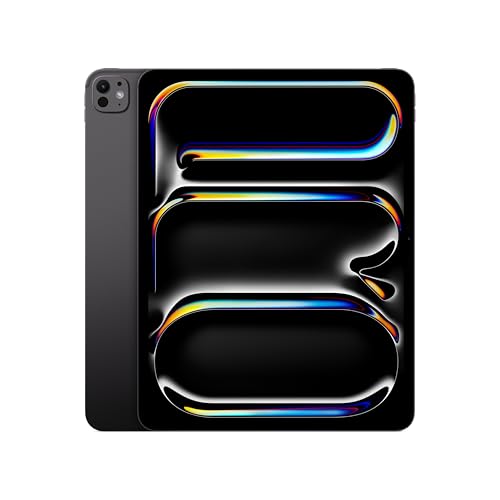
At 0.2 inches thin and 1.3 pounds, the iPad Pro 13-inch M5 is easy to carry for sketching on the couch or at a coffee shop. The 13-inch Ultra Retina XDR display offers extreme brightness and precise contrast for seeing fine details in artwork, while the M5 chip’s Neural Accelerators support AI-assisted tasks for creative workflows. This tablet is designed for artists who want a powerful digital canvas that fits into a bag without weighing them down.
The iPad Pro with the M5 chip delivers extraordinary performance for productivity on a 13-inch Ultra Retina XDR display, which means you get extreme brightness and precise contrast for detailed creative work. The 0.2-inch-thick body and 1.3-pound weight make it easy to carry in a bag, and the landscape 12MP front camera with Center Stage keeps you framed during video calls. For drawing, the Apple Pencil Pro and Magic Keyboard are compatible accessories. The tablet itself offers a versatile tool for those who already use iPadOS or need a device that handles both creative tasks and everyday computing.
Samsung Galaxy Tab S11 WiFi Android Tablet
What We Like
- Vivid Dynamic AMOLED 2X display
- S Pen with Drawing Assist
- 12GB RAM for smooth multitasking
- IP68 water and dust protection
Trade-offs
- Smaller screen than 15.6-inch drawing tablets
- Requires Android apps, not iPadOS optimized
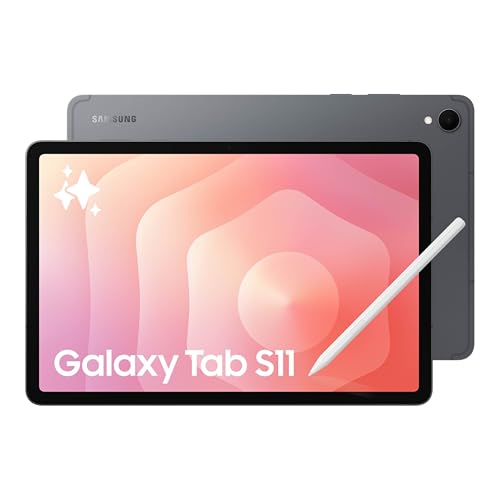
An 11-inch Dynamic AMOLED 2X display with Vision Booster delivers rich colors and crisp text that make long creative sessions easy on the eyes. The included S Pen paired with Drawing Assist turns rough sketches into polished mock-ups, and Note Assist helps organize meeting notes and lecture ideas. With 12GB RAM and a 3nm MediaTek processor, switching between apps stays snappy, so you can jump from a reference image to your canvas without waiting.
At 11 inches, the Tab S11 gives you less real estate for detailed illustration work compared to a dedicated 15.6-inch drawing tablet like the HUION Kamvas Pro 16. If your workflow depends on a larger canvas, a bigger tablet may serve you better. But if you value a vivid AMOLED display, IP68 durability, and the flexibility of expandable storage in a thin, lightweight package, this tablet fits the bill for on-the-go sketching and concept work.
Wacom MovinkPad 11 Android Drawing Tablet

What We Like
- No computer needed, all-in-one design
- Paper-like matte etched glass screen
- 8,192 pressure levels with Pro Pen 3
- Includes CLIP STUDIO PAINT DEBUT for 2 years
Trade-offs
- Android 14 limits some desktop creative apps
- Smaller screen than larger desktop tablets
Weighing just 1.3 pounds, this 11.45-inch Android tablet is light enough to carry in a bag like a sketchbook, and it works without a computer. The matte etched glass screen reduces glare and fingerprints while providing a paper-like texture under the pen. Its Pro Pen 3 delivers 8,192 pressure levels and stores replacement nibs in the back, so you can draw with precision on the go. The tablet comes with Wacom Canvas, two years of CLIP STUDIO PAINT DEBUT, and trials of Ibis Paint, Magma Blaze, and Artwod training.
Product photos
XPPen Magic Drawing Pad 12.2 Standalone Tablet
What We Like
- TÜV Rheinland eye-care certification
- Paper-like AG-etched screen
- 8000 mAh battery for 13-hour sessions
Trade-offs
- Android 14 limits pro desktop software access
- 12.2-inch screen is smaller than desktop tablets
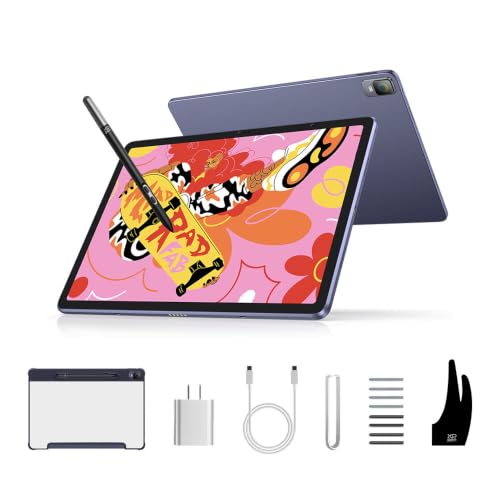
A TÜV Rheinland certified screen with ten-step soft light treatment means you can draw for hours without the eye fatigue that often comes with long studio sessions. The 16K pressure stylus delivers precise and smooth lines, and the paper-like AG-etched surface gives a natural drag that feels familiar under the hand. For artists who work through tight deadlines or late-night sketching, this standalone tablet puts eye comfort first without sacrificing precision.
The trade-off is the Android 14 operating system, which means you are working within the mobile app ecosystem rather than full desktop software like Photoshop or Clip Studio Paint on a PC. If you need the power of a laptop-connected drawing tablet, the XPPen Artist Pro 22 Gen 2 offers a larger 22-inch display and Calman-verified color accuracy, but it is heavier and less portable. For an artist who values long, comfortable sessions on the go, the Magic Drawing Pad delivers where it counts.
Product photos
Wacom Cintiq 16 Drawing Tablet

What We Like
- Cinematic 99% DCI-P3 color coverage
- Pro Pen 3 with 8192 pressure levels
- Built-in fold-out legs for 20° angle
- Sharp 2.5K WQXGA resolution
Trade-offs
- Requires a computer with DP Alt Mode or Thunderbolt
- No adjustable stand included for ergonomic tilt
The Pro Pen 3 responds to your lightest touch with 8192 pressure levels, so delicate ink washes or fine pencil hatch marks come through without fighting the hardware. At 4.5 pounds with built-in fold-out legs, it sits steady on a desk at a 20-degree working angle, ready for long sketching sessions.
The catch is that this is a pen display, not a standalone tablet, you’ll need a Windows or Mac computer with a USB-C port that supports DisplayPort Alt Mode or Thunderbolt 3 or 4. If your laptop lacks that, you’re looking at extra cables.
Product photos
HUION Kamvas Pro 16 Drawing Tablet
What We Like
- 120% sRGB color gamut for vivid hues
- Fully laminated anti-glare glass reduces reflections
- Adjustable stand from 20 to 60 degrees
- Battery-free pen with tilt and side buttons
Trade-offs
- Requires a separate computer or laptop to function
- At 3.0 pounds, less portable than standalone tablets
- No built-in battery; must stay plugged in
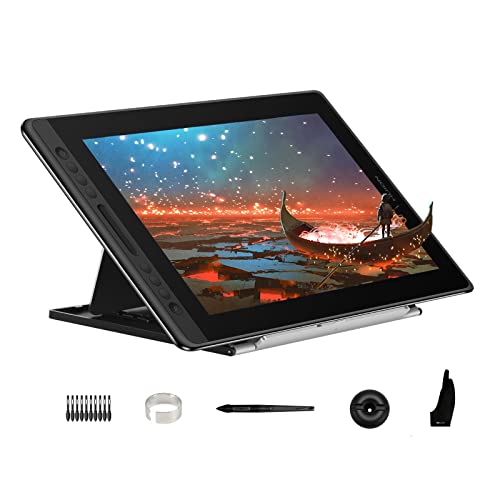
The 120% sRGB color gamut (92% AdobeRGB) gives this display a wide color volume, so digital paintings can look vivid. The fully laminated anti-glare glass reduces reflections, and the surface has a smooth but slight texture for drawing. For artists who need a wide color gamut and a comfortable drawing surface at a desk, this is a capable option.
The biggest catch is that this is a pen display, not a standalone tablet, it must be tethered to a computer to function, so you cannot use it away from a desk. At 3.0 pounds with its adjustable stand, it is heavier than the iPad Pro 13-inch M5, which weighs 1.3 pounds and works on its own. Reviewers note that if you already own a laptop or desktop and want a dedicated drawing surface with a 120% sRGB color gamut, this fits naturally into that setup. For artists who need to draw on the go or prefer an all-in-one device, a standalone option like the Samsung Galaxy Tab S11 would be more convenient.
Product photos
Simbans A10 Tablet Computers
What We Like
- Standalone, no computer needed
- Lifetime VIP tutorials included
- Paper-like laminated screen reduces glare
- Expandable storage up to 1TB
Trade-offs
- At 3.3 lb, heavier than portable rivals
- Only 4096 pen pressure levels
- 10" screen smaller than pro-level tablets
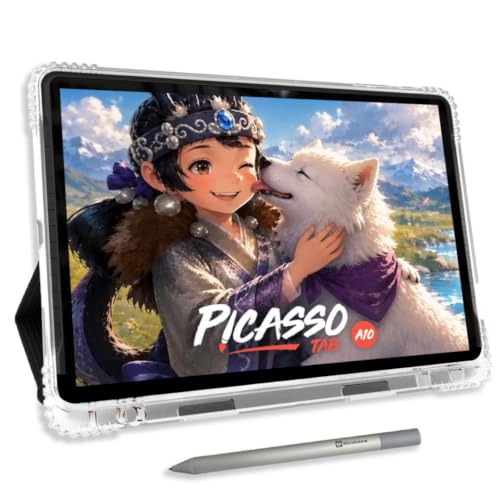
A 10-inch laminated paper-like screen with a 4096-level active pen means you get a natural drawing feel right out of the box, without needing to connect a computer. This tablet is built for someone picking up digital art for the first time: it comes preloaded with five creative apps, lifetime VIP tutorials, and six bonus accessories including a case and drawing glove. The octa-core processor and 6GB of RAM keep drawing apps running smoothly, and expandable storage up to 1TB gives room to grow.
The trade-off for that beginner-friendly package is a 3.3-pound weight that feels noticeably heavier than the 1.3-pound Wacom MovinkPad 11, so it’s less comfortable for long handheld sketching sessions. And while 4096 pressure levels are perfectly adequate for learning basic strokes and shading, artists who need finer control for professional illustration may find the XPPen Magic Drawing Pad’s 16384 levels more responsive. For someone taking their first steps into digital drawing, this is a complete, ready-to-go kit that removes the usual setup headaches.
PicassoTab X11 Standalone Drawing Tablet
What We Like
- Laminated 2K paper-like screen reduces glare
- Preloaded with 5 apps and lifetime tutorials
- 6 bonus accessories and app upgrades included
- Octa-core processor with expandable storage
Trade-offs
- At 11 inches, smaller than desktop display tablets
- No stylus tilt or higher pressure levels offered
- Screen resolution lower than 2.5K or 4K rivals
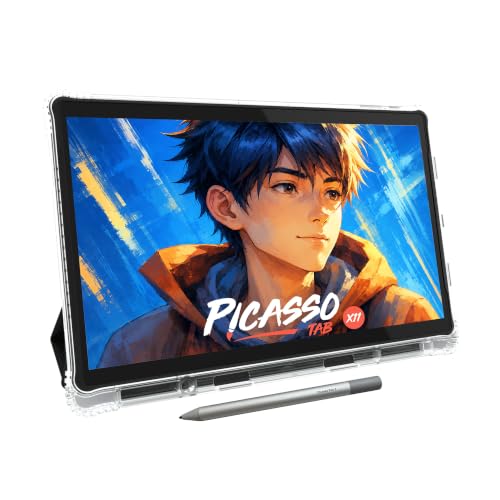
The 11-inch laminated 2K display on this standalone tablet cuts glare and parallax, giving you a smooth paper-like surface for sketching and shading right out of the box. That matters when you’re learning to control pressure and line weight, because the screen responds naturally under your hand instead of fighting you with reflections or a floating gap. With five creative apps preloaded, lifetime tutorial access through Artixo, and six bonus items including a case and drawing glove, it’s built for someone who wants to start drawing immediately without hunting for software or accessories.
The fully laminated 11-inch 2K screen reduces glare and parallax, so you get a smooth, paper-like drawing feel that helps beginners focus on their strokes instead of fighting reflections. With 4096 pressure levels, the stylus is sensitive enough for shading and sketching, though artists who need higher pressure resolution might look at the XPPen Magic Drawing Pad 12.2 with 16384 levels. For someone just starting out, the included lifetime Pro upgrade for Concepts and lifetime VIP upgrade for Artixo tutorials remove the guesswork of finding good apps and lessons.
HUION Kamvas 13 Gen 3 Drawing Tablet

What We Like
- Factory-calibrated ΔE<1.5 color accuracy
- 99% sRGB coverage for vivid color
- Anti-glare Canvas Glass 2.0 reduces reflections
- Dual dial and 5 shortcut keys
Trade-offs
- Requires a separate computer to function
- 2.0 pounds is heavier than standalone tablets
A factory-calibrated ΔE<1.5 and 99% sRGB coverage mean the colors on this 13.3-inch screen match what you intended, stroke for stroke. The fully laminated Canvas Glass 2.0 cuts glare, so you can work near a window without fighting reflections. For artists who need reliable color for digital painting or illustration, this pen display delivers professional-grade accuracy out of the box, no tweaking required.
If you need a monitor that shows colors accurately right away, the Kamvas 13 Gen 3 arrives with a factory calibration report and an average Delta E under 1.5, so you can trust what you see on screen without spending hours tweaking settings. The trade-off is that this is not a standalone tablet. It must be tethered to a computer, unlike a tablet that runs apps on its own. At 2.0 pounds, it is also heavier than a device you might hold in one hand, but for studio work where color fidelity matters more than portability, the calibrated screen gives you precision that many all-in-one tablets cannot match without extra equipment.
Product photos
How We Evaluated Tablet Computers For Artists
Our evaluation focused on the features that matter most to digital artists: screen quality, pen performance, and workflow flexibility. We examined manufacturer data on color accuracy (Delta E ratings and color gamut coverage), pressure sensitivity levels, and screen technology like lamination and anti-glare coatings. We also looked at processing power and RAM for standalone tablets.
The criteria we prioritized were color accuracy and gamut, as these directly affect an artist’s ability to match colors on screen to final output. Pressure sensitivity and pen responsiveness came next, followed by the practical considerations of portability, weight, and whether the tablet requires a computer. We considered the included software and accessories, especially for beginners.
An evaluation based on research has limits: we rely on reported specifications and the consensus of owner feedback. This means we can tell you what a tablet is built to do, but not exactly how it feels in every scenario. We recommend reading recent owner reviews for the latest user experiences.
What To Look For In Tablet Computers For Artists
Choosing an artist tablet comes down to understanding your own workflow. The most important factors are the screen’s color performance, the pen’s sensitivity and feel, and whether you need a standalone device or one that connects to a computer.
Look for a tablet with a high color gamut (like 99% sRGB or DCI-P3) and a low Delta E (under 2) for accurate color. Prioritize a pen with at least 8,192 levels of pressure sensitivity for natural strokes. Decide between a standalone tablet for portability or a pen display that requires a computer for maximum power.
Screen Quality and Color Accuracy
The screen is your canvas, and its quality determines how accurately you can work. A high color gamut, measured in sRGB or DCI-P3, ensures your digital colors will translate well to print or other screens. Look for a Delta E (ΔE) value of less than 2, which indicates that the colors you see are nearly identical to the intended output. Anti-glare, paper-like screens reduce distracting reflections and provide a more natural drawing feel.
Pen Pressure Sensitivity and Responsiveness
Pressure sensitivity is what allows you to vary line weight and opacity with the force of your stroke. Higher levels, like 8,192 or 16,384, offer finer control for delicate shading and bold lines. A battery-free pen is generally preferred, as it is lighter and requires no charging. Features like tilt recognition and programmable side buttons can also speed up your workflow.
Standalone vs. Computer-Required Tablets
This is the biggest workflow decision. A standalone tablet, like the Apple iPad Pro or Samsung Galaxy Tab S11, runs its own operating system and apps. That lets you draw anywhere without a computer. A pen display, like the XPPen Artist Pro 22 Gen 2 or Wacom Cintiq 16, must be connected to a computer (PC or Mac) to function. But it offers a larger, more powerful canvas for demanding software.
- Check that your computer’s ports are compatible (USB-C, HDMI, DisplayPort, or Thunderbolt) if you choose a pen display.
- For standalone tablets, confirm that your preferred drawing apps (like Procreate, Clip Studio Paint, or Adobe Fresco) are available on the operating system.
- Consider the weight and footprint: a 12-pound desktop display needs a sturdy desk, while a 1.3-pound tablet is easy to carry.
- Look at battery life for standalone models; a long-lasting battery (like 13 hours) supports full-day sessions.
A good rule of thumb: if you work primarily at a desk with a powerful computer, invest in a large pen display. If you sketch on the go or in different locations, choose a lightweight standalone tablet.
Tablet Computers For Artists Compared
The table below compares the key specifications of our top picks to help you see the differences in screen size, pressure sensitivity, and whether they require a computer at a glance.
| Product | Display Size | Pressure Levels | Weight |
|---|---|---|---|
| XPPen Artist Pro 22 Gen 2 Drawing Tablet | 21.5 inches | 16K | 12.2 pounds |
| Apple iPad Pro 13-inch M5 | 13-inch | N/A | 1.3 pounds |
| Samsung Galaxy Tab S11 WiFi Android Tablet | 11" | N/A | 1.1 pounds |
| Wacom MovinkPad 11 Android Drawing Tablet | 11.45 inches | 8,192 | 1.3 pounds |
| XPPen Magic Drawing Pad 12.2 Standalone Tablet | 12.2 inches | 16K | 1.3 pounds |
| Wacom Cintiq 16 Drawing Tablet | 16" | 8192 | 4.5 pounds |
| HUION Kamvas Pro 16 Drawing Tablet | 15.6 inches | N/A | 3.0 pounds |
| Simbans A10 Tablet Computers | 10" | 4096 | 3.3 pounds |
| PicassoTab X11 Standalone Drawing Tablet | 11" | 4096 | N/A |
| HUION Kamvas 13 Gen 3 Drawing Tablet | 13.3 inches | 16384 | 2.0 pounds |
Frequently Asked Questions
What is the difference between a drawing tablet and a pen display?
A drawing tablet (or pen tablet) has a flat, non-display surface where you draw while looking at a separate computer monitor. A pen display (or monitor tablet) has an integrated screen, allowing you to draw directly on the image. Pen displays are generally more intuitive but also more expensive.
Do I need a computer for a drawing tablet?
It depends on the model. Many professional pen displays, like the Wacom Cintiq and XPPen Artist Pro series, require a connection to a computer to function as a second monitor. Standalone tablets, such as the Apple iPad Pro or Samsung Galaxy Tab S11, have their own operating system and do not need a computer.
What is pressure sensitivity and why does it matter?
Pressure sensitivity measures how a stylus responds to the force of your touch. A higher level, such as 8,192 or 16,384, allows for more nuanced control over line thickness, opacity, and shading. This is crucial for natural-looking digital art that mimics traditional drawing tools.
How important is color accuracy for digital art?
Color accuracy is vital for artists who want their on-screen work to match prints, web displays, or client specifications. A screen with a high color gamut (like 99% sRGB) and a low Delta E (under 2) ensures colors are true to life, reducing the need for adjustments later.
Which tablet is best for a beginner artist?
A standalone tablet with included tutorials and accessories is often the best starting point. The Simbans A10 is a good choice for beginners with its lifetime VIP tutorials and expandable storage, while the PicassoTab X11 offers a complete bundle with preloaded apps and accessories for a ready-to-draw experience.
The Bottom Line
For the professional artist working from a desk, the XPPen Artist Pro 22 Gen 2 Drawing Tablet offers the best combination of color accuracy, pressure sensitivity, and screen size. Its 16K pressure levels and Calman Verified Delta E<1 display make it a serious tool for illustrators and designers who need precision.
If you need portability and power, the Apple iPad Pro 13-inch M5 is the best ultra-thin option for on-the-go sketching with a vibrant display and a vast creative app ecosystem. For those on a tighter budget or just starting out, the HUION Kamvas Pro 16 provides excellent color gamut value for a desk setup, while the Simbans A10 offers a complete learning bundle for beginners.
The single most important factor in choosing your tablet is matching the device to your workspace and habits. Decide first whether you need a standalone device or one that connects to a computer, and let that guide every other choice.
