10 Best Draw Pads in 2026
This post contains affiliate links. As an Amazon Associate, we earn from qualifying purchases.
The Wacom MovinkPad 11 Android Drawing Tablet is our best overall pick. It is a fully standalone tablet with a paper-like matte etched glass screen and a battery-free Pro Pen 3, so you can sketch on the go without a computer. For artists who need high pressure sensitivity while tethered to a desktop, the XPPen Artist Pro 14 Gen2 is a strong choice. Beginners on a budget should consider the PicassoTab X11 or the Simbans A10 Draw Pad.
Choosing the right draw pad often comes down to a single question: do you want to draw directly on a screen, or do you prefer a pen tablet that you use while looking at a separate monitor? Standalone tablets free you from a computer but often run a limited operating system. Pen displays offer more power but require a laptop or desktop.
This guide is based on a thorough analysis of manufacturer specifications, expert round-ups, and patterns in owner feedback. We break down the key differences between pen displays, pen tablets, and standalone draw pads to help you find the right fit for your workflow and budget.
Top 10 Draw Pads in the Market
Certain content that appears on this site comes from Amazon. This content is provided "as is" and is subject to change or removal at any time.
The Best Draw Pads, Reviewed
Wacom MovinkPad 11 Android Drawing Tablet

What We Like
- No computer needed, all-in-one design
- Paper-like matte etched glass screen
- Battery-free Pro Pen 3 with 8,192 levels
- Weighs just 1.3 lbs for easy portability
Trade-offs
- Android-only ecosystem limits desktop software compatibility
- Android-only, no desktop app compatibility
An 11.45-inch Android tablet that runs entirely on its own, no laptop, no cables, no tethering, makes this a standalone drawing solution in the guide. The battery-free Pro Pen 3 delivers 8,192 pressure levels. The matte etched glass surface gives a paper-like feel that reduces glare and fingerprints. For artists who want to sketch anywhere, from a coffee shop to a park bench, this tablet lets you tap and hold the pen to launch Wacom Canvas and start drawing, similar to opening a sketchbook.
The trade-off is screen real estate. At 11.45 inches, the MovinkPad is smaller than a desktop display like the XPPen Artist Pro 14 Gen2, which offers a 14-inch canvas for those who work at a desk. And because it runs Android 14, it won’t run full versions of Photoshop or other desktop-only software, you’re working within the Android app ecosystem. For someone who values freedom of movement and an all-in-one workflow over a large fixed screen, this is a capable option.
Product photos
XPPen Artist Pro 14 Gen2 Drawing Tablet
What We Like
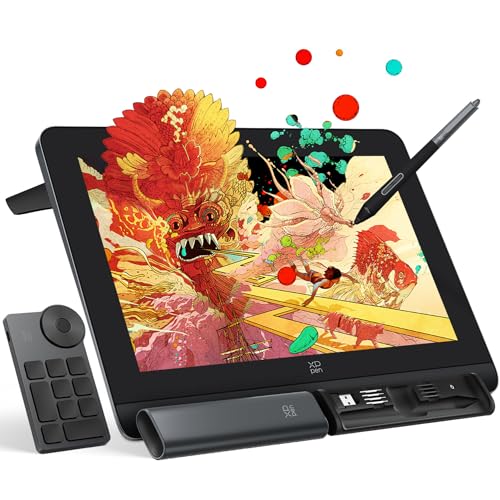
- Full laminated anti-glare screen
- Foldable built-in stand included
- Wireless shortcut remote for quick access
Trade-offs
- Requires a computer to function
- No standalone drawing capability
- Heavier than pen-only tablets
With 16K pressure levels, this pen display registers the faintest brush taper and the heaviest stroke with precision. The full laminated anti-glare screen eliminates parallax, so your cursor sits exactly where the nib touches the glass, and the 123% sRGB color gamut area ratio means the screen covers a wide range of colors. This is a tool for artists who need fine control over line weight and opacity.
This is not a standalone device; it must be connected to a computer or laptop to function, which limits portability compared to a dedicated Android tablet like the Wacom MovinkPad 11. You also get a built-in foldable stand and a wireless shortcut remote, so you can set up a comfortable workstation, but the extra accessories add bulk. If you work at a desk and want high pressure sensitivity, this delivers; if you need to draw on the go without a computer, look at a standalone option.
HUION Kamvas 13 Gen 3 Drawing Tablet

What We Like
- Full lamination with anti-glare glass
Trade-offs
- No standalone mode; needs PC or laptop.
- Dual dials add bulk to the slim design.
This is a pen display, not a standalone tablet, it must be tethered to a computer or laptop. So it won’t replace a portable sketchpad like the Wacom MovinkPad 11. At 2.0 pounds and with a single USB-C cable, it’s still easy to pack alongside a laptop, but you lose the freedom of drawing without a host device. If color-critical work is your priority and you already have a computer, this delivers professional-grade precision at a more accessible size.
Wacom Intuos Pro Medium Bluetooth Tablet

What We Like
- Customizable Pro Pen 3 with adjustable grip
- 10 ExpressKeys and 2 mechanical dials
- Bluetooth wireless for multiple computers
- Magnesium build is slim and sturdy
Trade-offs
- No built-in screen requires monitor or laptop
- No screen means not for standalone use.
The Pro Pen 3 delivers 8192 pressure levels and tilt support, giving you the precision to make every line feel intentional. The pen’s grip can be swapped between slim, straight, or flared shapes, and the balance and button layout are adjustable. Two mechanical dials and ten ExpressKeys sit at the top of the tablet, so you can map shortcuts for brush size, zoom, or layer switching without lifting your hand from the work. This tablet is a natural fit for animators, photo editors, and 3D modelers who work in front of a monitor and need quick, tactile control.
This is a pen tablet without a screen, so you’ll be drawing on the pad while looking at your computer display. That workflow takes some getting used to if you’re coming from a display tablet like the XP-Pen Artist Pro 14 Gen2. For anyone who values customization and a responsive pen over an all-in-one screen, this tablet delivers a focused, professional drawing experience.
Product photos
PicassoTab X11 Standalone Drawing Tablet
What We Like
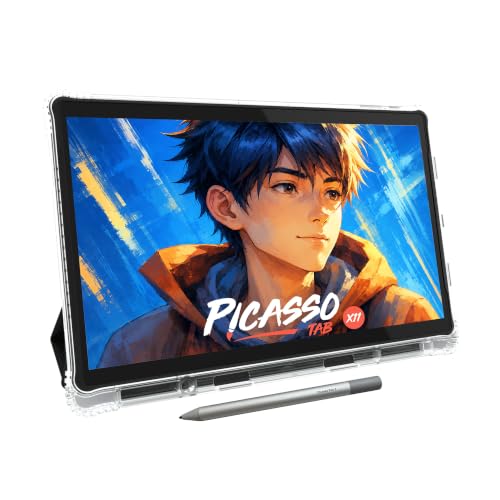
- Fully standalone, no computer needed
- Laminated paper-like 2K display
- Lifetime VIP tutorials for beginners
- Expandable storage up to 1TB
Trade-offs
- No weight listed, so portability cannot be verified
- 4096 pressure levels, lower than some competing pens
A fully standalone tablet that needs no computer means you can draw anywhere, on the couch, in a café, or sprawled on the floor, without hauling a laptop. The laminated 11-inch 2K screen cuts glare and parallax, so your pen tip lands exactly where your eye expects it, and the preloaded apps plus lifetime VIP tutorials guide absolute beginners through each step. With 6GB of RAM and 128GB of storage (expandable to 1TB), this tablet handles sketching, schoolwork, and streaming without bogging down. It is built for someone who wants to start drawing today, not after setting up cables and software.
The PicassoTab X11 Standalone Drawing Tablet is a fully self-contained device that needs no computer, so you can draw anywhere without being tethered to a desk. Its 11-inch laminated 2K screen reduces glare and parallax, giving a paper-like feel that helps beginners focus on their strokes. The 4096-level pressure-sensitive stylus is responsive enough for shading and line weight, and the included case, glove, and screen protector mean you can start creating right away.
XPPen Magic Note Pad Standalone Tablet
What We Like
- 16,384 pressure levels for fine shading
- AG nano-etching creates true paper texture
- Three color modes for notes, sketches, reading
- Battery-free stylus, no charging needed
Trade-offs
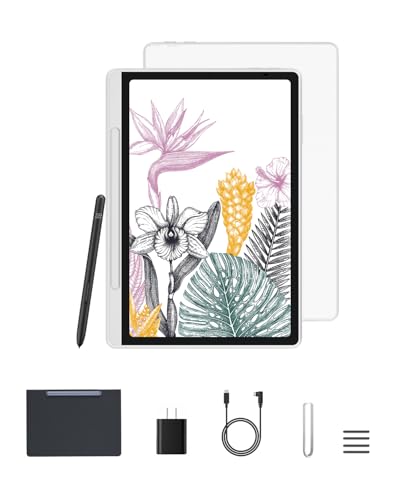
- Battery and charger not included, sold separately
- 495g weight feels light, not sturdy for desk use.
A 10.95-inch X-Paper display with AG nano-etching gives this standalone tablet a paper-like texture and friction for natural pencil strokes. The X3 Pro battery-free stylus offers 16,384 pressure levels, providing precise control for shading, doodling, and light drawing. Three color modes let you switch between natural color for notes, light color for sketching, and black-and-white for reading. That makes this a versatile tool for artists who want one device for both drawing and everyday note-taking.
The XPPen Magic Note Pad Standalone Tablet ships without a battery or charger, so you’ll need to supply your own power adapter. At 495 grams and 7mm thick, it slips easily into a bag, though some users might find the slim build less reassuring than heavier alternatives. The 10.95-inch X-Paper display uses AG nano-etching to deliver a paper-like texture and friction, which reviewers say makes pencil strokes feel natural. This standalone Android 14 tablet is pre-installed with the XPPen Notes app and supports Google Play downloads, but if you prefer a larger screen or want a charger included, you may want to look elsewhere.
Product photos
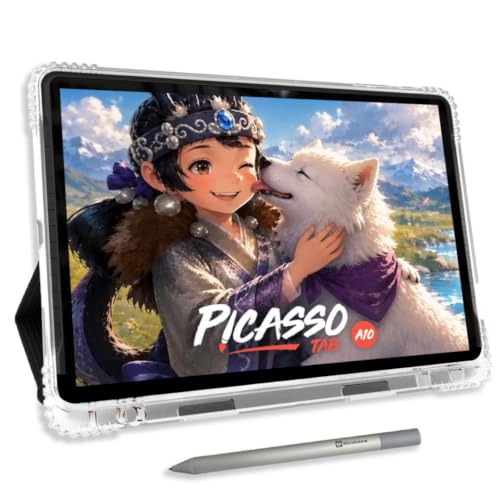
Simbans A10 Draw Pad
What We Like
- Standalone tablet, no computer needed
- Laminated paper-like screen reduces glare
- Lifetime VIP tutorials included for beginners
- 6 bonus items: case, glove, apps, adapter
Trade-offs
- 4096 pressure levels, lower than some competitors
- 3.3 pounds is heavier than many portable tablets
- 64GB base storage fills quickly with apps and files
The fact that everything runs directly on the tablet means you can sketch, paint, and animate anywhere without a laptop or cables. The 10-inch laminated screen cuts glare and parallax, so strokes feel more natural and you don’t have to fight reflections. The 4096-level stylus gives accurate, expressive lines for sketching and illustration. With 6GB of RAM and an octa-core processor, the tablet handles drawing apps, schoolwork, and everyday multitasking without lag. For a beginner, the included lifetime tutorial subscription and six bonus accessories, case, glove, power adapter, screen protector, plus two app upgrades, give you everything to start creating right away.
4096 pressure levels fall short of the 16384 levels found on the XP-Pen Artist Pro 14 Gen2, which matters if you need ultra-fine control for professional illustration. At 3.3 pounds, this tablet is noticeably heavier than the Wacom MovinkPad 11 (1.3 pounds), so it feels less like a pocket sketchbook and more like a small laptop in your bag.
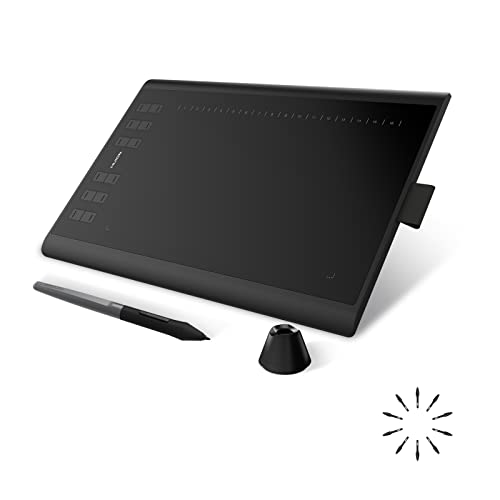
HUION Inspiroy H1060P Graphics Drawing Tablet
What We Like
- 10 x 6.25 inch generous working area
- 8192 pressure levels for fine control
- Battery-free stylus with ±60° tilt
Trade-offs
- No built-in screen for direct drawing
- Not compatible with iPhone or iPad
- Cursor not shown on Samsung Galaxy S series
A 10 x 6.25 inch active area gives you room to sweep your arm across broad strokes and keep reference images or tool palettes open without feeling cramped. That spacious surface, paired with 8192 pressure levels and a battery-free stylus that tilts up to 60 degrees, makes this tablet a natural fit for artists who want expressive line work. You get everything from delicate shading to bold, angled marks, without worrying about charging a pen mid-session.
This is a pen tablet, not a display tablet, so you’ll be looking at your computer or phone screen while you draw on the pad. That takes some getting used to if you’re coming from a screen-based device like the XP-Pen Artist Pro 14 Gen2, which shows your strokes right under the pen tip. Also, the H1060P won’t work with iPhones or iPads, and Samsung Galaxy S series users won’t see a cursor. For artists who already work at a desk with a monitor and want a large, responsive surface loaded with shortcut keys at a reasonable value, this is a straightforward, capable tool.
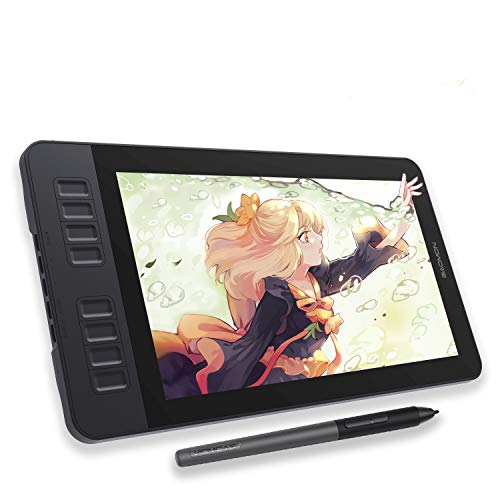
GAOMON PD1161 Pen Display
What We Like
- Anti-glare matte screen reduces reflections
- Battery-free stylus with 8192 pressure levels
- 8 programmable shortcut keys on side
- Works with Mac and Windows
Trade-offs
- Requires connection to a laptop or computer
- 11.6-inch screen is smaller than some models
An 11.6-inch full HD IPS screen with an anti-glare matte film means you can draw directly on the display without fighting reflections or glare, and the surface feels like paper under the pen. The battery-free AP50 stylus delivers 8192 levels of pressure sensitivity and tilt, so you get natural line variation without ever needing to charge a pen. This compact pen display is ideal for beginners or anyone who wants a dedicated screen for digital art without taking up much desk space or spending on a standalone tablet.
This is not a standalone device, you must plug it into a computer running Windows or Mac to work. That limits portability compared to an Android tablet like the Wacom MovinkPad 11 that runs on its own. The 11.6-inch screen is also smaller than many competitors, so if you prefer a larger canvas for sweeping strokes, you might find it a bit cramped. But for a focused, budget-friendly way to see your art appear right under your hand, this GAOMON delivers a clean, responsive drawing experience.
Product photos
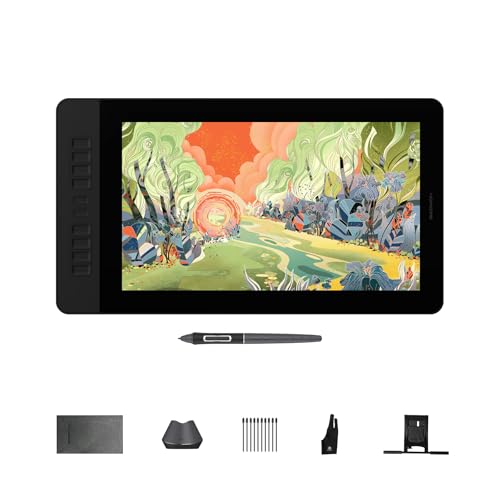
GAOMON PD1561 V2 Pen Display
What We Like
- Zero-parallax full-laminated anti-glare screen
- 16K pressure sensitivity with 3g activation force
- 10 programmable shortcut keys plus 5 OSD keys
- ΔE<1.5 color accuracy for matching output
Trade-offs
- Requires connection to a computer, not standalone
- Full-featured USB-C cable sold separately
- At 3.5 lb, heavier than most portable tablets
A 15.6-inch full-laminated anti-glare screen with zero parallax means your cursor lands exactly where the pen touches, even under bright studio lights or near a window. That paper-like texture and the 16384 pressure levels with a mere 3g activation force let you sketch fine lines or shade 3D models without eye strain or lag.
The ten programmable shortcut keys speed up common tasks like undo, brush resize, zoom, and layer toggling, while the five side OSD buttons let you adjust brightness, contrast, and color mode without diving into menus. A VESA mount (100x100mm) supports an ergonomic arm attachment, which helps reduce neck strain by positioning the screen at eye level. Reviewers note this flexibility makes the setup cleaner and more comfortable for long sessions.
Product photos
How We Evaluated Draw Pads
This guide is based on manufacturer documentation, expert round-ups from art and tech publications, and common themes found in owner reviews. It highlights the most important trade-offs between these draw pads.
We focused on four criteria that matter most for digital artists: display type and quality (laminated vs. Non-laminated, anti-glare coating), pressure sensitivity levels and pen technology (battery-free vs. Rechargeable), standalone capability (does it need a computer?), and the overall form factor for portability and desk use.
A research-led evaluation has limits. We cannot speak to long-term durability, driver stability on every operating system, or the subjective feel of a pen tip on glass. We recommend reading recent owner reviews and, if possible, trying a display in person before committing.
What To Look For In Draw Pads
Choosing a draw pad is about matching the hardware to your art style, workspace, and budget. The most important factors are whether you want a screen, how much pressure sensitivity you need, and if you want to work without a computer.
Key buying criteria for draw pads include display type, pressure sensitivity, standalone capability, and active area size. Prioritize a laminated anti-glare screen for the most natural drawing feel, and a battery-free stylus for uninterrupted work.
Display Type: Pen Display vs. Pen Tablet
A pen display has a built-in screen that lets you draw directly on your artwork, offering the most intuitive experience. A pen tablet has no screen; you draw on a flat surface while looking at a monitor, which takes some practice but often costs less for a larger active area. Standalone tablets combine a screen with a built-in computer, running Android or a similar OS, so no laptop is needed.
For a pen display, look for “full lamination” and an anti-glare or matte finish. Full lamination reduces parallax (the gap between the pen tip and the cursor), making the experience feel more like drawing on paper. Anti-glare coatings cut down on reflections in bright rooms.
Pressure Sensitivity and Pen Technology
Pressure sensitivity is measured in levels, with 4096 being common for entry-level models and 8192 or 16,384 found on professional-grade pens. Higher levels allow for finer control over line weight and opacity, but the difference between 8192 and 16,384 is subtle for most artists.
A battery-free stylus is a major convenience feature. It never needs charging and is lighter than a pen with a battery. Some pens offer tilt recognition (often up to ±60 degrees) for shading with the side of the nib, which is valuable for natural sketching.
Standalone Capability and Connectivity
Decide whether you need a standalone tablet or one that connects to a computer. Standalone models like the Wacom MovinkPad 11 or PicassoTab X11 are perfect for drawing on the couch or commuting. Pen displays and pen tablets require a USB or HDMI connection to a laptop or desktop, which limits mobility but gives you access to full creative software like Photoshop or Clip Studio Paint.
- Check the operating system compatibility (Windows, Mac, Android) before buying.
- For pen displays, confirm that your computer has the required video output (HDMI or USB-C with DisplayPort Alt Mode).
- Consider the cable length and whether a premium USB-C cable is included or sold separately.
- For standalone tablets, verify the storage capacity and whether it can be expanded.
A good rule of thumb: if you draw at a desk with a laptop, a pen display is a natural upgrade. If you sketch on the go, a standalone tablet is the better choice.
Draw Pads Compared
The table below compares the key specifications of each draw pad in our lineup, helping you see at a glance which model fits your needs.
| Product | Screen Size | Pressure Levels | Weight | Connection Type |
|---|---|---|---|---|
| Wacom MovinkPad 11 Android Drawing Tablet | 11.45 inches | 8,192 | 1.3 pounds | No computer needed |
| XPPen Artist Pro 14 Gen2 Drawing Tablet | 14 inch | 16384 | N/A | Requires computer |
| HUION Kamvas 13 Gen 3 Drawing Tablet | 13.3 inches | 16384 | 2.0 pounds | Requires computer |
| Wacom Intuos Pro Medium Bluetooth Tablet | N/A | 8192 | 0.9 pounds | USB or Bluetooth |
| PicassoTab X11 Standalone Drawing Tablet | 11 inches | 4096 | N/A | No computer needed |
| XPPen Magic Note Pad Standalone Tablet | 10.95" | 16,384 | 3.5 pounds | No computer needed |
| Simbans A10 Draw Pad | 10 inches | 4096 | 3.3 pounds | No computer needed |
| HUION Inspiroy H1060P Graphics Drawing Tablet | N/A | 8192 | 1.7 pounds | Requires computer |
| GAOMON PD1161 Pen Display | 11.6 inches | 8192 | 1.9 pounds | Requires computer |
| GAOMON PD1561 V2 Pen Display | 15.6 inches | 16384 | 3.5 pounds | Requires computer |
Frequently Asked Questions
What is the difference between a pen display and a pen tablet?
A pen display has a built-in screen that you draw on directly, while a pen tablet is a flat input surface that requires a separate monitor. Pen displays are more intuitive but cost more for a given size. Pen tablets are often more affordable and offer larger active areas for the price.
Can I use a draw pad without a computer?
Yes, some draw pads are standalone tablets that run an operating system like Android. The Wacom MovinkPad 11 and PicassoTab X11 are two examples. Most other models, especially pen displays, require a connection to a laptop or desktop computer to function.
What pressure sensitivity level do I need for professional art?
Most professional artists find 8192 levels of pressure sensitivity more than sufficient for detailed illustration and shading. Higher levels like 16,384 offer slightly finer control, but the practical difference is minimal for many users. Entry-level 4096 levels are fine for beginners and casual sketching.
Are battery-free styluses better than rechargeable ones?
Battery-free styluses are generally preferred because they are lighter, never need charging, and have no internal battery to degrade over time. They use electromagnetic resonance technology powered by the tablet itself. This makes them more reliable for long drawing sessions.
How important is a laminated screen on a drawing tablet?
A fully laminated screen eliminates the air gap between the glass and the display, which reduces parallax and makes the pen cursor appear directly under the nib. This creates a more natural drawing feel. For professional work, a laminated anti-glare screen is a valuable feature.
The Bottom Line
For most artists, the Wacom MovinkPad 11 Android Drawing Tablet is the best overall draw pad because it combines a portable, standalone design with a paper-like screen and a professional-grade battery-free pen. It is the strongest choice for anyone who wants to draw without being tied to a computer.
If you prefer to work at a desk with full creative software, the XPPen Artist Pro 14 Gen2 offers excellent pressure sensitivity for detailed illustration. The HUION Kamvas 13 Gen 3 delivers factory-calibrated color accuracy. Beginners on a budget will appreciate the all-in-one value of the Simbans A10 Draw Pad, which includes tutorials and accessories.
The single most important factor in choosing a draw pad is knowing whether you need a screen and whether you want to work standalone or tethered to a computer. Answer that question first, and the right model becomes clear.
